An LLM Usage leverages the power of generative AI for advanced features such as rephrasing confusing user utterances, generating training phrase suggestions, and generating handover transcript summaries for your livechat agents.
Each usage contains one or more LLM tasks that control a specific generative AI feature. The task defines which connector (the provider and model) to use, some configuration settings to control how the task operates, and the prompt to send to generate the results.
Your chatbot has basic tasks for generating suggested training phrases and refining chatbot message text. These tasks are already configured out-of-the box: if you want to use them as they are, you don't need to do anything.
If you want to customise your tasks or use advanced tasks such as generating handover transcript summaries, contact inGenious AI support to enable advanced generative AI features in your chatbot.
You need an administrator or publisher role in your team to see usages.
Primary usage
Each type of usage contains different tasks. You can create many usages of the same type, but the chatbot will only use one usage of each type at a time. You control which usage the chatbot uses by designating it as the primary usage for that type.
When you create a usage, it is designated as the primary by default, but you can create a usage without setting it as the primary. You can also manually set a usage as primary.
Chatbot and platform usages
Each usage is categorised as either a:
-
Platform usage, which contains tasks that generate content to help you maintain the chatbot, such as refining your chatbot message copy or generating suggested NLP training phrases.
The content generated by these tasks is never visible to your chatbot users and won't impact their experience. -
Chatbot usage, which contains tasks that generate content to help improve your chatbot experience, such as summarising handover transcripts for your livechat agents or rephrasing user utterances to improve your NLP matching.
The content generated by the task is never visible to your chatbot users, but may indirectly impact their experience.
| Usage | Chatbot or platform | Tasks |
|---|---|---|
| TrueIntent | Chatbot | |
| Handover Transcript Summary | Chatbot | Generate handover transcript summaries |
| Automated Tests | Platform | |
| Insight Reports | Platform | Query transcripts |
| Generate Phrases | Platform | Generate NLP training phrases |
| Refine Copy | Platform | Refine and generate message content |
| Translate Copy | Platform | Translate content and training phrases |
| Generate Test Cases | Platform | Generate regression test cases |
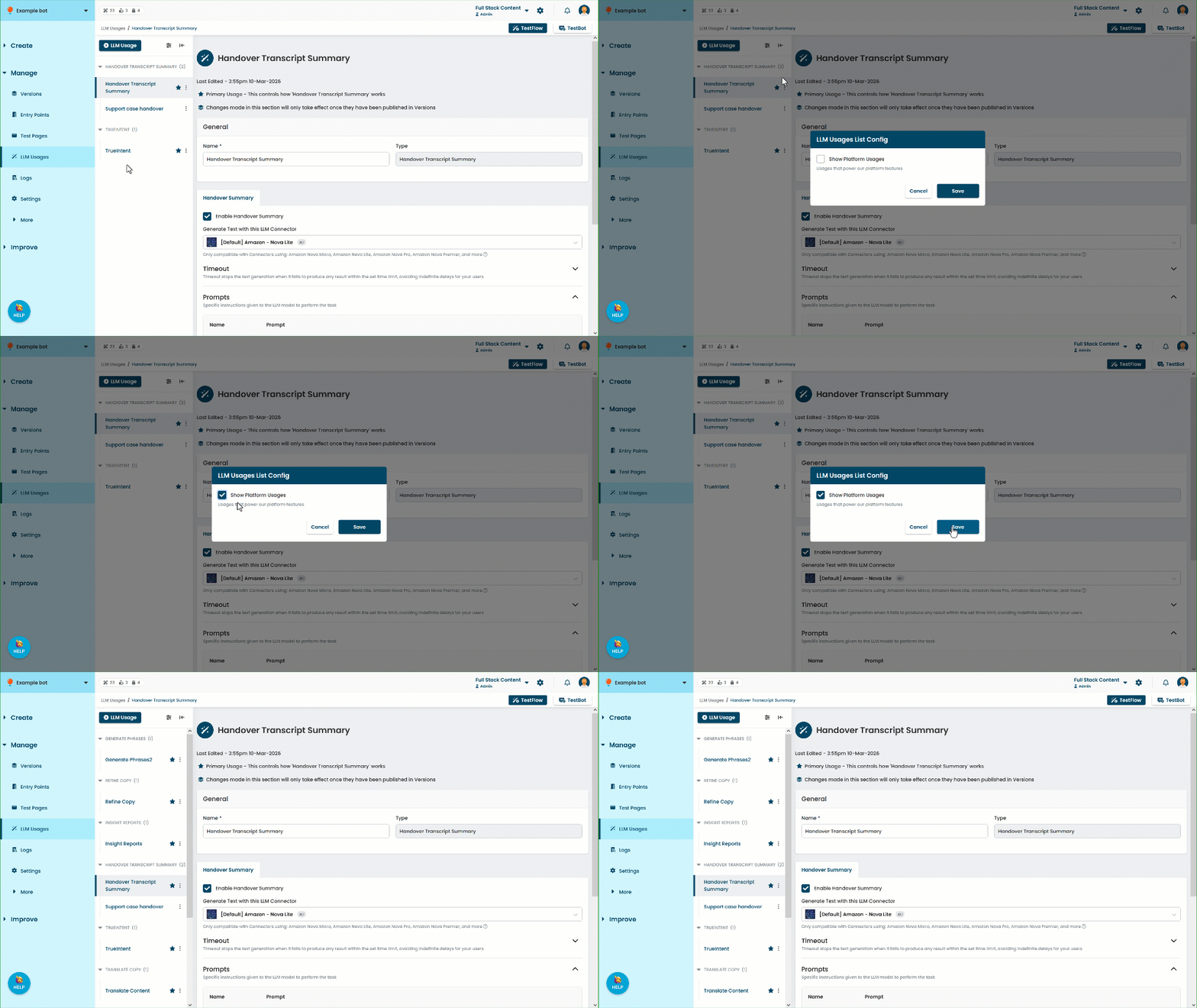
Show platform usages
Most of the time you won't need to edit the tasks from your platform usages once you've created them, so you can hide them to keep things tidy. To hide or show your platform usages:
- Click Manage in the left navigation, then click LLM Usages.
- Click the filter icon next to + LLM Usage and select or clear the Show Platform Usages field.
- Click Save.
Within the categories, usages are grouped by type. Custom sorting groups for usages are not available.