The query transcripts task allows you to ask questions about your chatbot transcripts and get instant insights on your chatbot's performance and its users' experience.
For example, you may filter the transcripts to those which involve a user cancelling a service in the last thirty days and ask for the most common reasons users give for cancelling. The content generated by the task is never visible to your chatbot users. You can customise the prompts used to analyse the transcripts, files, and knowledge base and generate the reports.
The query transcripts task is in the insight reports usage. You need an administrator or publisher role in your team to create a usage.
By default, new usages you create are set as the primary usage (the usage the chatbot will use). You can create a usage without setting it as primary if you need to.
When editing tasks and usages, check the top of the usage page to see if it is the primary usage and whether your changes must be published to take effect. If there is no message indicating your changes must be published, then the changes are applied immediately and will not appear in versions.
You can test your task by opening or creating an insight report in your chatbot and asking questions about the transcripts.
To create usages and configure tasks, you must have:
- Generative AI configurations enabled for your chatbot by inGenious AI support.
- A connector to power the task.
You can see the list of connectors that support the task when you create the usage.
To create an insight reports usage and configure a task to query transcripts:
- Click Manage in the left navigation, then click LLM Usages.
- Click the filter icon next to + LLM Usage and make sure Show Platform Usages is selected.
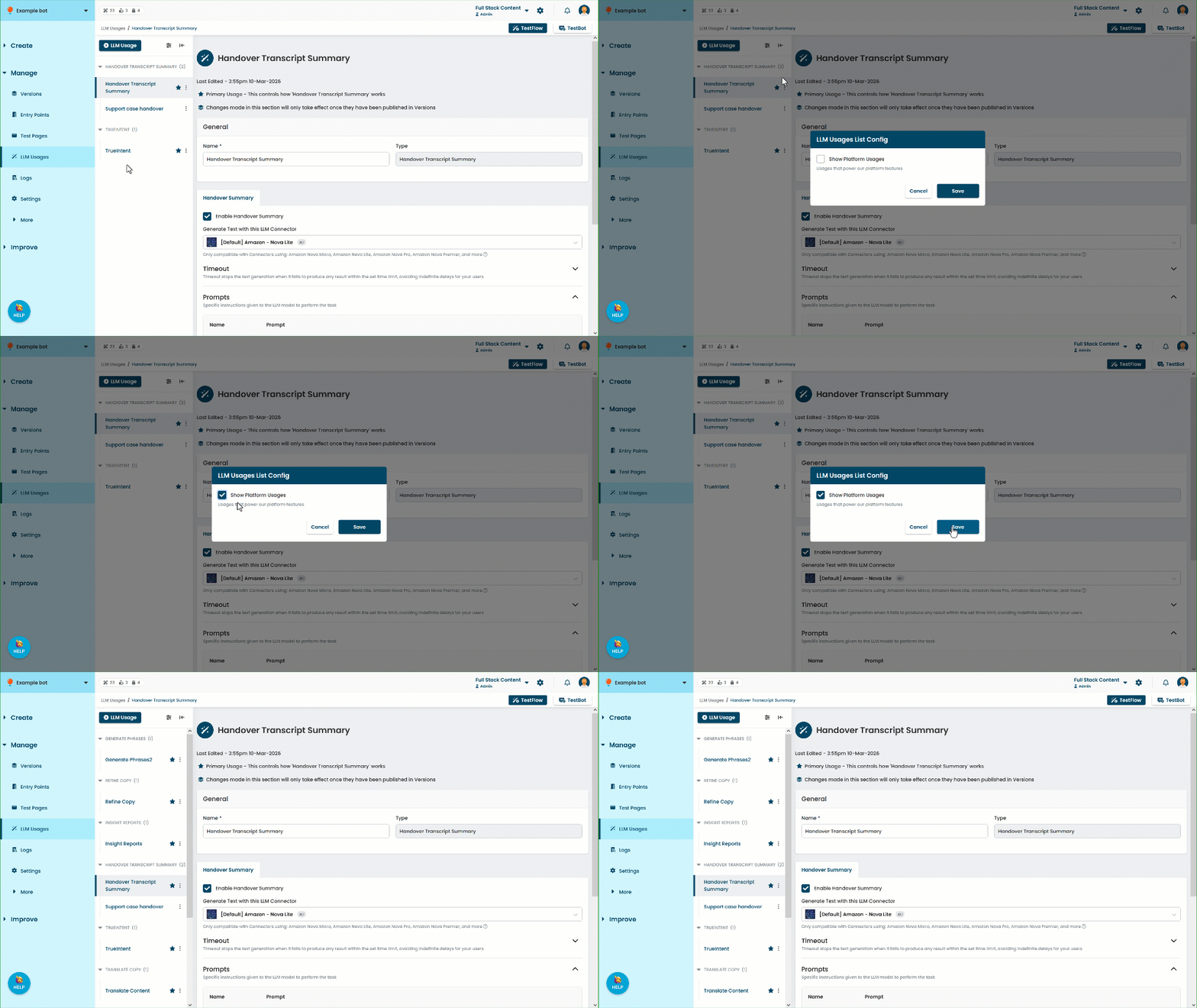
- Click + LLM Usage.
- In the Type field, select Insight Reports.
- Optionally, edit the Name for the usage.
- If you don't want the chatbot to use this task yet, clear the Set As Primary checkbox.
- Select the Connector to use for the task or select Create compatible Connector to create a new connector.
Only compatible connectors will be available.
You must have an administrator role in your team to create connectors. - Click Create.
- By default, the inGenious AI platform waits a maximum of 180 seconds for the model to generate a result. If it doesn't receive a result within that time, it notifies your content creator that the request timed out.
If you want to change this period:- Expand the Timeout section.
- Update the number of seconds the inGenious AI platform will wait.
- Leave the Options configurations at their default settings.
You should only change these settings if instructed to by inGenious AI Support. - Click Save.