The refine copy task helps your chatbot content creators add and improve chatbot message content quickly.
The task can improve existing text in a passage or generate new text based on external content you provide, such as a web page URL. The generated content can be edited or refined again before you save it and must be reviewed and published before it will be visible to your chatbot users. You can customise the prompt used to generate the content and provide an additional prompt when generating from external content to guide how the eternal content should be used.
The refine copy feature is available by default in your chatbot, but you can customise the prompt. You need an administrator or publisher role in your team to edit a task prompt.
When editing tasks and usages, check the top of the usage page to see if it is the primary usage and whether your changes must be published to take effect. If there is no message indicating your changes must be published, then the changes are applied immediately and will not appear in versions.
You can test your usage by opening a passage and refining the bot message content.
To customise how refined copy is generated:
- Click Manage in the left navigation, then click LLM Usages.
- Click the filter icon next to + LLM Usage and make sure Show Platform Usages is selected.
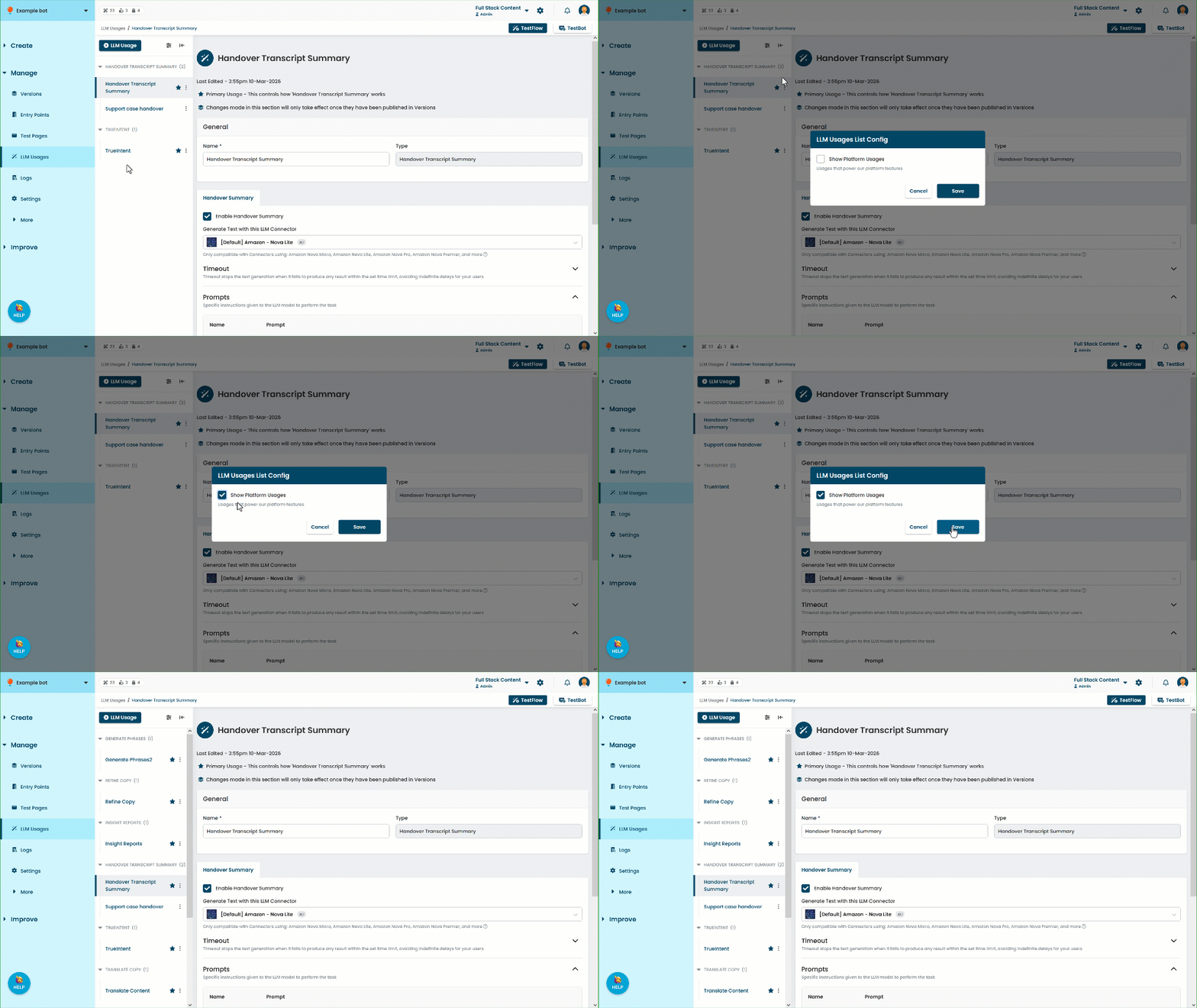
- Click the Refine Copy usage.
This usage is available by default in your chatbot, you don't need to create one. - By default, the inGenious AI platform waits a maximum of 60 seconds for the model to generate a result. If it doesn't receive a result within that time, it notifies your content creator that the request timed out.
If you want to change this period:- Expand the Timeout section.
- Update the number of seconds the inGenious AI platform will wait.
- If you want to edit the default prompt used to generate the content, type any edits into the Prompt area.
Make sure you don't delete the prompt variables: ${language}, ${text}, and ${additionalContent}. - Click Save.