The handover transcript summary task provides your livechat agents with a generated summary of the chatbot user's conversation with the chatbot when they are handed over. The generated summary will not be visible to your chatbot users.
You can customise the prompt used to generate the summaries for any transcript involving a human handover and add more specific customisations as required per passage.
The handover transcript summary task is in the handover transcript summary usage. You need an administrator or publisher role in your team to create a usage.
By default, new usages you create are set as the primary usage (the usage the chatbot will use). You can create a usage without setting it as primary if you need to.
When you create a handover transcript summary usage, the handover transcript summary task is disabled. Disabled tasks won't run in your live chatbot, but you can still configure and test them. When you're ready to use the generated handover summaries in your live chatbot, enable the task and publish the change.
When editing tasks and usages, check the top of the usage page to see if it is the primary usage and whether your changes must be published to take effect. If there is no message indicating your changes must be published, then the changes are applied immediately and will not appear in versions.
You should test your changes thoroughly before you published them to your chatbot. You can test your handover summaries by creating a passage that uses a human handover and testing in the Test Bot. Generated summaries are displayed in your test bot logs as LLM Generated Transcript Summary Sent:, followed by the generated summary.
To create usages and configure tasks, you must have:
- Generative AI configurations enabled for your chatbot by inGenious AI support.
- A connector to power the task.
You can see the list of connectors that support the task when you create the usage.
To create a handover transcript summary usage and configure the task:
- Click Manage in the left navigation, then click LLM Usages.
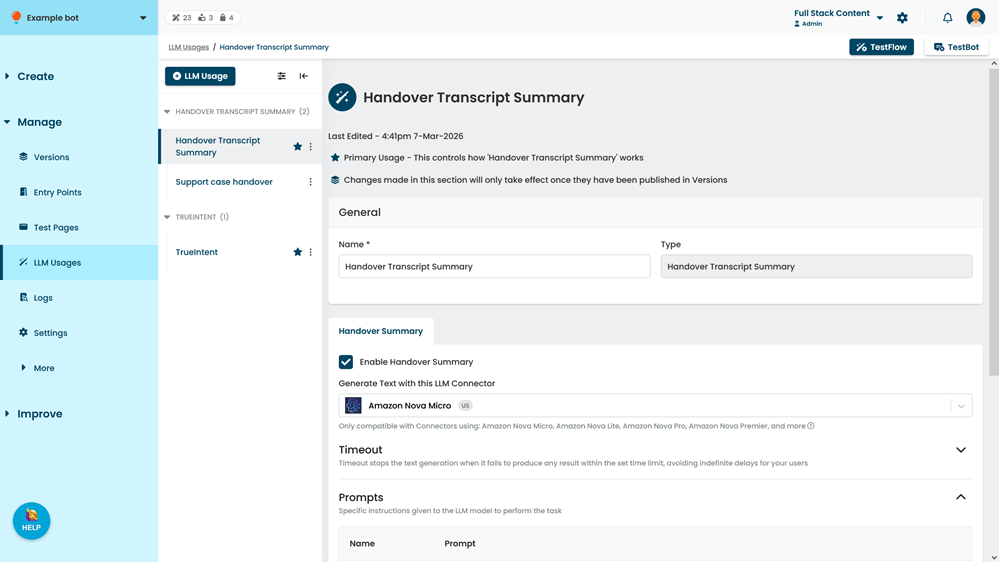
- Click + LLM Usage.
- In the Type field, select Handover Transcript Summary.
- Optionally, edit the Name for the usage.
- If you don't want the chatbot to use this task yet, clear the Set As Primary checkbox.
- Select the Connector to use for the task or select Create compatible Connector to create a new connector.
Only compatible connectors will be available.
You must have an administrator role in your team to create connectors. - Click Create.
- Leave the Enable Handover Summary field unselected for now.
The task is only available to your live chatbot once you have enabled this field and published the change.
You can still configure and test the task in Test Bot without enabling. - By default, the inGenious AI platform waits a maximum of 60 seconds for the model to generate a result. If it doesn't receive a result within that time, it hands the chatbot user over without a generated summary.
If you want to change this period:- Expand the Timeout section.
- Update the number of seconds the inGenious AI platform will wait.
- If you want to edit the default prompt used to generate the summary, type any edits into the Prompt area.
Make sure you don't delete the prompt variables: ${additionalContext} and ${transcript}. - Click Save.
Once you have created your usage, configure a passage with human handover to use generated transcript summaries.
Enable handover transcript summary
The handover transcript summary task is only available to your live chatbot once you've enabled the task and published the change. To enable the task:
- Click Manage in the left navigation, then click LLM Usages.
- Click the primary handover transcript summary usage.
Only the task from the primary usage will be used. - Click Enable Handover Summary.
- Click Save.
You must publish the change for it to take effect.