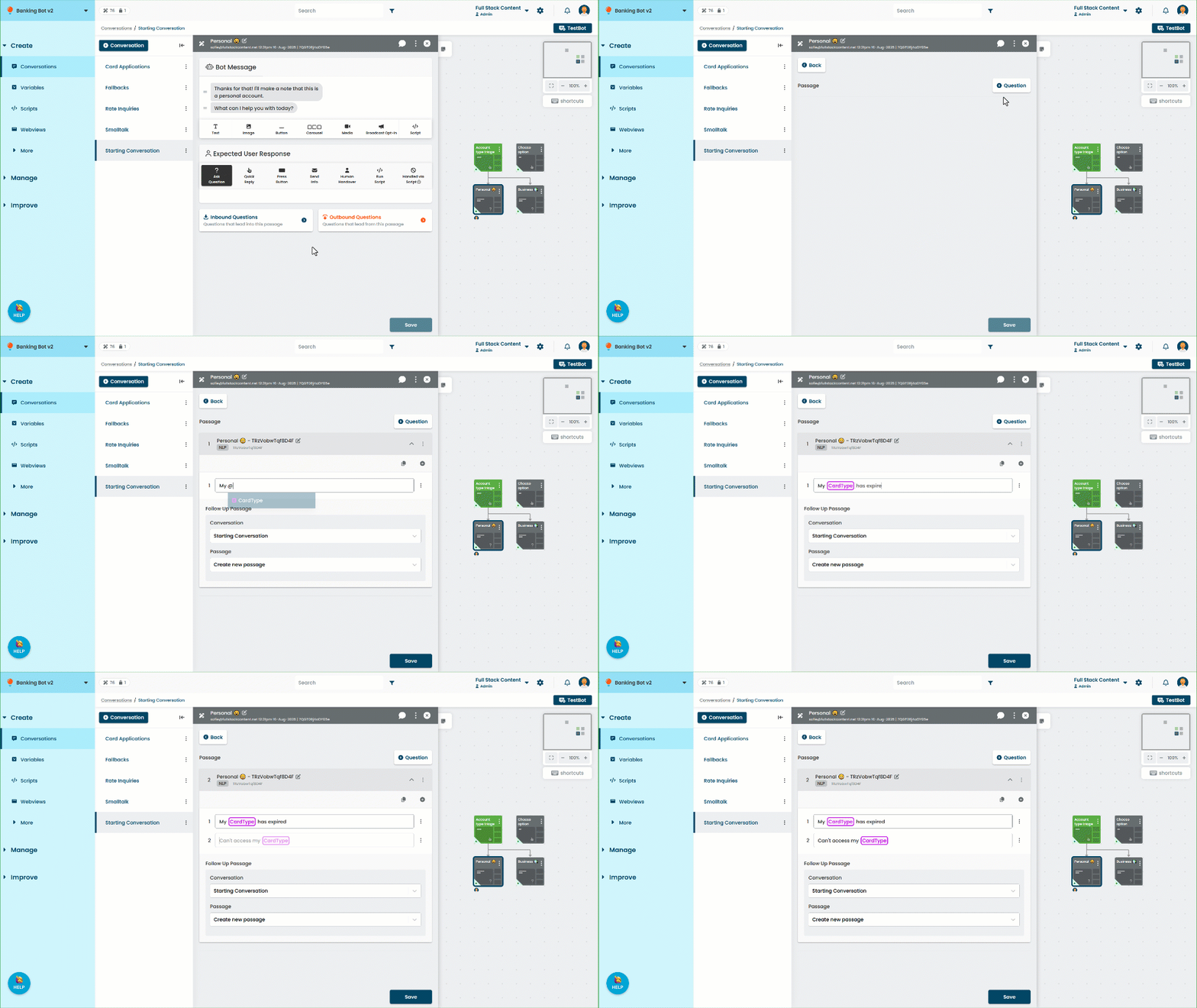
Create an outbound NLP question if you want to match the intent of a chatbot user's question differently if they ask it in response to a specific passage.
When a passage has outbound questions, the chatbot checks those questions first before trying to match inbound questions from other passages. For example, the chatbot has:
- A fee overview passage with an inbound question of 'what are the fees'.
- A sign-up passage for a specific service.
- A passage about the service fees.
If the chatbot user says 'what are the fees' in response to the sign-up passage, they probably mean the fees for the service, not our fees in general. We can use an outbound question to start the service fee passage instead of the fee overview one. This only affects how the chatbot matches that question after that specific passage:
| Passage without outbound question | Passage with outbound question of "what are the fees?" |
|---|---|
|
Chatbot user asks "what are the fees?"
|
Chatbot user asks "what are the fees?"
|
|
Chatbot user asks "how do I apply?"
|
Chatbot user asks "how do I apply?"
|
Use outbound questions sparingly
If the chatbot should usually start this passage when the chatbot user's response matches this intent, create an inbound NLP question. You can use child conversations and question context levels if you need to match the same intent to different passages in different situations.
Most of your questions should be inbound so that your chatbot can freely respond to your chatbot users and adapt as they change topics. Use outbound questions only when you need the chatbot to match a question differently when the chatbot user responds to a specific passage.
If you want to create a question that only matches specific keywords, create a keyword question.
To help your chatbot match questions accurately, try to define as few outbound NLP questions as possible in a passage. If you want to match very different chatbot user responses but start the same passage for all of them, combine the training phrases into a single outbound NLP question.
To create an outbound NLP question:
- Click Create in the left navigation, then click Convesations.
- Click the conversation with the passage you want to add a question to.
- Click the passage you want to add the question to.
Outbound questions can only be added to passages, not logic. - Click Outbound Questions.
- Click + Question.
- Click the edit icon next to the New Question title.
- Type a descriptive name for the question.
- Optionally, select the Language the question's intent phrases will use.
By default, questions are set to your chatbot's default language. If you're creating a question for a different language, select your chosen language.
Language options are only displayed if your chatbot has multiple languages configured. Only languages specified in your NLP settings are available. - Type the intent phrases you want to match in the Training Phrases field.
If you want to use an entity, type @ to open the entity list. Each entity can only be used once within an individual training phrase. You can also click the entity to open it in a new tab for easy editing. - Type Enter or click the + button to add a new phrase.
You can also generate some suggested training phrases. - Select the Conversation of the passage or logic that will answer this question.
- Select the Passage or logic that will answer this question.
A preview of the passage is displayed. You can also open the passage in a new tab. - Click Save.
You must publish these changes before they'll appear in your live chatbot.