Use the NLP settings to define how your chatbot uses Natural Language Processing (NLP) to match NLP questions.
Enabling or disabling chatbot's NLP settings applies immediately to your live chatbot.
Disabling NLP without another matching method enabled (such as LLM Matching) will increase your fallback rate. Ensure this action does not disrupt your business operations.
On the other hand, changes to languages or confidence level are only applied when a chatbot version is published.
You need an administrator role on your team to edit chatbot settings.
To open the NLP settings:
- Click Manage in the left navigation, then click Settings.
- Click NLP.
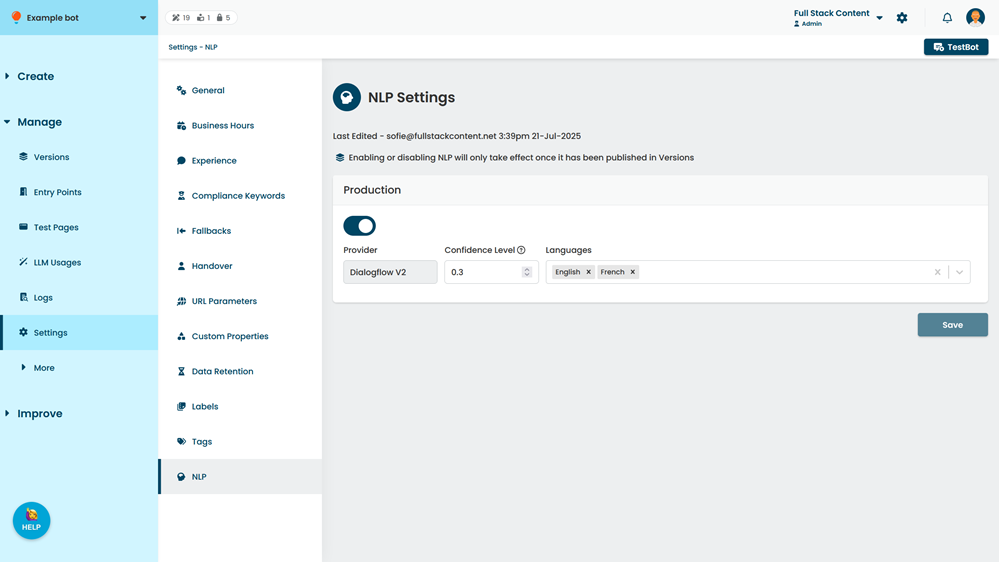
Languages
Add the languages you want to be able to select for NLP questions, generating copy and training phrase translations, and regression tests.
Make sure the correct language is set each time your chatbot users interact with your chatbot. You can either:
- Add the appropriate two-letter (ISO 639-1) language code in the
langattribute of the<html>tag in your web page. For example,<html lang="en">. - Add a script to set the chatbot's language at the entry point passage.
Confidence Level
Select how confident your chatbot needs to be that it has correctly interpreted a question. Requiring a higher confidence level means your chatbot will use fallback responses more often.