Create a regression test to test a set of phrases against your chatbot's global NLP questions. You can specify how many phrases the chatbot must correctly match to pass the test. Once you have created the test, you can run it as many times as you need to test the same phrases again.
You need an administrator or publisher role on your team to create and run regression tests.
Each regression test tests a single language. By default, regression tests are created in English. Options to select a language are only displayed if the chatbot has multiple languages configured.
Your regression test will need test cases: phrases in the same language that you want to test, and the passage they should be matched to. You can:
- Create your regression test from a completed review.
This automatically creates test cases using the utterances and matched phrases from the review.
This option can only be selected when your first create the regression test. - Upload a test file you created or downloaded from another regression test with phrases matched to passages.
- Generate test cases from the content of one or more passages or conversations, or variations of test cases already in your regression test.
- Manually add a test case phrase and select the passage it should match.
To create a regression test:
- Click Improve in the left navigation, then click Regression Tests.
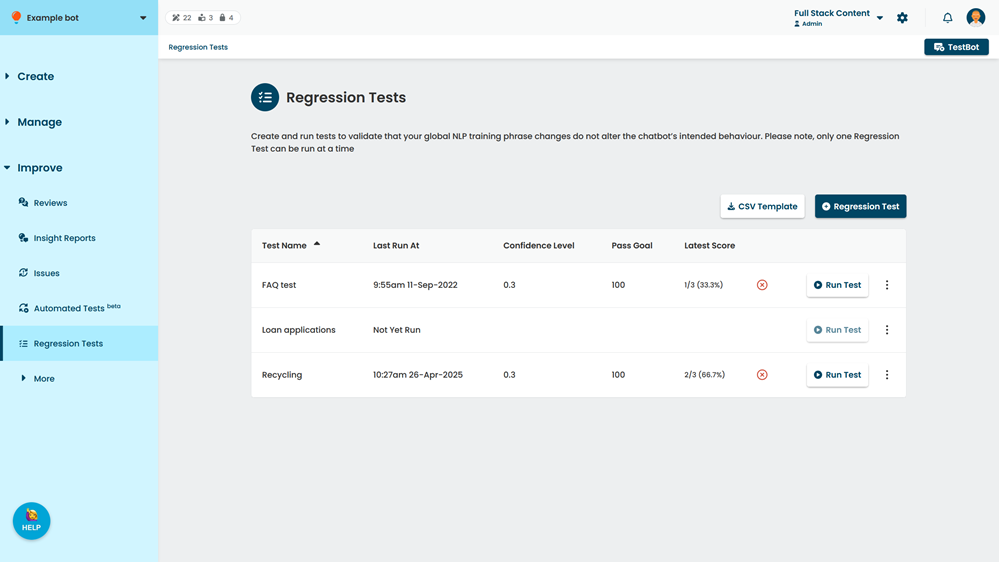
- Click + Regression Test.
- If you want to create a regression test with test cases pre-populated from a review:
- Select From existing source.
- Select Review (Complete).
- Select the review to create the regression test from.
By default, a single regression test with a maximum of 1000 test cases will be created.
If you want to ensure all phrases from the review are tested, unselect Only create a single test.
If your review contained more than 1000 phrases, multiple regression tests will be created.
- Type a descriptive Name for your test.
- Click Create.
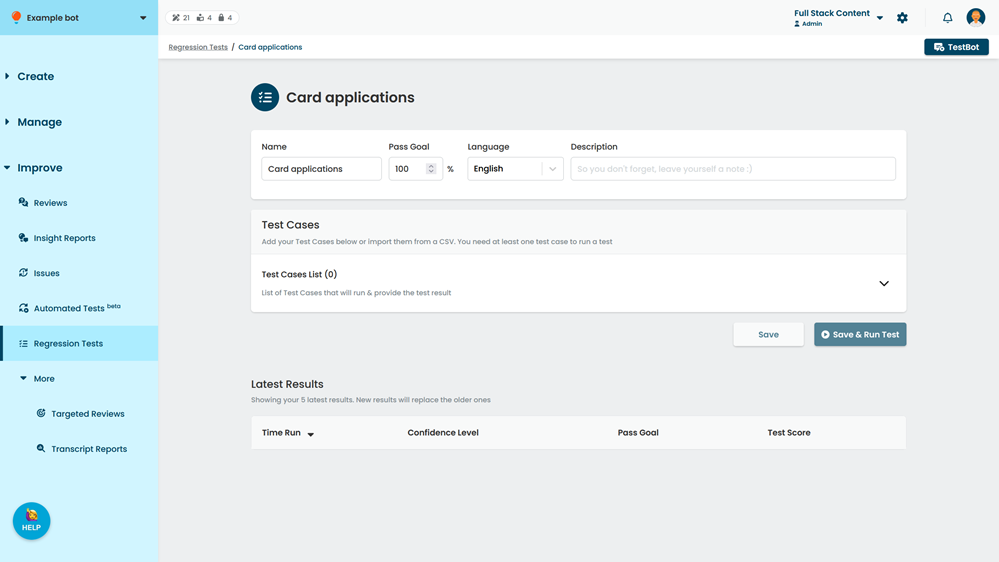
- Adjust the Pass Goal field to the percentage of phrases the chatbot must correctly match to pass the test.
By default, the test will only record a pass if the chatbot correctly matches all the phrases (100%). - If you want to test a language other than the chatbot default, select the Language to test.
This option is only displayed if your chatbot supports multiple languages. Only languages specified in your NLP settings are available. - Type a Description to help you remember what phrases or questions the test is targeting.
- Expand the list of test cases.
If you created this regression test from a source, review and edit your test cases as required. - Add test cases in your selected language:
- Upload a test case file.
Uploading a test file overwrites any existing test cases in the regression test. -
Generate test cases based on chatbot content or variations of existing phrases.
Generating test cases does not overwrite existing test cases. - Click +Test Case to manually add a phrase and select the passage it should match.
- Upload a test case file.
- Click Save.
When you save or run the regression test, the inGenious platform validates your test cases for issues such as passages in your test that have no global NLP questions, or passages that have more than one global NLP question. You must correct the issues before you can save or run the regression test.
If you want to run the regression test immediately, click Save & Run Test.