You can generate test cases for a regression test on a specific passage, conversation, or all passages in your chatbot, or generate variations on a specific test case phrase.
You need an administrator or publisher role on your team to add test cases to a regression test.
Generated test cases won't replace test cases you've already added, and you can review the test case phrases before you add them to your regression test. The generated phrases are never visible to your chatbot users and won't impact their experience.
Test cases are created using a generative AI model connected to your chatbot. You will need a generate test cases task configured with a compatible connector.
Test cases are only generated in English.
Generate test cases from passage content
To generate test cases:
- Click Improve in the left navigation, then click Regression tests.
- Click the regression test you want to generate test cases for.
- Expand the Test Cases section.
- Click the menu next to Expected Content at the top of the list of test cases.
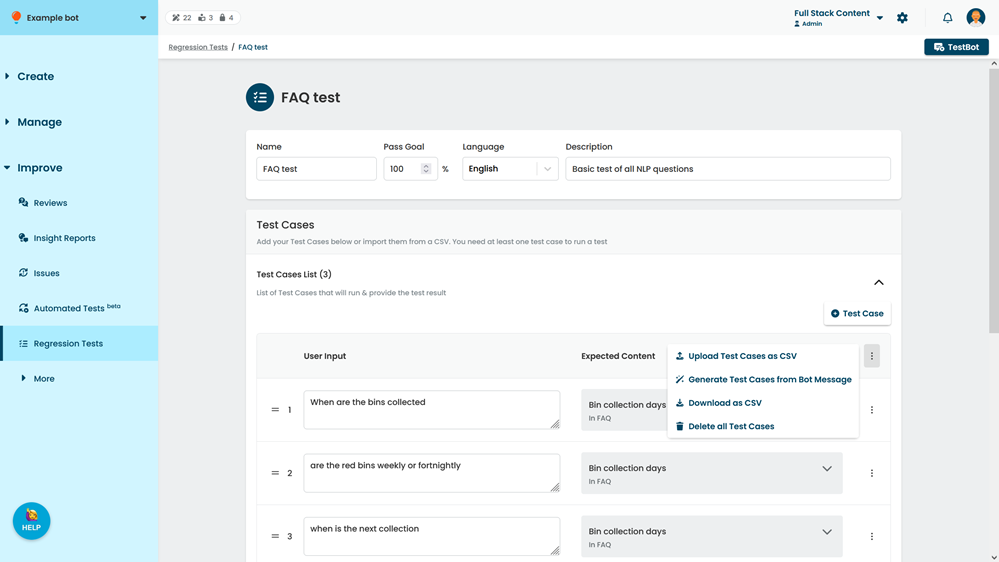
- Click Generate Test Cases from Bot Message.
- If you want to generate test cases for specific passages or conversations in your chatbot:
- Select Only specific Passages.
- Select whether to generate for Conversations or Passages.
- Select the passage or conversation to generate test cases for.
The chatbot can only generate test cases for passages with global-level NLP questions. Passages should have a maximum of one global-level NLP question.
You can click the field again to add more conversations or passages.
To remove a conversation or passage you've added, click the X next to its name.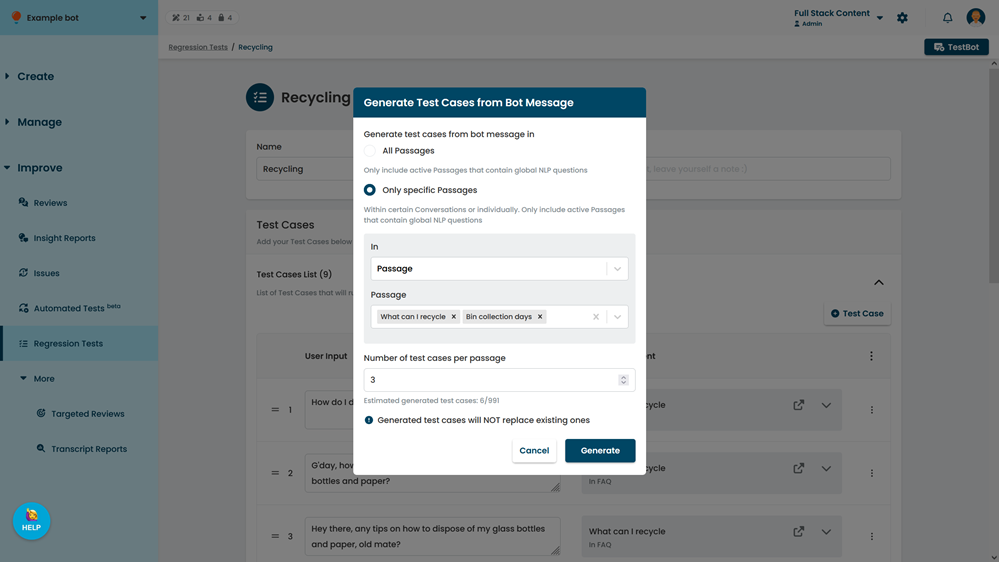
- Adjust the number of test cases you want to generate for each passage, if required.
Regression tests can contain a maximum of 1000 test cases. Use the estimate below this field to confirm you won't generate more test cases than you can add to this regression test. - Click Generate.
If you have selected many passages or conversations or a high number of test cases to generate per passage, generating may take several minutes.
Do not refresh the page while the chatbot is generating phrases. - When the chatbot has finished generating test cases, click Close.
The generated test cases are listed at the top of your test case list.
Each test case must be approved before it can be saved to the regression test. Generated test cases are not considered unsaved changes until they've been approved. If you don't approve a test case before you save or leave the regression test, the test case will be deleted.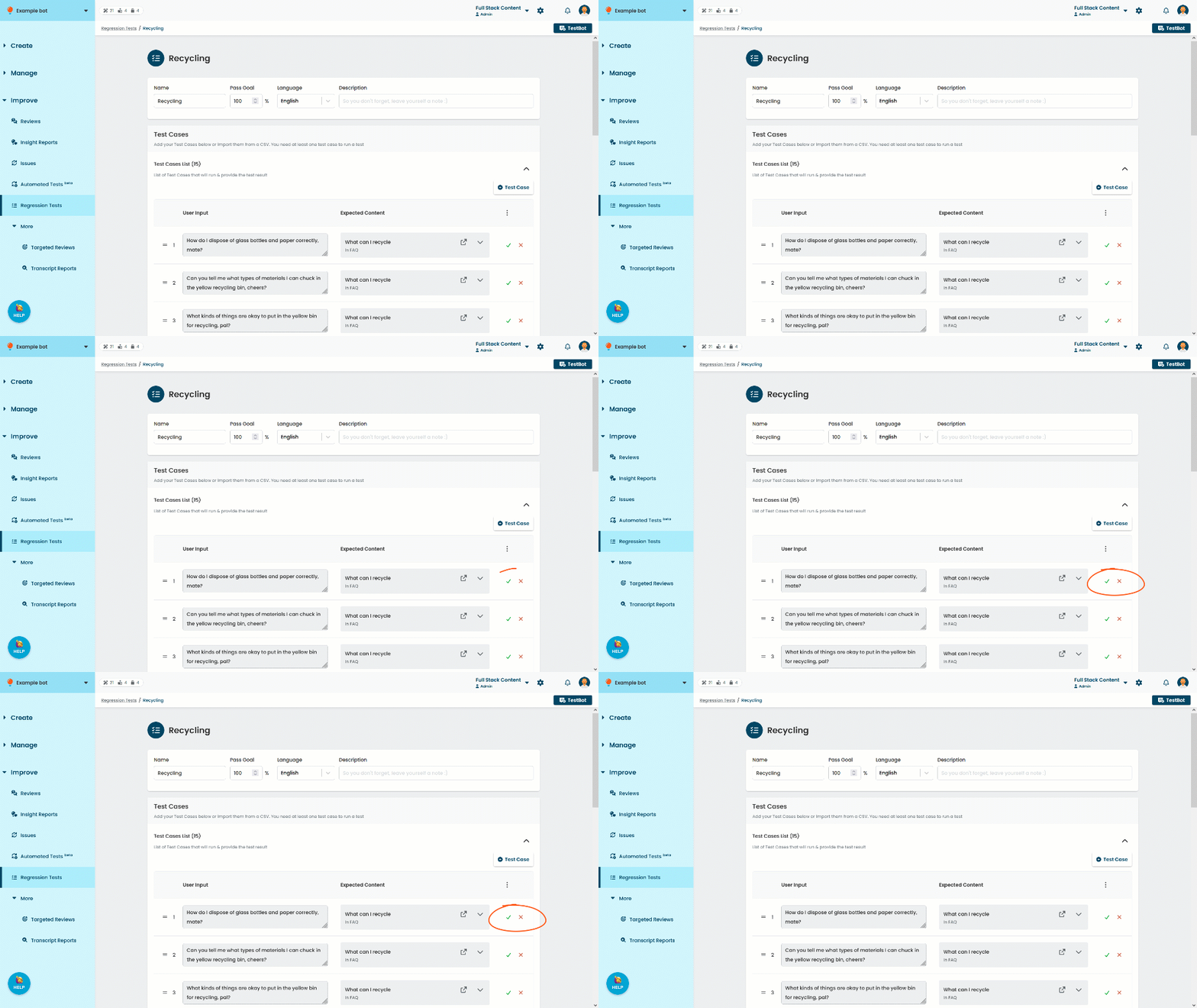
- Review your generated test cases and either:
- Click the tick button to add them to your regression test.
You can edit the phrasing once you have added them to the regression test. - Click the cross button to delete them from your test case list.
- Click the tick button to add them to your regression test.
- Scroll to the bottom of your test case list and click Save.
If you want to run the regression test immediately, click Save & Run Test.
When you save or run the regression test, the inGenious AI platform validates your test cases for issues such as passages in your test that have no global-level NLP questions, or passages that have more than one global-level NLP question. You must correct the issues before you can save or run the regression test.
Generate variations of a test case
Make sure you have a usage for generating test cases.
- Click Improve in the left navigation, then click Regression tests.
- Click the regression test you want to generate test cases for.
- Expand the Test Cases section.
-
Click the menu next to the test case you want to generate variations of.
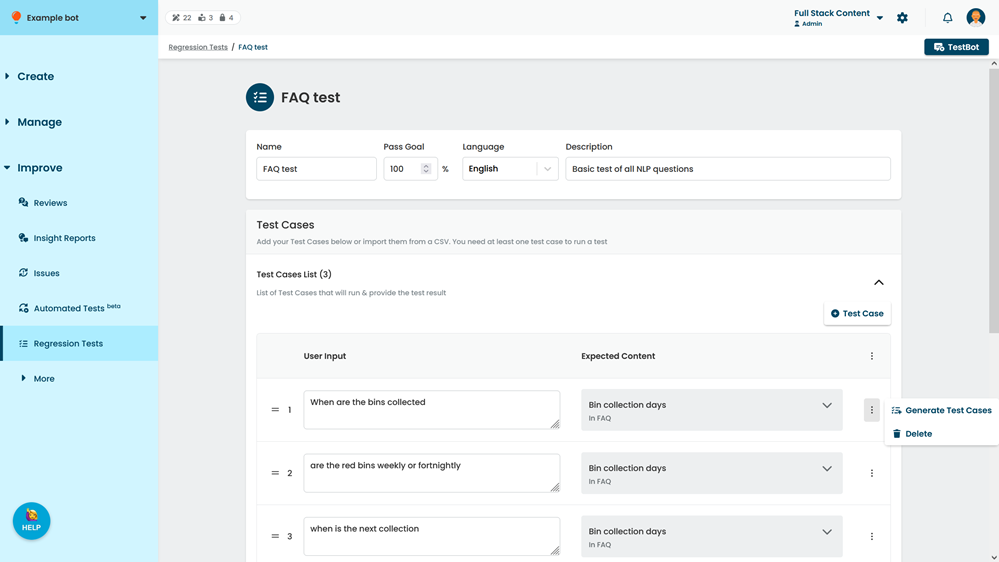
- Click Generate Test Cases.
The generated test cases are listed below the test case you used.
Each test case must be approved before it can be saved to the regression test. - Review your generated test cases and either:
- Click the tick button to add them to your regression test.
You can edit the phrasing once you have added them to the regression test. - Click the cross button to delete them from your test case list.
- Click the tick button to add them to your regression test.
- Scroll to the bottom of your test case list and click Save.
If you want to run the regression test immediately, click Save & Run Test.