Create a one-off broadcast to send your chatbot users a time-sensitive message.
The one-off broadcast contains both the conversation flow you want to send the chatbot user and configurations that control how the broadcast is sent.
One-off broadcast don't require your chatbot users to be subscribed to a topic, but they have strict rules about what types of messages you can send and when. Check the terms and conditions of your connected channels carefully. If you want to broadcast something that does not fit within these rules, consider a one-time broadcast instead.
To create a one-off broadcast:
- Click Create > More, then click Broadcasts.
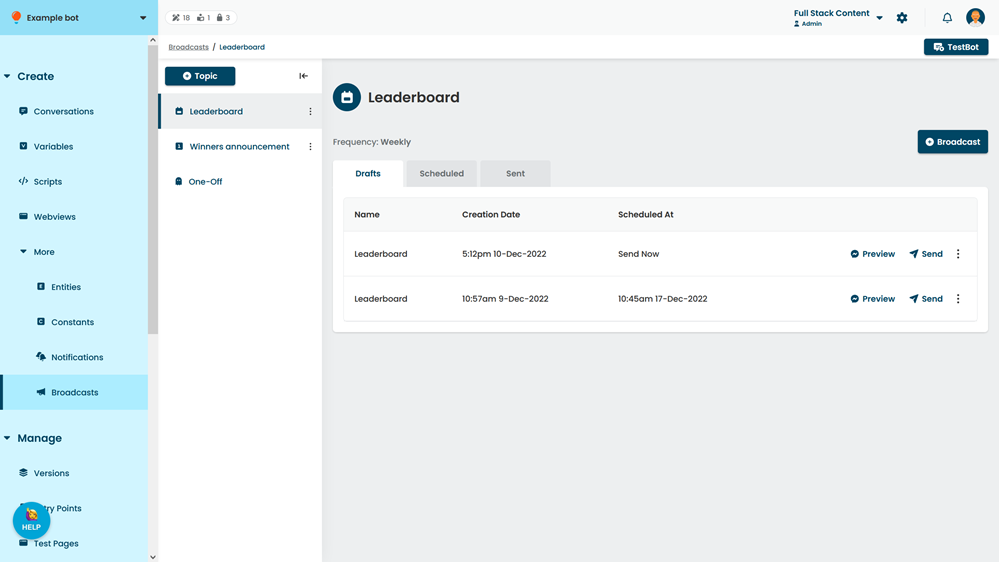
- Click One-Off.
All one-off broadcasts go in this topic. You can't create another one-off broadcast topic. - Click + Broadcast
- Click the new broadcast to open it.
- Type a Name for the broadcast.
The name is not displayed to chatbot users. -
Select the broadcast's Purpose.
There are different rules for different types of broadcasts. Some types of broadcasts can only be sent within the 24-hour messaging window, others require the user to have performed a specific action, such as making a purchase or registering for an event.
-
If you want to send the broadcast without an alert sound or vibration, select Silent Push.
The broadcast message bubble will still appear on the chatbot user's notification screen.
- If you want the broadcast to only display the first message bubble in the user's notifications, select Show first message only.
If the broadcast consists of several message bubbles, only the first message bubble is shown on the chatbot user's notification screen. The chatbot user still receives all message bubbles. - Select whether to send the broadcast to all subscribed chatbot users, or only chatbot users who match an audience segment.
- Click Save.
You can now: