You can schedule a broadcast to be sent at a specific time, instead of sending it immediately. Scheduled Broadcasts appear in the Scheduled tab of the broadcast topic.
The broadcast will be sent at the time you specify using the timezone you have configured for your chatbot, even when sending to chatbot users in other timezones.
Once you've scheduled a broadcast, it's considered ready-to-send, and can't be edited. If you want to make any changes, you must first unschedule the broadcast. If you still want to edit the content, you can save a scheduled time in the broadcast without scheduling it.
You need an administrator or publisher role on your team to schedule or send a broadcast.
To schedule a broadcast:
- Click Create > More, then click Broadcasts.
- Click the topic of the broadcast you want to schedule.
- Click the broadcast you want to schedule.
- In the Send Schedule section, select Send later.
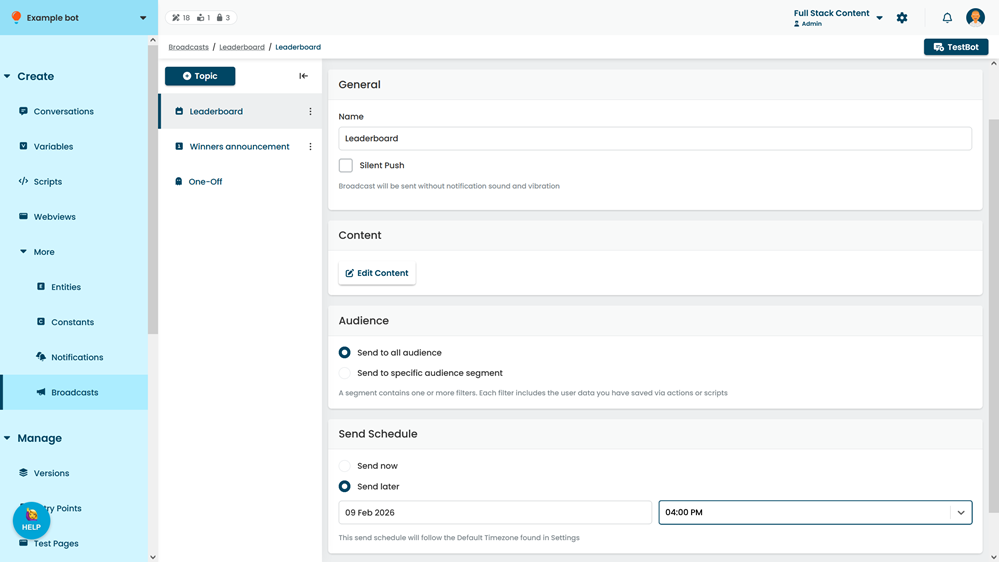
- Select the date and time you want to schedule.
- If you still want to edit the broadcast content, click Save.
The scheduled time is saved, but the broadcast is still a draft. The broadcast is not scheduled and will not be sent, even if the scheduled time arrives. When you've finished editing, click Send to finish scheduling it.
See Send a Broadcast. - If you've finished editing the broadcast, click Send.
The broadcast will be sent at the scheduled time. The broadcast is scheduled and can't be edited. If you want to make any changes, unschedule the broadcast.