You can limit who receives your broadacst to a specific group of chatbot users called an audience segment.
You need an administrator or publisher role on your team to create or edit audience segments.
Audience segments are defined by one or more filters that match the user data you have stored via actions or scripts. Each additional filter combines to make your segment more specific: if you add one filter for chatbot users whose resident country is Australia, and another filter for chatbot users whose favourite flavour is pistachio, your audience segment will be only chatbot users who both live in Australia and love pistachio.
Once you have created a segment, you can use it in as many broadcasts as you like. The segment filters are applied at the time each broadcast is sent; you do not need to recreate segments to capture new chatbot users.
To create an audience segment:
- Click Create > More, then click Broadcasts.
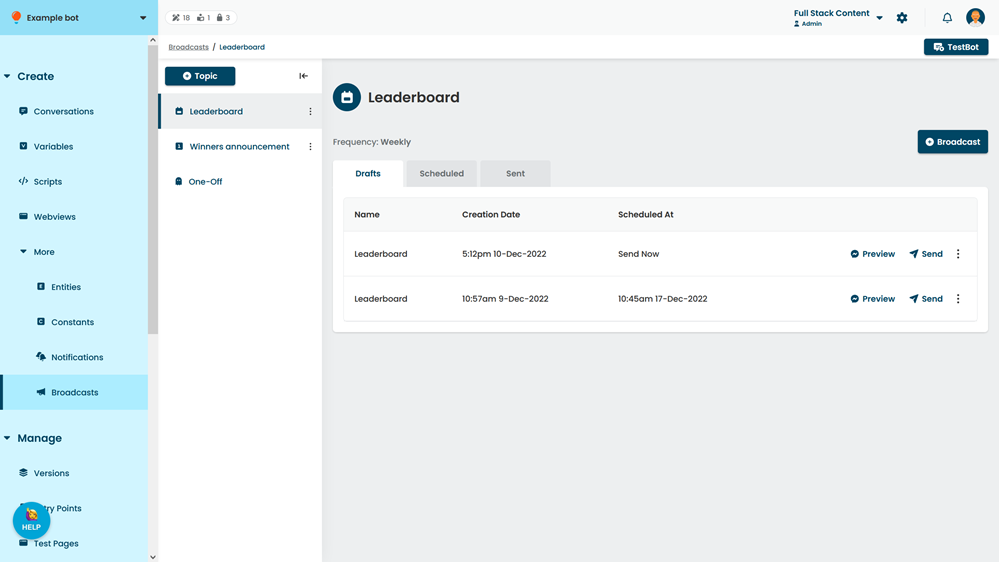
- Click the topic of the broadcast you want to create a segment for.
- Click the broadcast you want to create a segment for.
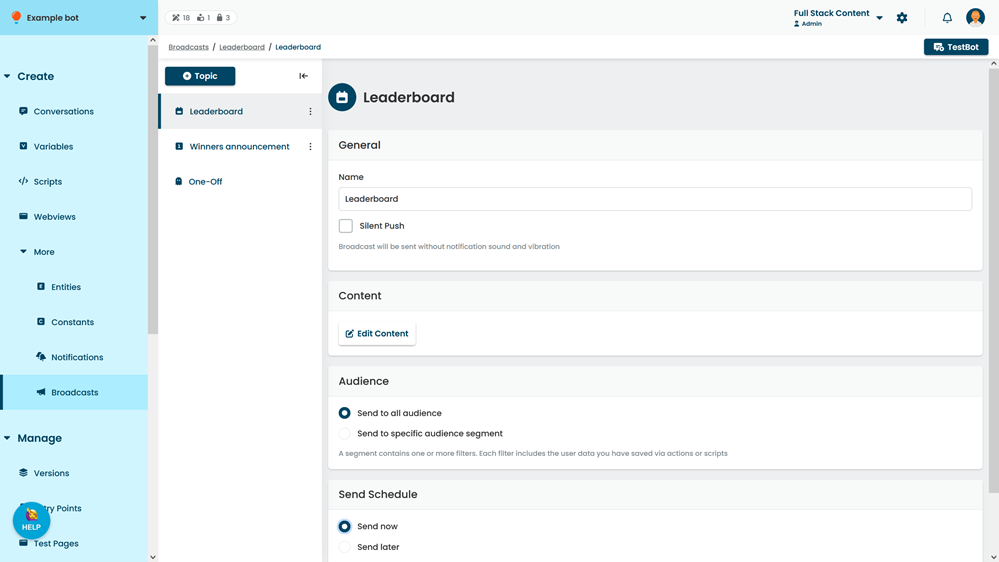
- Select Send to a specific audience segment.
- Click Create a segment.
- Type a Name to describe your segment.
Your chatbot users will never see the segment name. - Click +Filter.
- In the User Field, type the name of the user data field you want to use.
This can be any user data you have stored via a script or action. Make sure the capitalisation and spelling match. - Type the Value to compare against the user data field.
Chatbot users will only be included in the segment if their user data matches this value. - If you want to make your segment more specific, click +Filter to add another filter.
- Click Save.