If the chatbot user types a response that does not match any of your questions, use a fallback to select which passage the chatbot should start in response. There are a few specific scenarios you can configure separately:
- Default fallback
- Fallback for unexpected new users
- Fallback for unexpected attachments
- Fallback for long utterances
- Fallback within specific conversations
- Creating locked-in conversations
- Fallback for specific languages
Fallback settings are versioned: these changes are stored in the chatbot version, and will not be applied until they are published.
Fallbacks are configured in your chatbot's fallback settings. You need an administrator of publisher role on your team to edit fallback settings.
To open the fallbacks settings:
- Click Manage in the left navigation, then click Settings.
- Click Fallbacks.
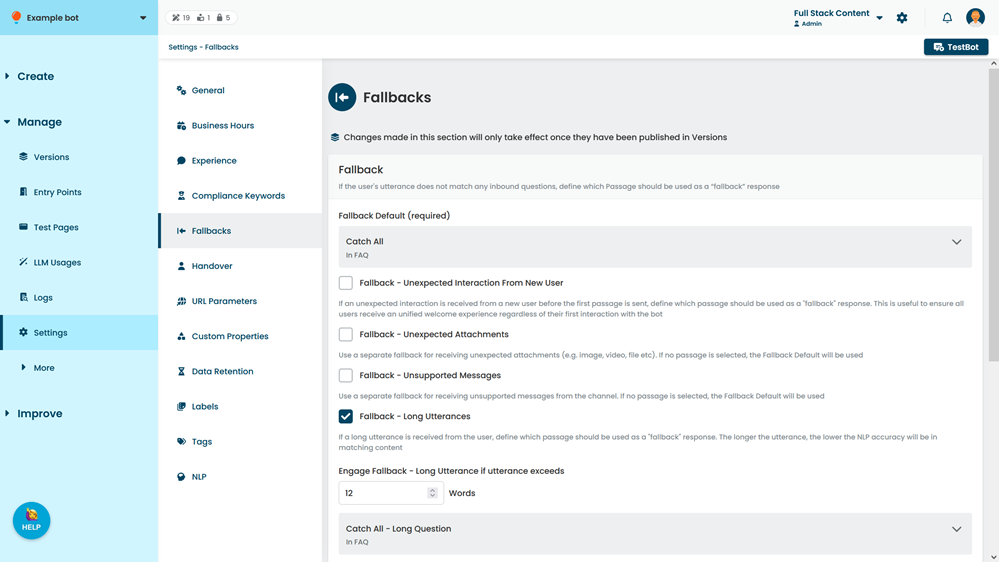
Fallback Default
The default fallback passage is started when the chatbot user sends a message that does not match a keyword or NLP question, and the chatbot doesn't have a more specific fallback configured, such as a conversation fallback or long utterance fallback.
Chatbots must have a default fallback configured.
Fallback - Unexpected Interaction From New User
Sometimes a new chatbot user may start an interaction with your chatbot in a way you didn't plan for. To make sure all new chatbot users receive the same welcome experience with your chatbot, you can configure a specific fallback passage for unexpected new chatbot users. This passage is sent when a chatbot receives an interaction from a new chatbot user that it hasn't sent the first passage to.
Locked-in conversations do not use this fallback setting. The conversation fallback is used instead.
Fallback - Unexpected Attachments
You can configure a separate fallback passage to use if the chatbot user sends an unexpected attachment such as an image, sticker, or other file. For example, you may want to display a different message when the chatbot user sends an attachment or use a script to interpret the sticker or file and direct the chatbot to another passage.
The same Unexpected Attachments fallback response is used in any conversation when a chatbot user uploads an unexpected attachment. This can't be set at a per-conversation level.
Locked-in conversations do not use this fallback setting. The conversation fallback is used instead.
Fallback - Long Utterances
Long replies from a chatbot user can be difficult to match to the correct question. The Long utterances fallback allows you to specify a passage to send when a chatbot user's utterance is above a certain length. You can use this passage to guide them to try a shorter reply.
Rephrasing a response can be frustrating for the chatbot user, and even a short question may be difficult to match if it is poorly phrased. If your chatbot is struggling to match your chatbot users' questions, you may want to configure a rewrite utterance task to rephrase long or hard-to-match user utterances.
Before you turn this setting on...
Turning on the Long Utterances fallback will mean any typed reply above your word limit (or your rewrite utterance task Maximum, if you're using one) will go to the Long Utterances fallback passage, even if it would have otherwise matched with a question, or you have specified a different fallback response for that conversation.
If you want to treat replies over a certain length differently:
- Turn this setting on.
- Type the number of words the chatbot should consider to be a long reply.
When a rewrite utterance task is enabled, its maximum word count setting takes priority over this threshold. This means this Fallback only triggers when the rewrite utterance task does not run. - Select which passage the chatbot should use to respond when the user types a long reply.
A preview of the passage is displayed. You can also open the passage in a new tab.
The same Long Utterances fallback response is used in any conversation when a user sends a response longer than you specify. This can't be set at a per-conversation level.
Locked-in conversations do not use this fallback setting. The conversation fallback is used instead.
Conversation fallback
You can specify a fallback response that is used only when the chatbot user is in a specific conversation flow. If the conversation fallback is enabled, it takes precedence over the chatbot's default fallback. You can specify a conversation fallback for as many different conversations as you need to.
If the chatbot user types a response that does not match a question while they are within this conversation flow, select the passage the chatbot should use to respond.
If you set a conversation fallback for a parent conversation, that fallback response does not apply to child conversations of the parent conversation. You must specify a conversation fallback for any conversation where you do not want the default fallback used.
You must set a conversation fallback as part of creating a locked-in conversation. Locked-in conversations significantly change your chatbot experience and should be implemented carefully. If a conversation is locked-in, the conversation fallback passage is used in place of all over default fallbacks within this conversation.
To set a conversation fallback:
- Make sure Conversation fallback is selected.
- Select the conversation you want to specify a different fallback response for.
- Select the passage to use as the fallback response.
A preview of the passage is displayed. You can also open the passage in a new tab. - Click Save.
Because these settings impact individual conversations, per-conversation fallback updates are displayed in your version history as conversation changes. These changes will appear in the draft stage in Versions upon save.
Language-specific fallback
If you chatbot is configured for multiple languages, you can specify a fallback response that is sent when the chatbot user's response does not match any questions in your chatbot but does match a language supported in your NLP settings.
You don't need to specify the languages in a particular order; your chatbot's natural language processing AI will determine the best match from the languages in your NLP Settings. If you have a language configured in your NLP Settings that does not have a language-specific fallback configured, then your normal conversation or default fallback settings will be used instead.
To add a language-specific fallback:
- Make sure the language you want to add a fallback for is configured in your NLP Settings.
English is always configured by default in your NLP Settings. - In your Fallbacks Settings, make sure Language-Specific fallback is selected.
- Click + Language.
- Select the language you want to create a fallback for.
- Select the conversation and passage that should be sent when the chatbot detects that language but can't match it to an existing question.
A preview of the passage is displayed. You can also open the passage in a new tab.
The same Language-specific fallback response is used for each specified language throughout your chatbot and cannot be configured per-conversation. If your chatbot user sends an extremely long message in a language that you have configured a fallback for (other than English), the language-specific fallback will be sent instead of the long-text fallback.
You should create a separate passage for each language you specify, to give your chatbot user the best experience.
Locked-in conversations do not use this fallback setting. The conversation fallback is used instead.