You can configure when the chatbot should check if a passage matched by NLP questions is a helpful response to the chatbot user's question, and what content it should use to determine if the passage is helpful. Relevancy checks can be configured to run:
- After every NLP question match, or only when the utterance was rewritten by the rewrite utterance task.
See Control when utterances are rewritten. - When the matched passage belongs to a conversation you specify.
This is can be useful if you don't want to run relevancy checks against fallbacks or other generic responses. You can also configure how the chatbot should respond when a passage is marked unhelpful. - Never, by disabling the relevancy check task.
You need an administrator or publisher role in your team to change a task configuration.
Configure when relevancy is checked
To edit the relevancy check configuration:
- Click Manage in the left navigation, then click LLM Usages.
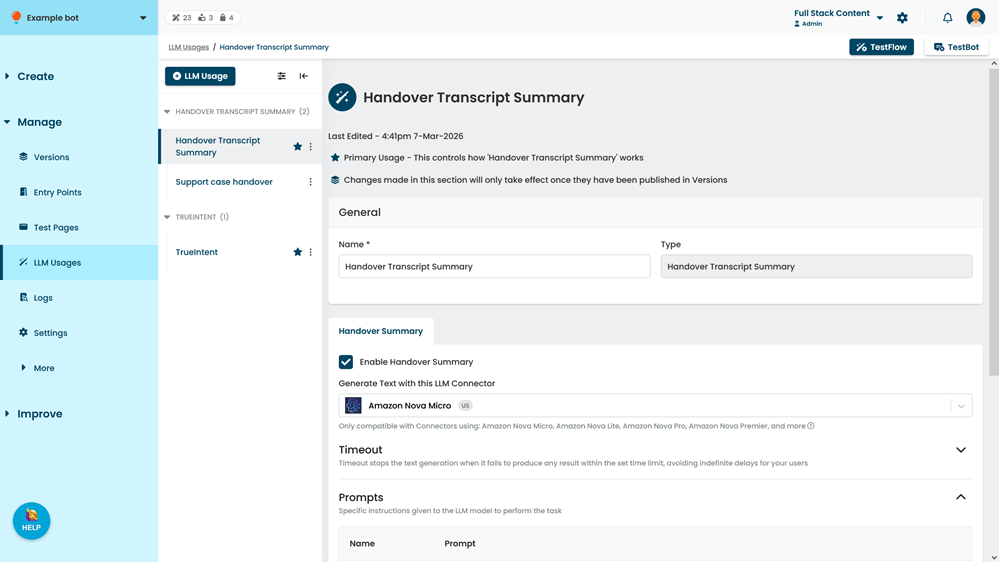
- Click the TrueIntent usage with the relevancy check task you want to edit.
- Click the Relevancy Check tab.
- If you want to include the chat history when checking the relevancy, select Populate ${chatHistory} variable with user transcript.
- Select whether you want the relevancy check to run:
- After every NLP match
- Only if the NLP match was to a rewritten utterance.
Relevancy check will only run after the rewrite utterance task has run. If the rewrite utterance task is disabled, relevancy checks will never run.
- If you want to only check relevancy for passages from certain conversations, select When the passage returned is part of the following Conversations, and configure the conversations.
See Control relevancy checks by conversation. - Select the content you want the LLM model to use when deciding if the passage was helpful. You can include:
- Passage Content
- Training Phrases for any inbound questions to the passage.
-
Annotations you have added to the passage or conversation.
If you include annotations, make sure you have also included passage content, training phrases, or both. If you select only annotations, then any passage or conversation that does not have an annotation will be marked as unhelpful.
- Click Save.
Control relevancy checks by conversation
You can configure relevancy checks to only run when the matched passage belongs to one of the conversations you specify. You can also control how the chatbot behaves when a matched passage is marked unhelpful.
By default, if a passage is marked unhelpful, the chatbot behaves as if no passage was matched:
- The conversation context does not switch to the unhelpful passage's conversation.
- The chatbot triggers a fallback passage using the fallback and intellimem settings from the conversation the chatbot user was previously in.
If you want the conversation context to switch to the unhelpful passage's conversation, you can select a passage from that conversation to start as a custom fallback. When a matched passage from that conversation is marked unhelpful:
- The conversation context switches to the unhelpful passage's conversation.
- The chatbot starts the custom fallback passage.
This fallback passage is only started when a passage is matched but marked unhelpful: if the chatbot triggers a fallback in that conversation for another reason, such as chatbot user utterance that matches no NLP questions, the fallback passages in your chatbot's fallback settings apply.