The rewrite utterance task rewrites the user's utterance to make it easier to find an NLP match. You can configure whether a user's utterance is rewritten based on the following logic:
-
User utterance word length: The utterance is only rewritten if it is between the Minimum and Maximum range.
These settings override your chatbot's Long utterance fallback threshold. The chatbot's long utterance fallback is not triggered if the user utterance is rewritten. -
Re-writing conditions:
- (Optional) Longer than x words: Select this option to always rewrite utterances that are longer than the the Long utterance threshold you specify. If the utterance is shorter than the threshold or this option is not selected, the Match the following conditions section is checked.
-
Match the following conditions: Configure whether the utterance should be rewritten before or after matching keyword or NLP questions.
If the utterance is matched by NLP before being rewritten, it is only rewritten if the Confidence score is below the value you set.
You can also disable the rewrite utterance task. You can see how these configurations interact below.
You need an administrator or publisher role in your team to change a task configuration.
Rewrite utterances can improve how accurately your chatbot matches difficult utterances, but it also takes more time than a normal question match. We recommend configuring your rewrite utterance task to target the utterances your chatbot has difficulty matching.
Configure when utterances are rewritten
To edit the rewrite utterance configuration:
- Click Manage in the left navigation, then click LLM Usages.
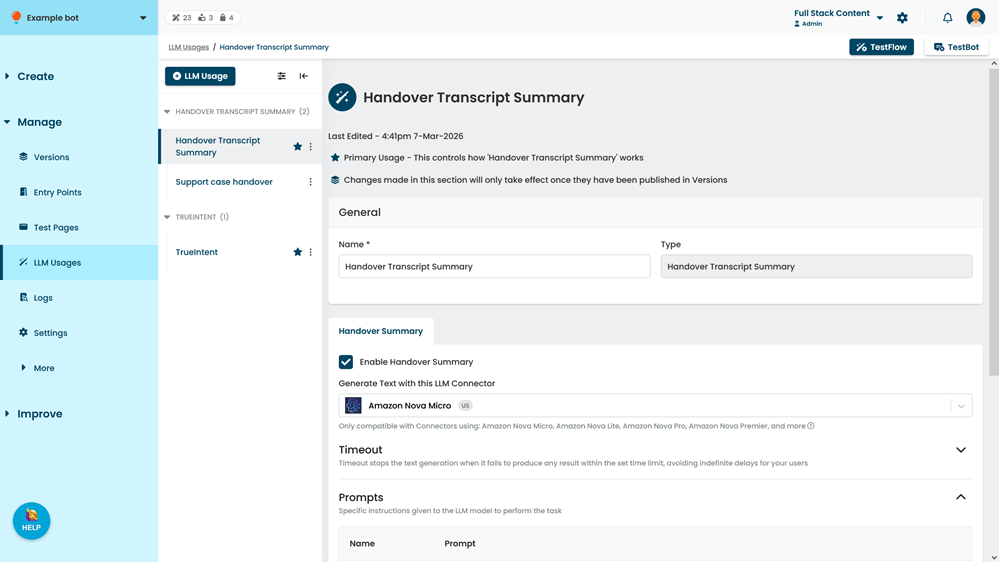
- Click the TrueIntent usage with the rewrite utterance task you want to edit.
- Make your changes.
- Click Save.
Longer than x words
By default, the utterance is only rewritten if the original user utterance is between the Minimum and Maximum settings and the conditions in the Match the following conditions section are met.
If you want utterances over a certain length to always be rewritten, select longer than x words and set the number of words in the Long utterance threshold field.
| Utterance always rewritten | Utterance rewritten if Matching conditions met | |
|---|---|---|
| Longer than x words selected | Utterance is between the Minimum and Maximum and longer than the Long utterance threshold. | Utterance is between the Mininum and Maximum but shorter than the Long utterance threshold. |
| Longer than x words not selected | N/A: matching conditions always apply. | Utterance is between the Mininum and Maximum. |
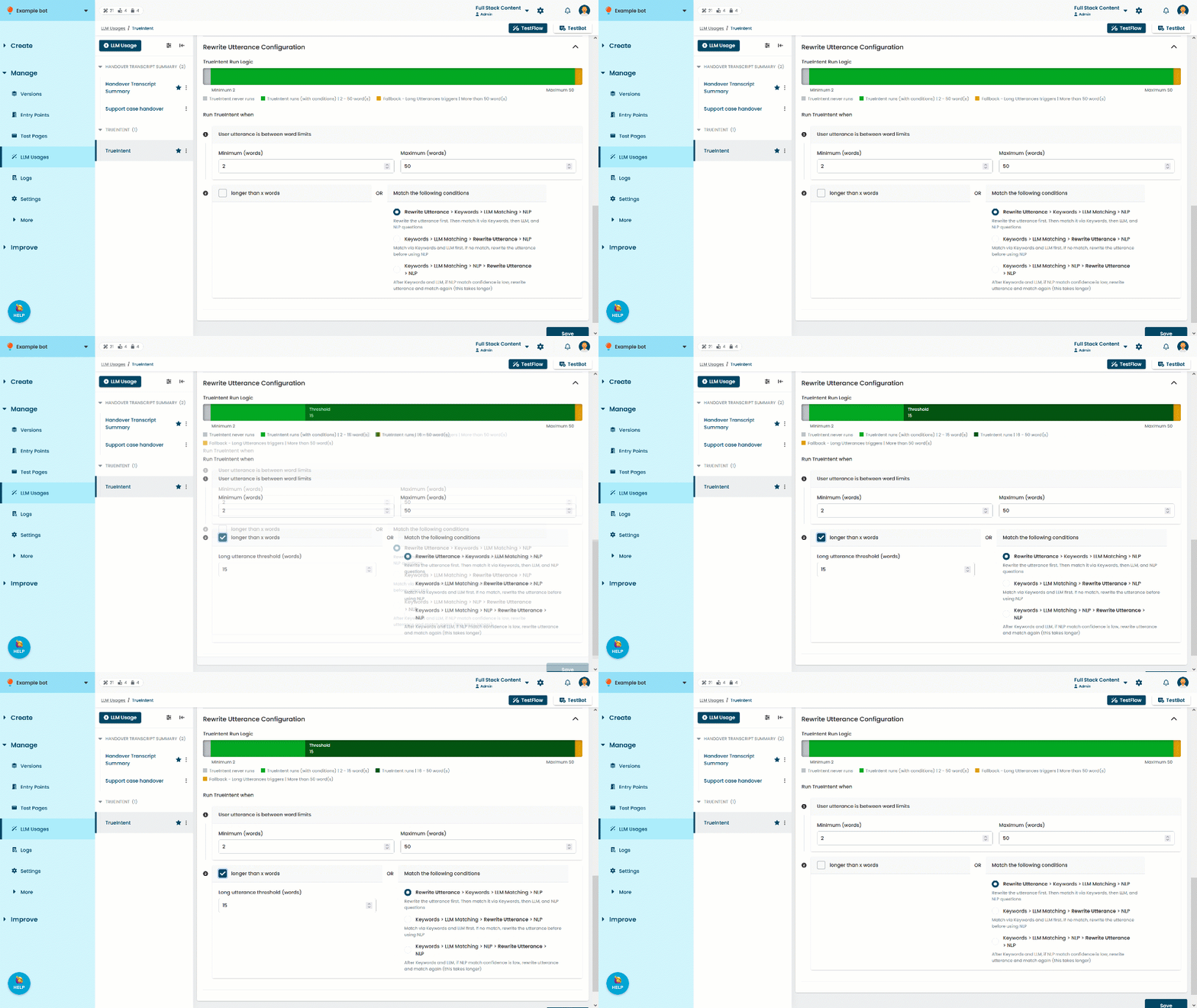
Long utterance threshold
The Long utterance threshold is only displayed when longer than x words is enabled. This threshold only applies to the rewrite utterance task and isn't related to the long utterance threshold in your chatbot's fallback settings.
Use this field to define the length (in words) of utterances that should always be rewritten, even if the Matching conditions aren't met.
Match the following conditions
The settings in the Match the following conditions section control the order in which utterances may be rewritten and matched, and can set an additional condition on whether the utterance is rewritten.
If you set rewrite utterance to run after matching NLP, you can configure two additional settings:
| Option | Description | When used with Longer than x words |
|---|---|---|
| Rewrite Utterance > Keywords > LLM Matching > NLP | Rewrite all utterances before matching keyword or NLP questions. Rewriting an utterance may result in a keyword being replaced with a different word. |
No effect: all utterances are rewritten before any questions are matched. |
| Keywords > LLM Matching > Rewrite Utterance > NLP | Match keywords questions. If no keyword questions matched, run LLM matching (if enabled), then rewrite the utterance, then match NLP. | Limited effect unless your chatbot uses many keyword questions. All utterances that didn't match a keyword question are rewritten. |
| Keywords > LLM Matching > NLP > Rewrite Utterance > NLP | Match keywords, run LLM matching (if enabled), then match NLP questions. If the NLP match had a low confidence score, rewrite the utterance and match NLP again. |
Utterances longer than the Long utterance threshold are rewritten before matching questions. Utterances between the Minimum and the Long utterance threshold are matched against questions and then rewritten if the NLP match was below the confidence score. |
LLM Matching only runs if you have enabled the LLM matching task.
Initial NLP confidence threshold
When the chatbot matches an NLP question to an utterance, the confidence score indicates how sure the chatbot is that it chose correctly. If the confidence score is below the NLP confidence level in your NLP settings, the chatbot starts a fallback passage instead of the match it chose.
You can set how confident the chatbot needs to be in its match before it rewrites the utterance:
- If its confidence score is below the initial NLP confidence threshold you set in the rewrite utterance task, the chatbot rewrites the utterance and runs the match again.
- If the confidence score is above the threshold, it uses the first match and doesn't rewrite the utterance.
The value should between 0 and 1 and must be higher than the NLP Fallback threshold in your chatbot settings. Higher values mean the chatbot must be more confident that it matched the question and is likely to rewrite utterances and rematch more often.
Always use the match with higher NLP confidence
The rewritten utterance may match to a different NLP question than the original utterance. By default, the chatbot always chooses the second match.
Each match has its own confidence score indicating how sure the chatbot is that the match is correct. You can tell the chatbot to compare the two confidence scores and choose the match that had the higher confidence score instead of automatically choosing the second match.
Depending on your NLP training phrases and how your rewrite utterance prompt generates the rewritten utterances, you may find this results in more accurate matches more often.