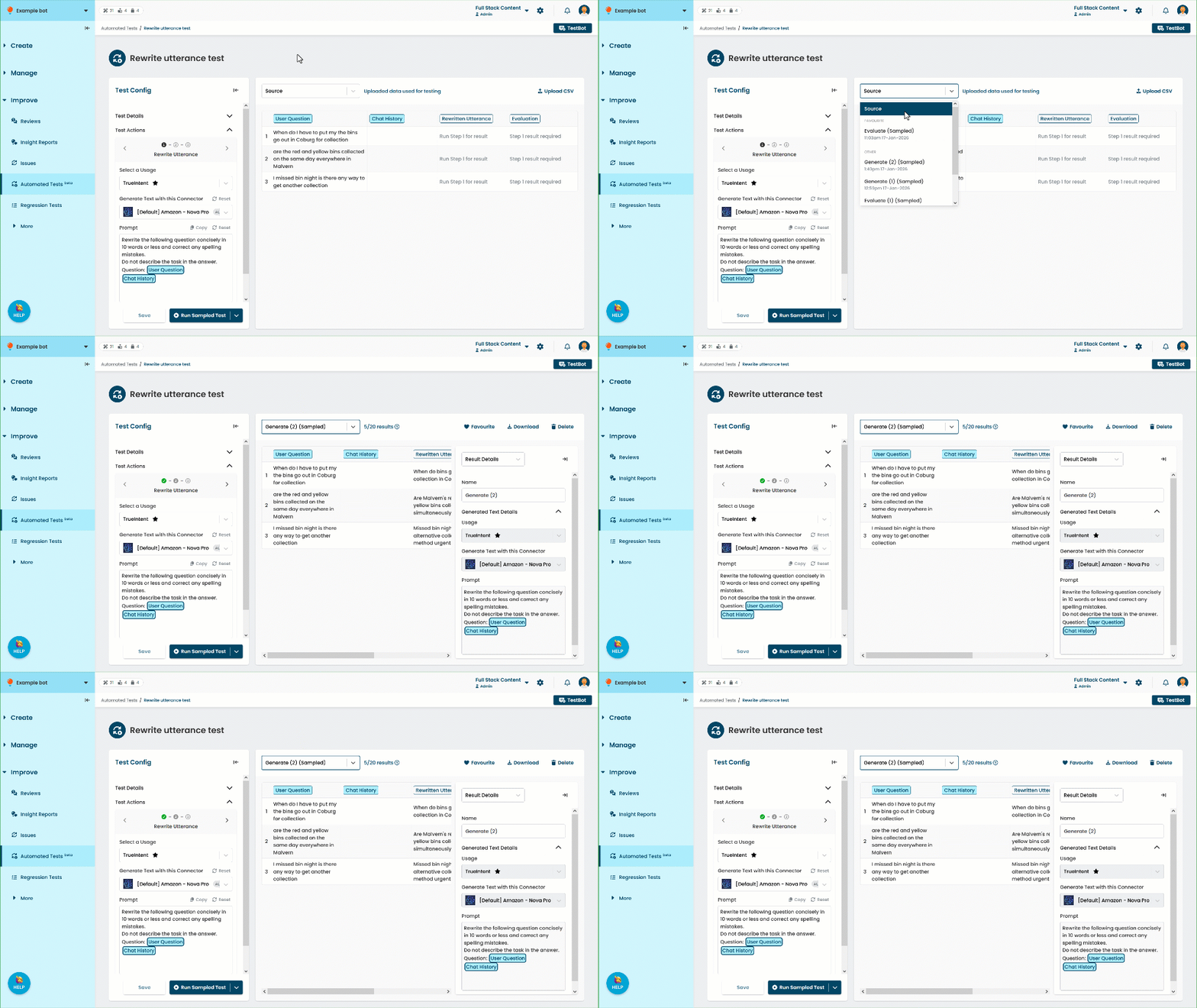
Each time you generate a task's output or generate evaluations, the results are stored in a new result set. The result set contains the step output as well as everything that was provided as an input.
An automated test can have a maximum of twenty result sets. You can select result sets you created earlier to view them, re-run a step, or continue to the next step.
When you select a result set, the input and generated data for each test case is displayed. The Results Details panel on the right displays the connector, usage, and prompts used for each step that was run in this result set:
- The Generated Text Details section displays the usage, connector, and prompt that was used to generate the LLM task output.
- The Evaluate Generated Text Details section displays the number of test cases that met the 'PASS' criteria, and the connector and prompts used to evaluate the generated text.
This section is only displayed if the result set includes evaluations.
You can:
- Type a more descriptive Name at the top of the Results Details panel.
This will help you find this result set later. - Edit the evaluations, if the result set includes evaluations.
Click the tick or cross to edit an evaluation. The number of successful test cases is recalculated after you save your changes. - View the generated insights, if the result set includes insights.
- Favourite or unfavourite the result set.
Your favourite result sets won't be replaced when you generate more than twenty result sets. -
Download the result set.
Downloads don't include any generated insights or prompt suggestions. -
Delete the result set.
Deleted result sets can't be undeleted.
View a result set
To view a result set:
Click Improve in the left navigation, then click Automated Tests.
- Click the automated test you want to use.
- At the top of the results pane, select the result set you want to view.