Use the refine copy feature to refine your existing bot message text content or to generate new text bubbles from source content or from a web page.
You can edit the newly refined content before it is added to your passage. All generated content must be reviewed and published before it will be visible to your chatbot users.
The Refine copy feature uses a refine copy task provided to your chatbot by default, but you can create your own task, change the connector, or adjust the default prompt used.
This feature currently supports English and Japanese content only. If you want to create translated versions of your passage content, see Translate copy.
Refine and replace a text bubble
To refine a text bubble:
- Click Create in the left navigation, then click Conversations.
- Click the conversation with the passage you want to edit.
- Click the passage you want to edit.
- Hover over the text bubble and click the Refine & Replace Copy icon.
- The existing text bubble is copied as the Original text.
- Optionally, provide additional instructions in the Additional Prompt field.
These instructions are added to the default prompt for your Refine copy usage.
Avoid adding any instructions on word limits.
Click the Primary prompt link to view the default prompt. -
Click Refine.
The new text is displayed for review in the Refined text field.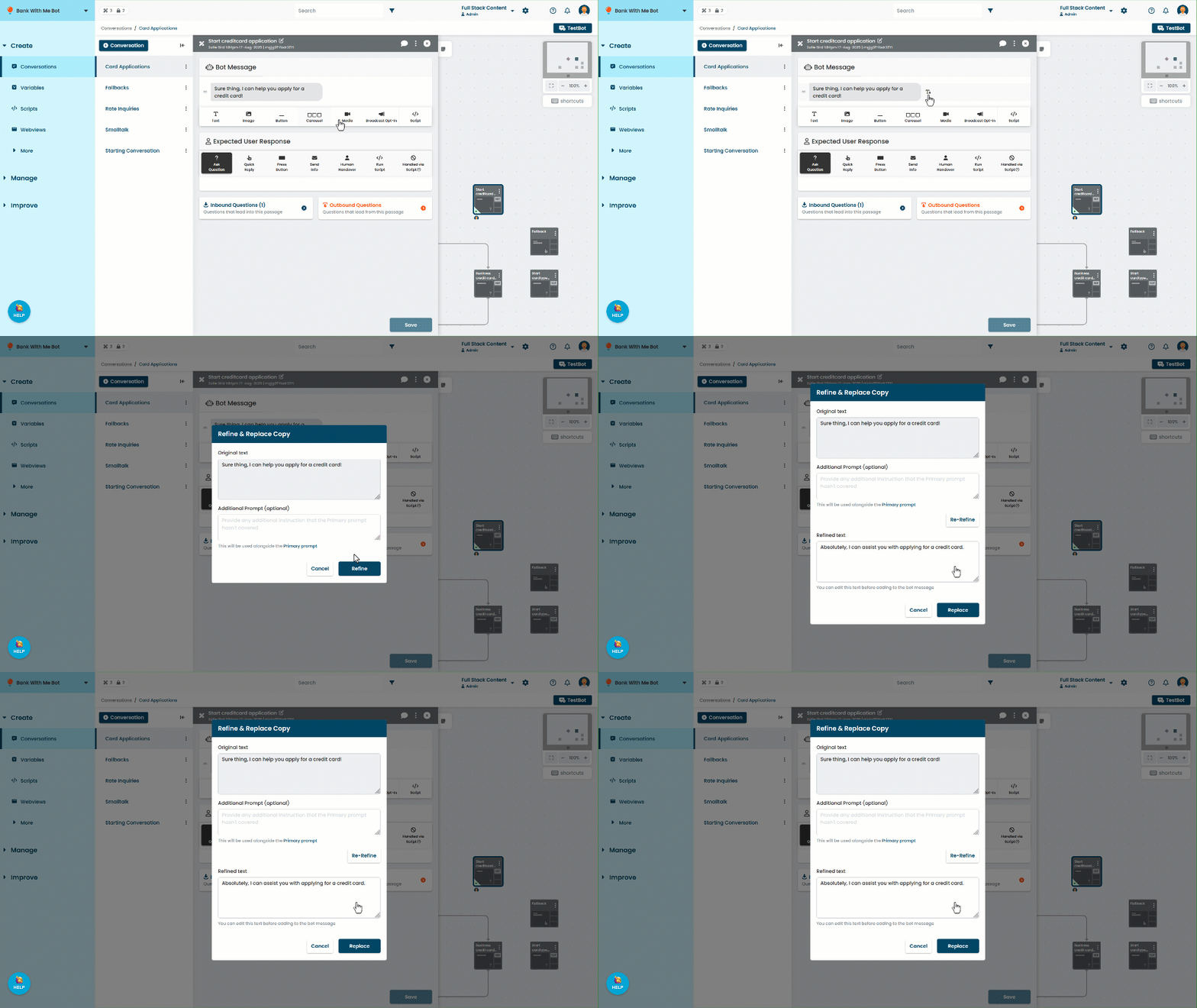
- If you want to generate the refined text again with a slightly different prompt:
- Provide further instructions in the Additional Prompt.
- Click Re-Refine.
Any edits you have made to the existing Refined text will be lost.
- You can edit the Refined text directly.
- When you're happy with the new text, click Replace.
- Click Save.
Create a text bubble from source content
To create a new text bubble from reference content:
- Click Create in the left navigation, then click Conversations.
- Click the conversation with the passage you want to edit.
- Click the passage you want to add text bubbles to.
The new text bubble will be added after any existing content. You can re-order the content before you save the passage. - Click the passage menu and click Refine & Create Copy.
- Add the Original text to create new passage copy from. You can either:
- Paste the content you want to use into the Original text field.
- Paste a URL to a specific web page containing the content you want to use.
You should provide either a URL to a single web page or the text you want to refine, but not both.
- Optionally, provide additional instructions in the Additional Prompt field.
These instructions are added to the default prompt for your Refine copy usage.
If you have provided a web URL as your Original text, you can use this prompt to focus on specific content on the page to achieve a better result.
Avoid adding any instructions on word limits.
Click the Primary prompt link to view the default prompt. -
Click Refine.
The new text is displayed for review in the Refined text field.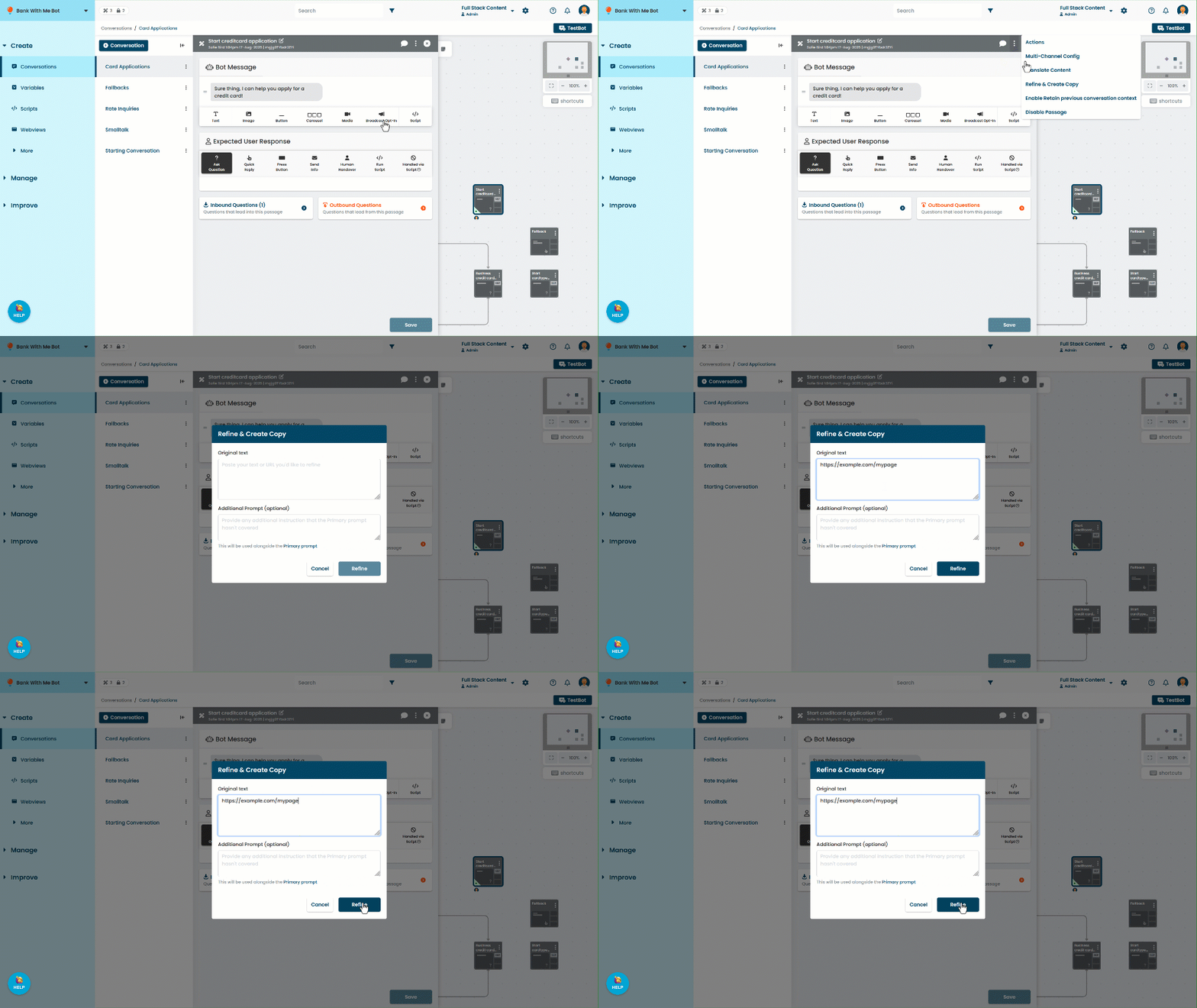
- If you want to generate the refined text again with a slightly different prompt:
- Provide further instructions in the Additional Prompt.
If you have provided a web URL as your Original text, you can use this prompt to focus on specific content from the page to achieve a better result. - Click Re-Refine.
Any edits you have made to the existing Refined text will be lost.
- Provide further instructions in the Additional Prompt.
- You can edit the Refined text directly.
- When you're happy with the new text, click Create.
- Adjust the order of the bot message content if required.
- Click Save.