So far, we've created an AccountType variable, a passage that sets the variable value, and a logic with inbound questions that uses the value to start the appropriate passage.
When we created the logic, we left the Else section with its default setting of creating a new passage. The Else section defines what the chatbot should do if none of the logic conditions match. In this case, it defines what it should do if the AccountType variable isn't Personal or Business.
If the chatbot user asks a general credit card application question before the chatbot has set their account type, when the logic checks the conditions, the AccountType variable will be blank. A blank value doesn't match any of the conditions, so logic will start the passage in the Else section.
We'll use this passage to ask the chatbot user their account type and start the correct application passage. But we won't add any inbound questions, because we only want the chatbot to start this passage if the AccountType variable wasn't set. That way, we can be sure the chatbot won't ask the chatbot user their account type if it already knows it.
In your inGenious AI chatbot:
- Click Create in the left navigation, then click Conversations.
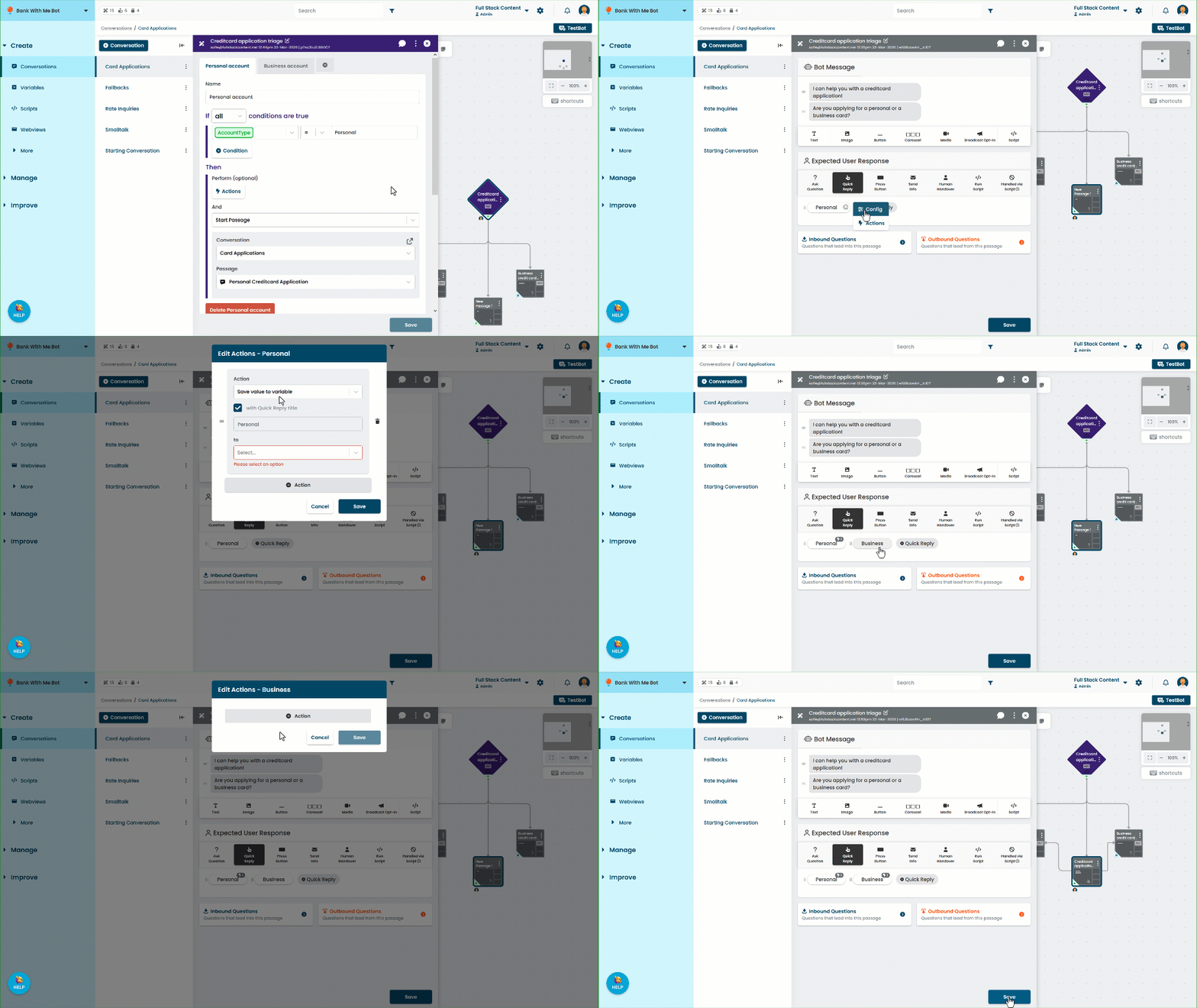
- Click the card application conversation, then click the new passage connected to the logic.
- Rename the passage as Credit card application triage.
- Add a text message of I can help you with a credit card application. Are you applying for a personal or a business account?
- Add a Quick Reply for each account type.
- Configure each Quick Reply to go to the appropriate application passage.
If your chatbot might use the AccountType variable later, you could also add an action to the Quick Reply to save the value to the AccountType variable. - Click Save.
Now if the chatbot user asks about credit card applications before they see the account type passage, the logic starts a passage to them which account type they're looking for. Our chatbot can now remember and use information to respond naturally to the chatbot user.