Now that we've asked the chatbot user which account type they have, let's store their response as our variable value.
Values are assigned to variables using actions or scripts. Actions can be attached to almost any interaction your user has with your chatbot, including pressing buttons or Quick Replies, sending information, or entering passages, conversations, or entry points.
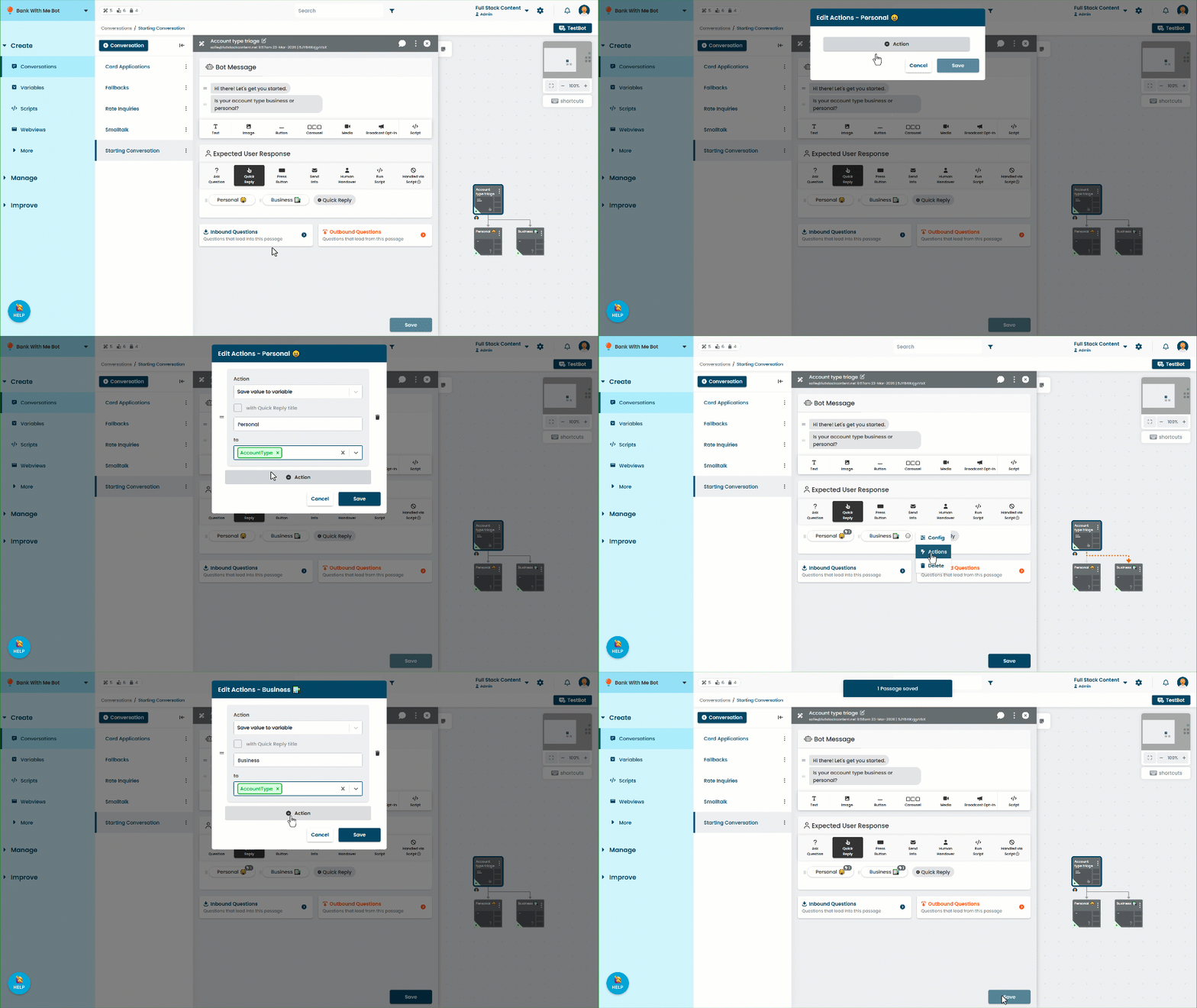
We're going to add an action to the personal Quick Reply and business Quick Reply so the chatbot assigns a specific value to our AccountType variable.
Add an action to the personal Quick Reply
In your inGenious AI chatbot:
- Click Create in the left navigation, then click Conversations.
- Click the starting conversation, then click the account type triage passage.
- Click the personal Quick Reply, then click Actions.
- Click + Action.
- Select Save value to variable.
- Unselect the with button title option.
We'll be using this value in logic later, so it's best to define our own value here rather than using the Quick Reply text. That way, if someone changes the Quick Reply text later, it won't affect our logic. - In the Value field, type Personal.
- In the to dropdown, select the AccountType variable.
- Click Save.
Add an action to the business Quick Reply
In the account type triage passage:
- Click the business Quick Reply, then click Actions.
- Click + Action.
- Select Save value to variable.
- Unselect the with button title option.
- In the Value field, type Business.
- In the to dropdown, select the AccountType variable.
- Click Save to close the Actions configuration.
- Click Save to save the passage.
When the chatbot user chooses an account type, the chatbot assigns the value we configured as the value of our AccountType variable. We can use that variable in other passages and logic.
Now that our variable's ready, we need to create the card application passages we'll be directing the conversation to.