Lock or unlock a conversation to change how the chatbot treats global inbound questions when the chatbot user is within the conversation. Locking or unlocking a conversation does not impact any child-conversations.
To lock a conversation:
- Consult with inGenious AI to understand how this will impact your chatbot experience.
- Check your global inbound questions.
- Create a conversation fallback with an exit.
- Lock the conversation.
- Test your conversation flow in Testbot.
Make sure your chatbot experience works as you intended with the conversation locked.
Your testbot logs will call out when the chatbot user is locked into and released from the locked-in conversation, and indicate when a conversation is locked in.
You can also unlock a conversation.
Before you lock a conversation...
Locking a conversation can significantly impact on your chatbot experience. Standard chatbot responses such as replying to frequently asked questions will not work inside a locked-in conversation. We strongly recommend you consult with inGenious AI if you plan to lock a conversation.
Check your global inbound questions
Once inside a locked-in conversation, your chatbot will not match any global inbound questions, even if they're from a passage inside the locked-in conversation. Before you lock a conversation, check any global inbound questions in that conversation:
- If you want the chatbot to respond to that question inside the conversation, migrate it to a conversation question:
- Open the passage with the global inbound question you want to move.
- Expand the global inbound question and click the copy button to copy all training phrases.
- Create a new conversation question at the conversation.
- Click the empty training phrase field and press Ctrl + V (Windows) or Cmd + V (Mac) on your keyboard.
- Save the passage.
- If you don't want the chatbot user to be locked into this conversation when they ask that question, delete the global question.
You can download a CSV of all your questions from your chatbot's general settings, and find the ones in that conversation listed as 'Global'.
Create a conversation fallback with an exit
Your locked-in conversation will not use your chatbot's default fallbacks. You'll need to create a fallback passage for the conversation to ask the chatbot user to rephrase any question the chatbot could not match to a question from the locked-in conversation.
Your fallback passage should also provide an easy exit: once inside a locked-in conversation, your chatbot user can't use global inbound questions to move the chatbot to another conversation. This can be frustrating if they arrived at this conversation accidentally, or they've changed their mind.
Inside your locked-in conversation, create a fallback passage with an exit. For example, if your locked-in conversation is about closing a business account:
- Send a chatbot message of: "I'm sorry, I didn't understand that. If you still want to talk about closing a business account, please rephrase your question."
- Add a Quick-Reply of "I want to talk about something else" that leads outside the locked-in conversation.
Make sure the fallback passage is inside the conversation you want to lock.
Lock the conversation
Once you have handled any global inbound questions and created your conversation fallback passage:
- Click Manage in the left navigation, then click Settings.
- Click Fallbacks.
- Select Conversation fallback, if it is not already selected.
- Add the conversation if it isn't listed:
- Click + Conversation.
- Select the conversation you want to lock.
- Select the fallback passage you created earlier.
- Select Locked-in next to the conversation you want to lock.
- Click Save.
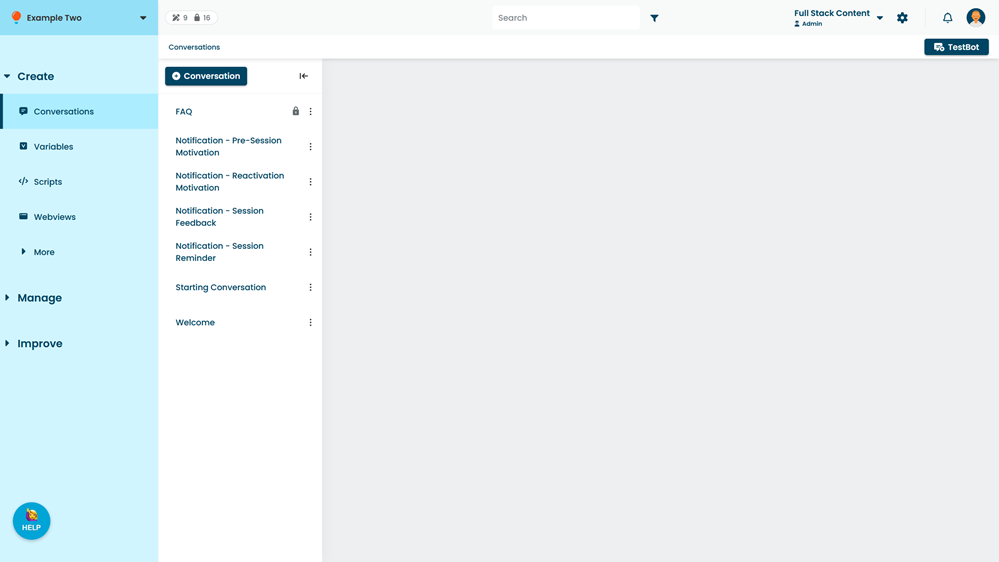
The conversation will be locked once you have published these changes in a chatbot version. Locked-in conversations display a padlock next to their name in your chatbot.
Unlock the conversation
Unlock a conversation if you want the chatbot to match global inbound questions when the chatbot user is within the conversation.
- Click Manage in the left navigation, then click Settings.
- Click Fallbacks.
- In the Conversation fallback section, find the conversation you want to unlock.
- Unselect Locked-in.
- Click Save.
The conversation will be unlocked once you have published these changes in a chatbot version.
As part of creating the locked-in conversation, you may have created extra passages to respond to common questions normally handled by your chatbot's global inbound questions or default fallbacks. We recommend you disable or delete any responses you no longer need.