Use a Quick Reply expected response when you want Quick Reply buttons to appear at the bottom of your message for the chatbot user to press.
The chatbot can also perform actions once the chatbot user has pressed a Quick Reply, such as saving values to variables, scheduling an event notification, running a script, or sending a custom analytics event. Quick Replies display icons to indicate any actions they perform.
You can:
- Add and configure Quick Reply buttons
- Create a Resuming Quick Reply to a resumable conversation or passage
- Delete a Quick Reply
You can add a maximum of ten Quick Replies to a passage, but some channels may not display more than three Quick Replies. You may see a warning icon if you are creating channel-specific content and you add more Quick Replies than the channel supports. If your channel is not listed in the channel limits list, check the channel's help documentation to confirm what the channel can support.
Regular button or Quick Reply button?
Regular buttons can be accompanied by media or images in carousels, and they're part of the chatbot message. This means they're always present once they've been sent, so the chatbot user can scroll back up the chat history and press a different button. Quick Reply buttons are simple text (and emoji) only, and disappear once the chatbot user has pressed one, so the chatbot user can't choose a different reply.
Add and configure a Quick Reply button
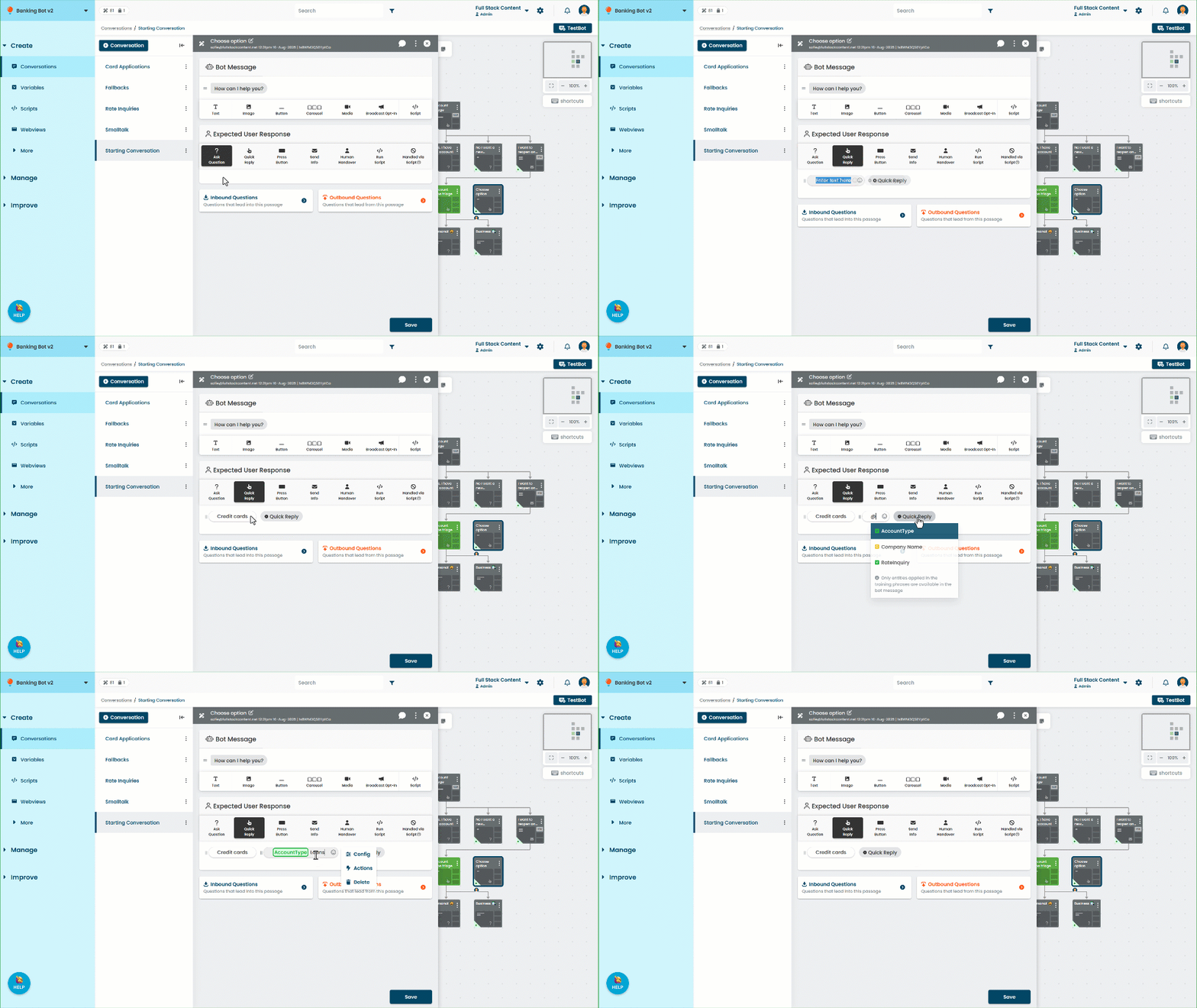
When you click the Quick Reply expected response, a default Quick Reply button called New Quick Reply is automatically created for you. Click + Quick Reply if you want to add another.
To change the order the Quick Reply buttons appear in the chat, click-and-drag the handles on the left of the Quick Reply button.
- Click Create in the left navigation, then click Conversations.
- Click the conversation with the passage you want to edit.
- Click the passage you want to add the Quick Repy to.
- Click + Quick Reply.
- Click the new Quick Reply and:
- Edit the text you want it to display.
You can add emojis using the emoji icon, or type @ to add the placeholder chip for a variable, constant, or entity. - Click Actions to perform actions when the Quick Reply is pressed.
- Click Config to select which passage the Quick Reply button starts.
A preview of the passage is displayed. You can also open the passage in a new tab.
- Edit the text you want it to display.
All message types have a default maximum length. If you use a placeholder chip and the value of the placeholder makes the total length of the message longer than the limit, the message is truncated to the limit. The default length for Quick Replies is 20 characters. The following channels use different limits:
- Google Business Messages: 25 characters
- Smooch v2: 40 characters
- Khoros subchannels other than Google Business Manager, Meta Messenger and Brand Messenger: 40 characters
If you want to create longer Quick Replies, you can add a script to create custom Quick Replies.
Watch for empty variables
Variables without a default value are blank until you save a value to them with an action. If your Quick Reply text only contains a variable, the variable does not have a default value, and the variable value has not been set when that chatbot tries to send it, it will cause an error. When using variables with Quick Replies, either:
- Make sure the variable has been set earlier in the conversation flow or has a default value.
- Add some extra text such as an emoji to ensure the Quick Reply text won't empty.
Delete a Quick Reply button
A Quick Reply expected response requires at least one Quick Reply button. If you want to delete all Quick Replies, select another expected user response option.
To delete a Quick Reply button:
- Click Create in the left navigation, then click Conversations.
- Click the conversation with the passage you want to edit.
- Click the passage you want to edit.
- Click the Quick Reply button you want to delete.
- Click Delete.
The Delete option only appears if there is more than one Quick Reply button in the passage.