Use Step 3 to analyse the LLM task output and evaluations from Steps 1 and 2, and suggest refined prompts that you can copy for further testing. You can provide additional context for the analysis, such as the reason some test cases failed their evaluation.
You need an administrator or publisher role in your team to run automated tests.
This step requires output from the task you're testing, and evaluations to analyse. You can:
- Evaluate your output using Step 2 on a CSV or result set with generated output.
- Select a result set with Step 2 (Evaluate) results.
- Upload a CSV with previously generated output and 'PASS' or 'FAIL' evaluations.
Insights are generated using all the evaluated test cases.
Each result set can have one set of generated insights. If you re-generate insights for a result set, you'll only see the latest version. Insights are not included in downloaded result sets, so make sure you record any prompt suggestions you want to keep.
To generate insights:
Click Improve in the left navigation, then click Automated Tests.
- Click the automated test you want to use or create a new automated test.
- At the top of the results pane, select the test cases you want to use:
- Select Step 3, Generate Insights from Evaluations.
Use the left and right arrows next to the step name to switch between steps.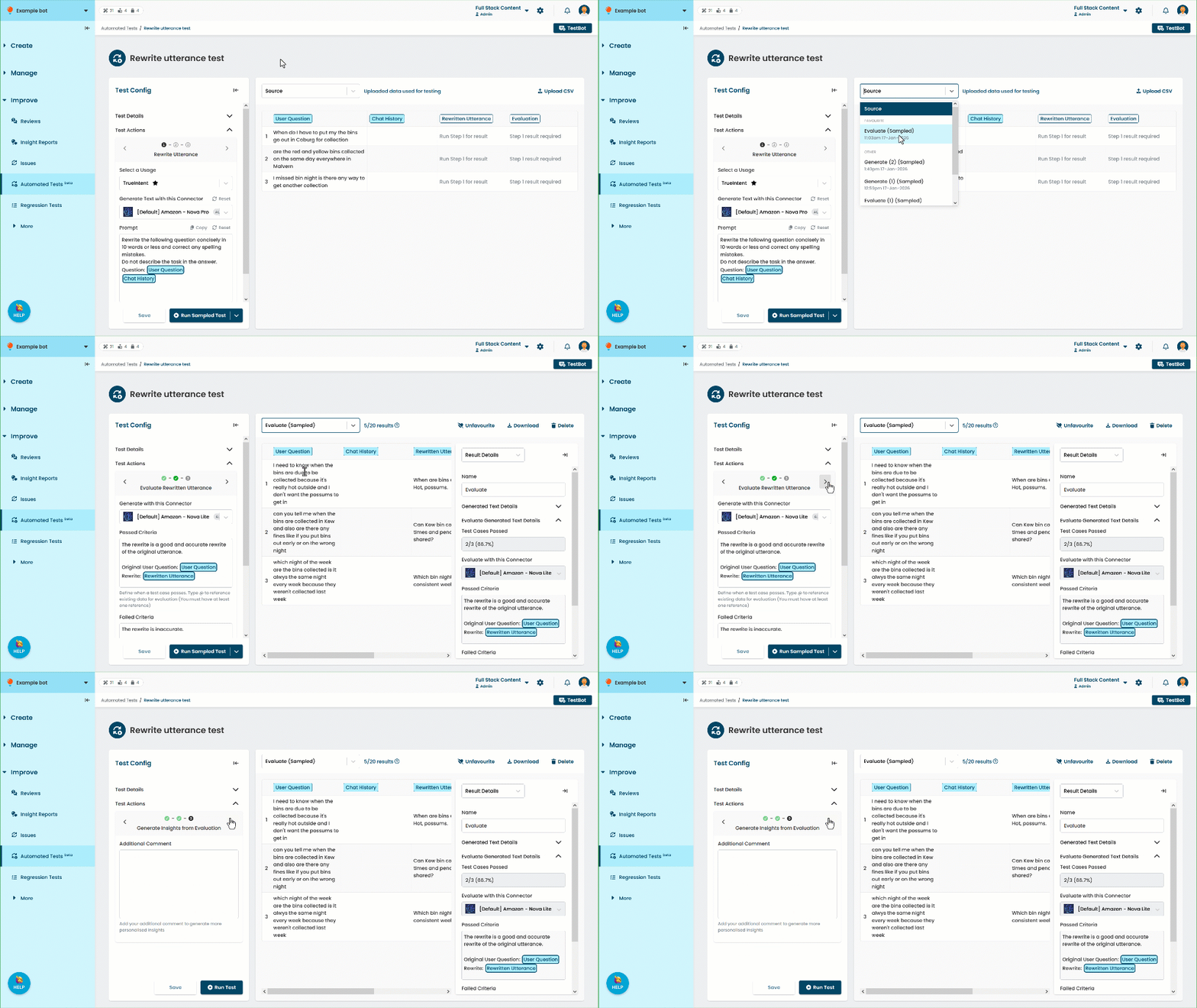
- Optionally, add additional context in the Additional Comment field.
For example, the reason why some evaluations were marked as 'FAIL'.
You can leave this field blank to generate insights using only the data in the result set. - Click Save.
- Click Run Test.
The insights and refined prompts are displayed in the Results Insights panel on the right