Run an automated test to identify performance gaps in your LLM tasks at scale and generate suggestions to improve your task prompts. An automated test runs the task on your test cases, evaluates the output, and generates insights with refined prompts.
You need an administrator or publisher role in your team to run automated tests.
You can select any step to run provided you have the input the test needs:
| Step | Needs |
|---|---|
|
Step 1: Run LLM task Runs the LLM task you're testing and generates output to evaluate. |
Test cases to run the LLM task on. For example, long utterances to rewrite. |
|
Step 2: Evaluate test cases Evaluates the output and grades it as 'PASS' or 'FAIL'. |
Test cases and generated output from Step 1. |
|
Step 3: Generate insights Analyses the evaluated output and generates insights and refined prompts. |
Test cases, generated output from Step 1, and evaluations generated by Step 2. |
You can provide this input by uploading a CSV, or by selecting the result set that contains results from the required steps.
Try a sampled test first
Running tests on a large set of test cases can take a while. If you're testing a new connector or prompt or trying new evaluation criteria, run sampled tests first to generate a small set of responses you can use to make adjustments before you run the full test. The default sample size is 20, but you can configure this in your evaluate test cases task.
To run an automated test:
- Click Improve in the left navigation, then click Automated Tests.
- Click the automated test you want to use or create a new automated test.
- At the top of the results pane, select the input you want to use:
- Select Source to use the data from the uploaded CSV.
- Select a previous result set.
- Click the left or right arrow beside the step name to select the step you want to run.
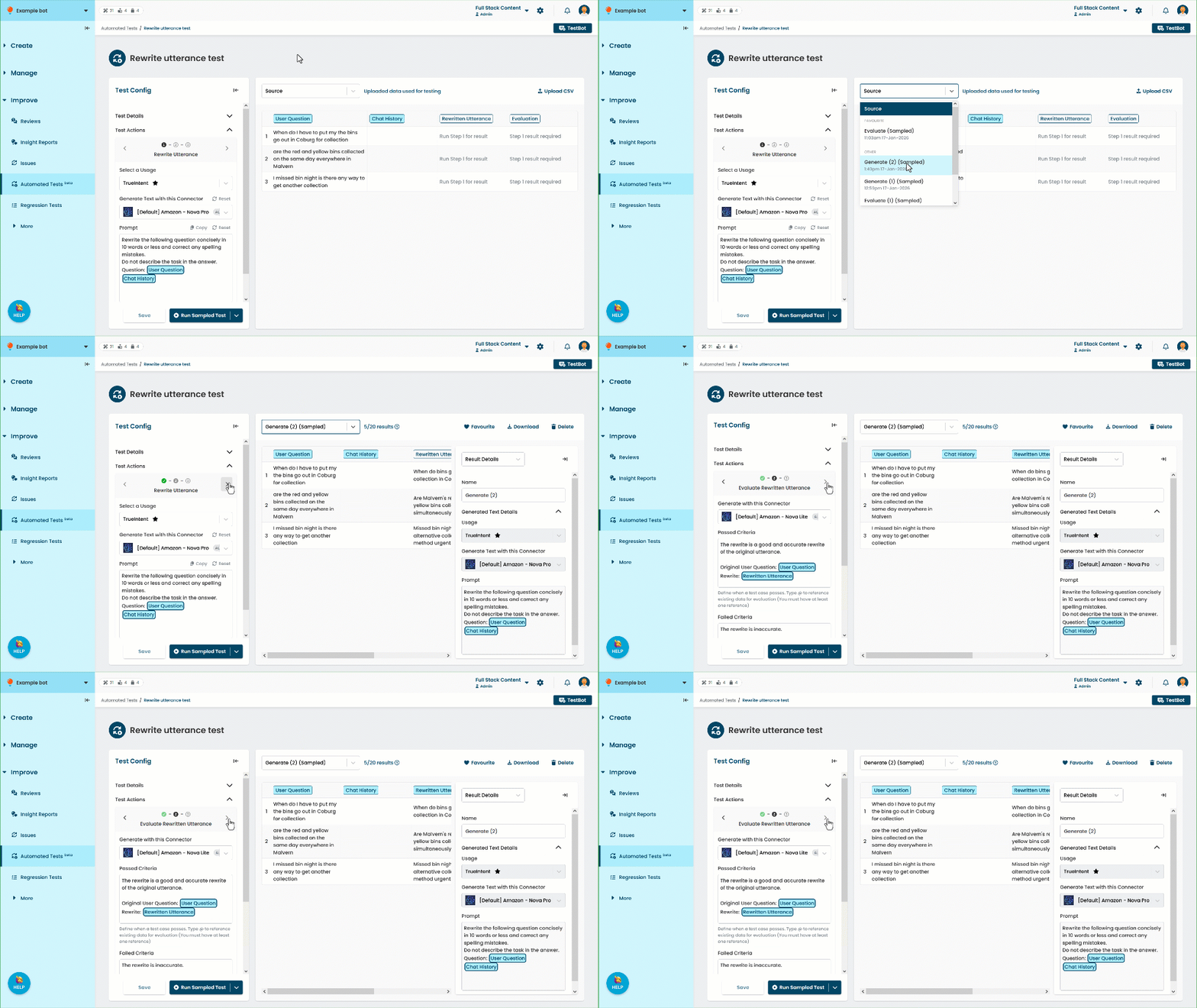
A step is only available if the selected input has the data it needs. You can see the status of each step by its icon:- Green checkmark: this step has been succesfully completed.
- Filled circle: this step is available, but hasn't been completed yet.
- Outlined circle: this step isn't available. You'll need to complete an earlier step first.
- Configure the test fields.
Each step has different configuration options. See: - Either:
- Click Run Sampled Test to quickly test your configuration with a small sample of test cases.
You can configure the sample size in your automated test usage.
Insights are always generated using all evaluated test cases. - Click the arrow next to Run Sample Test, then click Run Full Test to run the test against all test cases.
- Click Run Sampled Test to quickly test your configuration with a small sample of test cases.