Use a passage annotation to provide LLM models with additional context when they analyse that passage.
For example, you could add a more detailed explanation of the bot message to help your relevancy check task determine if a matched NLP question is relevant. Annotations are never visible to your chatbot users.
Annotated passages display an annotation icon on the conversation canvas and in their title bar.
A passage annotation only applies to that passage. If you want to provide the same information for all passages in a conversation, use a conversation annotation. You can use both passage and conversation annotations together.
Annotations are only used by some LLM tasks, and only if you've configured the task to use them. Annotations appear in versions as a change to the passage that you annotated. Those passage changes must be published before the annotations can be used by your tasks. If you want to test your annotations before you publish them, you can:
- Run some sessions using TestBot.
- Add your new annotations to a CSV and run automated tests.
To add a passage annotation:
- Click Create in the left navigation, then click Conversations.
- Click the conversation that contains the passage you want to annotate, then click the passage.
- Click the passage menu, then click Annotate for LLM.
If the passage already has an annotation, you can click the annotation icon instead.
If you don't see Annotate for LLM, make sure you've enabled at least one task that can use annotations.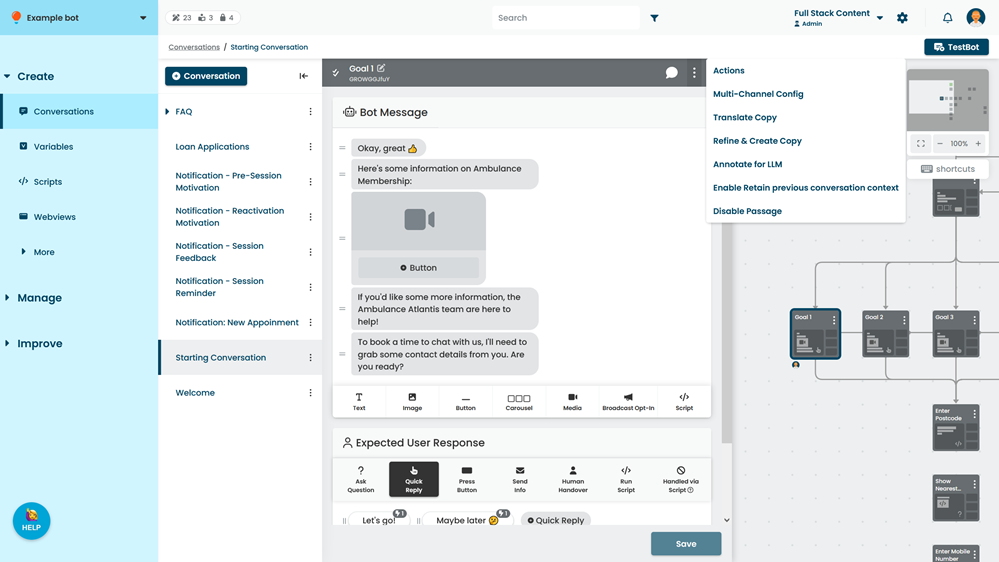
- Type your annotation.
- Click Save.