Annotations allow you to provide LLM models with additional context for your conversations and passages. Before you can add annotations to conversations or passages, you must enable at least one LLM task that can use annotations.
Annotations can be used by the relevancy check task and LLM matching task, which are both in the TrueIntent usage. You need an administrator or publisher role in your team to enable or disable annotations.
Annotations can impact your chatbot experience and it's important to test them thoroughly. After you enable annotations, your tasks won't use them until you configure the task to do so, so you can add and test your annotations without impacting your chatbot experience.
To enable and use annotations:
-
Enable annotations by enabling a task that can use them in your primary TrueIntent usage.
You don't need to publish this change. The Annotate for LLM option will be available as soon as you've enabled the task. - Add your passage and conversation annotations.
You don't need to annotate every passage or conversation, only ones that need context that isn't apparent from the chat history or passage content. Use automated tests to test their effect. -
Publish the annotations.
Annotations appear in versions as passage and conversation changes, so they'll be published when you publish those passages and conversations. Your tasks won't use them until they've been configured to do so, so you can add and test annotations without disrupting your content publishing. - Configure the task to use the annotations and publish that change.
To enable annotations:
- Click Manage in the left navigation, then click LLM Usages.
- Click your primary TrueIntent usage.
If you don't have a TrueIntent usage, you'll need to create one. - Click either the Relevancy Check tab or LLM Matching tab.
You can use either task. - Make sure the task is enabled.
For example, make sure Enable Relevancy Check is selected in the Relevancy Check tab.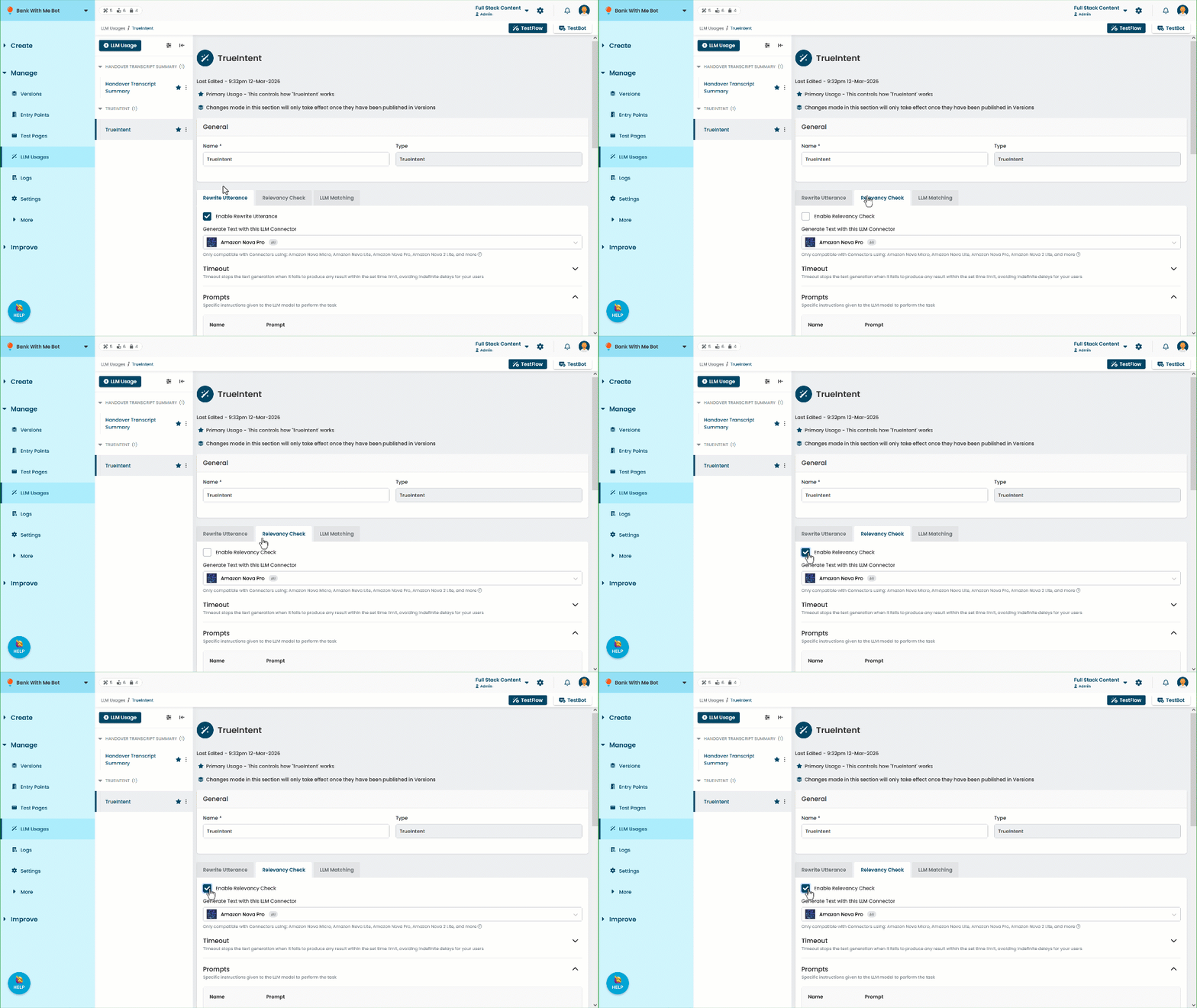
Configure a task to use annotations
- Click Manage in the left navigation, then click LLM Usages.
- Click your primary TrueIntent usage, then click the task that you want to use the annotations.
More than one task can use annotations at the same time. You'll need to configure each one separately. - Expand the Configuration section.
- In the Include the following content section, select Annotations.
Make sure you always have at least one of Passage Content or Training Phrases selected in addition to annotations.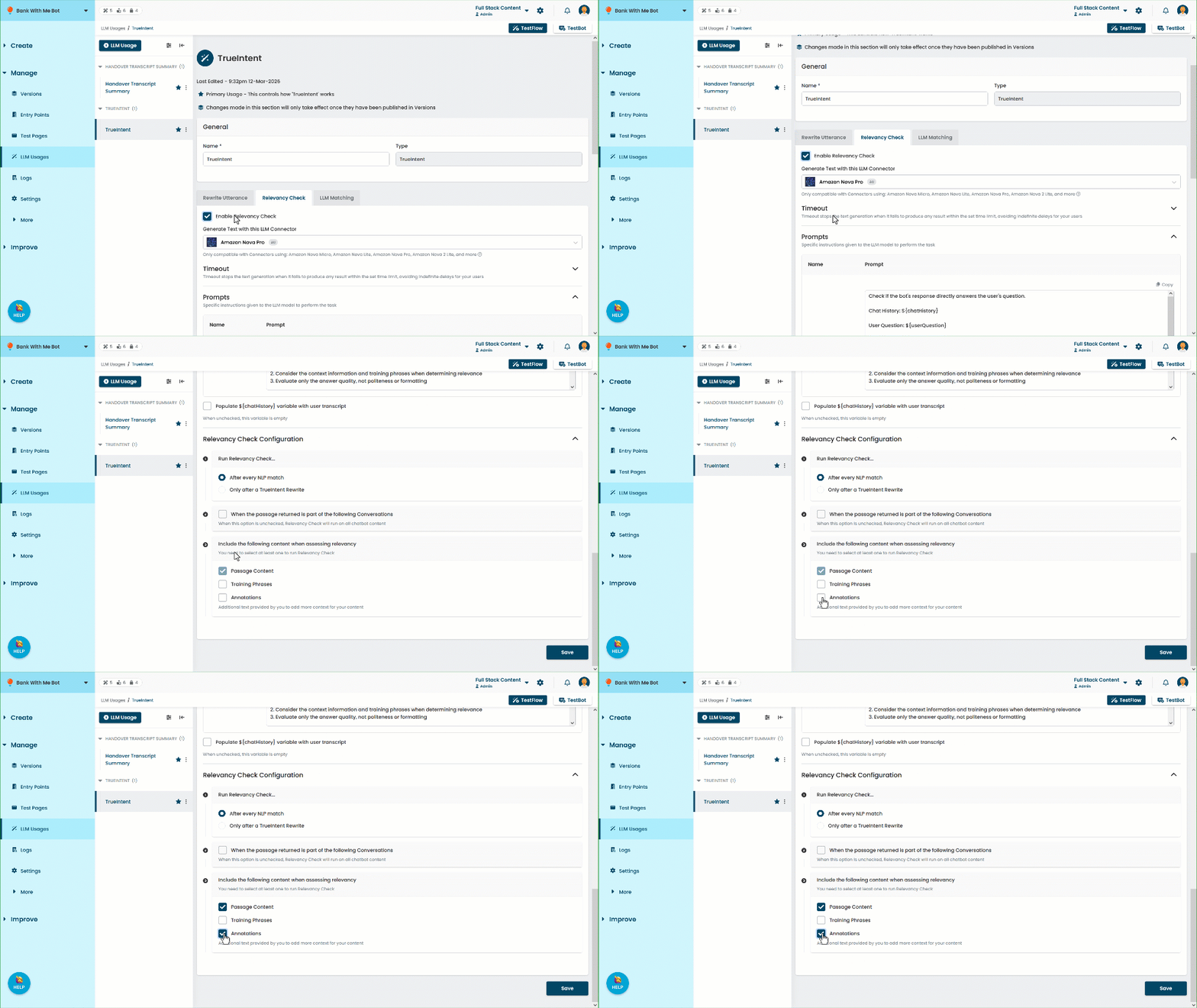
- Click Save.