Create a data source to add data to a vector store knowledge base. Data sources can be a set of uploaded files tagged with metadata, current published chatbot content, or content scraped from public web pages.
Data sources can only be added to vector store knowledge bases. Kendra knowledge base files must be maintained in Amazon Web Services.
Each vector store knowledge base can have a maximum of five data sources.
New data sources must be published before they take effect in your chatbot. You should sync your data source to test your changes thoroughly in TestBot before you publish them.
To create a data source:
- Click Manage > More in the left navigation, then click Knowledge Bases.
- Click the knowledge base you want to add a data source to.
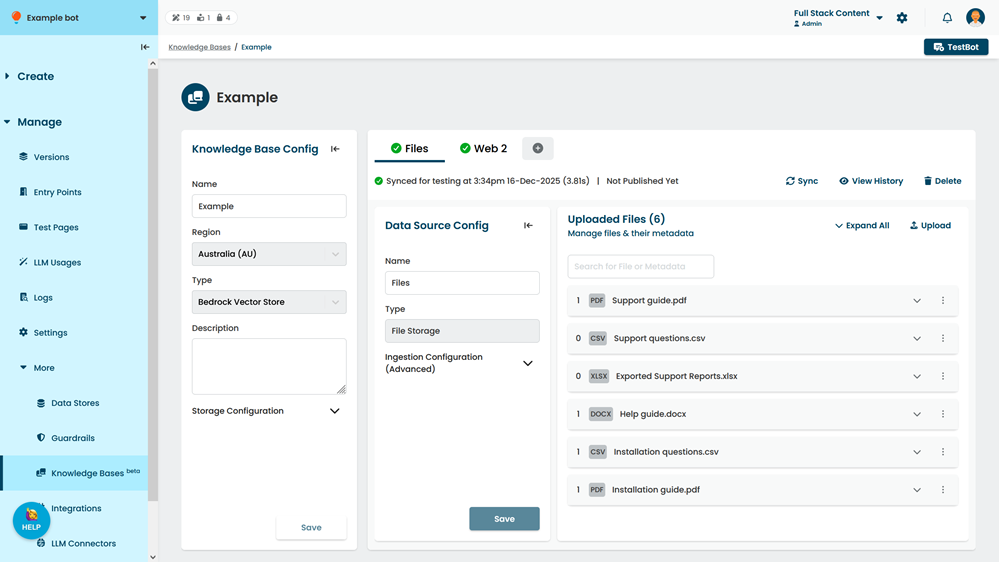
- Click the + button beside the existing data sources.
If this knowledge base doesn't have any data sources yet, click + Data Source. - Type a Name for the data source.
You can change this later. - Select:
- File Storage if you want to upload files
- Web Crawler if you want to use content from a public web page.
- Chatbot Content if you want to connect your chatbot's content.
- If you selected Web Crawler, type a URL to add content from.
You can configure the URLs to include or exclude in more detail before the pages are crawled. - If there are specific ingestion settings you want to use, expand Ingestion Configuration (Advanced) and complete the fields.
These settings have a default configuration that is suitable for most situations. If you're not sure what settings to use, you can ignore this section.
Ingestion configuration can't be changed once the data source has been created. See Optional Ingestion configurations (Advanced). - Click Create.
Once you have created the data source, add data to the data source by uploading files, linking chatbot content, or configuring your web crawler.
Optional Ingestion configurations (Advanced)
These settings are optional and have a default configuration that is suitable for most use cases. If you're not sure what configuration to use, ignore these settings.
Data in data sources must be ingested (processed for the LLM model to use). This involves splitting the data into small pieces (tokens) and larger pieces (chunks) and defining how the chunks relate to one another.
Some data or models may work better when content is split up and organised in a specific way, or you may have data that has already been processed for an LLM to use. You can configure how the data should be ingested when you create the data source.
Ingestion configurations can't be changed after the data source has been created.
| Ingestion mode | Field | Description |
|---|---|---|
|
None Use this mode if you plan to upload data that has already been processed for an LLM. |
||
|
Fixed-size Split the data into evenly sized chunks. |
Max tokens | Maximum number of tokens per chunk. |
| Overlap percentage between chunks | Percentage of tokens that overlap at the end of one chunk and start of the next. | |
|
Hierarchical Split the data into chunks with parent-child relationships. |
Max parent token size | Maximum number of tokens in a parent chunk. |
| Max child token size | Maximum number of tokens in a child chunk | |
| Overlap percentage between chunks | Percentage of tokens that overlap at the end of one chunk and start of the next. | |
|
Semantic Split the data by grouping similar sentences. |
Max token size for a chunk | Maximum number of tokens per chunk. |
| Max buffer for comparing sentence groups | The maximum number of tokens to consider at once when comparing sentence similarity. | |
| Breakpoint threshold for sentence group similarity | How similar sentences must be for them to be grouped together. |