Upload files to add them to your data source. Each file must be less than 50Mb. You can add metadata as you upload files or add the metadata later.
You can upload:
- Text files such as .txt and .text
- Markdown (.md) files
- HTML and similar formats such as .htm, .html, .shtml, and .ehtml
- Word documents such as .doc and .docx
- Spreadsheet files such as .xls, .xlsx
- PDFs
- Comma-separated value (.csv)
You can select to use all columns or only a single column of the file.
Changes to data sources are listed as ready to publish in versions, and must be published before they take effect in your chatbot. You should sync your data source to test your changes thoroughly in TestBot before you publish them.
To upload a file into a data source:
- Click Manage > More in the left navigation, then click Knowledge Bases.
- Click the knowledge base of the data source you want to update.
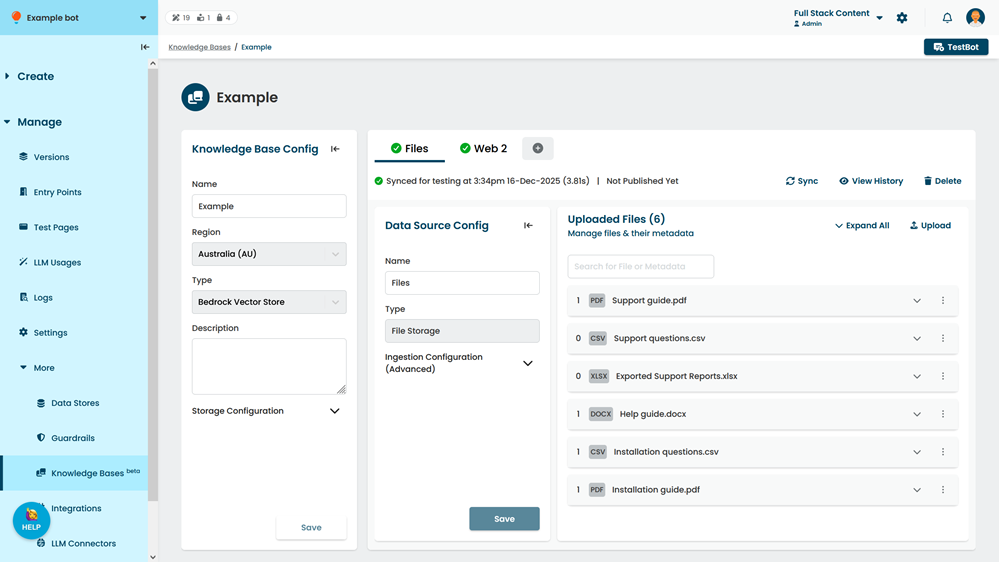
- Click the name of the file storage data source you want to update.
- Click Upload.
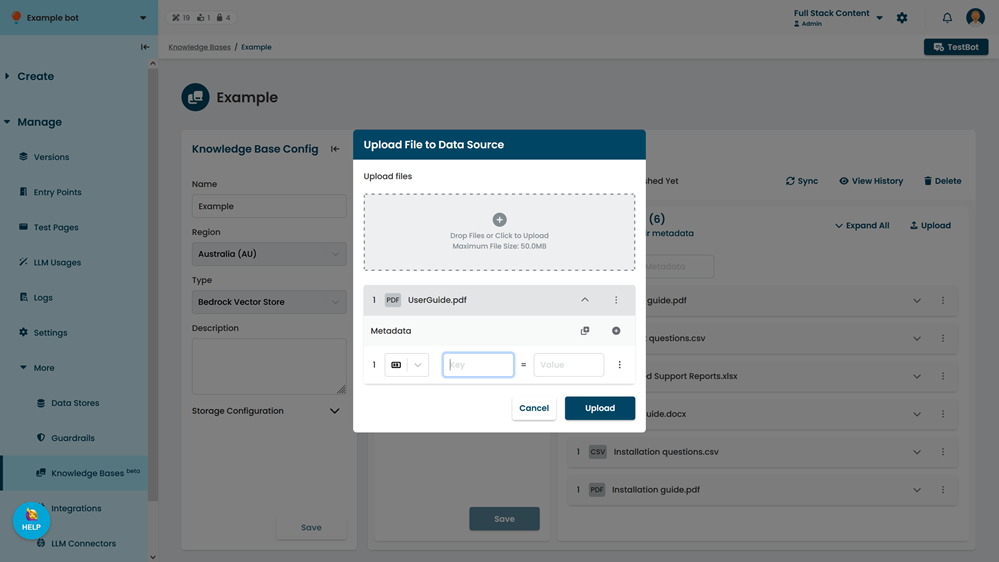
- Select the files to upload.
You can add multiple files to upload. Each file is listed under the file upload field. - If you want to add metadata or select a single column to use in a CSV file, expand the file in the list.
You can bulk-copy metadata fields across all the files you're uploading. - Click Upload.
Once your files are uploaded, you can search for them by filename, metadata key name or metadata value, and add or edit the metadata.