An LLM Connector connects your chatbot to a specific Large Language Model (LLM) from a provider such as Amazon, Google, Meta, and others. Your chatbot can use this model to power LLM tasks such as generating training phrase suggestions or handover transcript summaries for your livechat agents.
You need an administrator role in your team to manage connectors.
Models vary in the price charged by the model provider. You can create connectors for models at different pricing tiers to use with different tasks. You can also create multiple connectors to the same model.
Your chatbot has default connectors to support basic tasks such as generating suggested training phrases and refining chatbot message text. These tasks are already configured out-of-the box: if you want to use them as they are, you don't need to do anything.
If you want to customise the tasks or use other tasks such as generating handover transcript summaries, contact inGenious AI support to enable advanced generative AI features in your chatbot.
You can:
- Create a connector.
- Change the connector sorting.
- Rename a connector.
-
Delete a connector.
You should update any tasks that are using the connector and publish those changes before you delete the connector.
Connector regions
By default, connectors use models hosted in Australia (AU). When creating a connector, you can select a model from a different geographic region to control where your data is processed when using generative AI features. Some models or model features may only be available in the United States of America (US) region.
Each connector has its own region setting. The connector's region is shown on the connector page and can't be changed once the connector has been created. You can create multiple connectors to the same model in different regions.
Deprecated models
Models may be deprecated (removed after a period of notification) by their providers. Once a model has reached the end of its deprecation period, it is no longer available from the model provider and will be automatically deleted from your chatbot. Any tasks using connectors of this model will then no longer work.
If a connector's model is deprecated, a warning is displayed on the connector page, in the connector list, and under the connector field of tasks using a deprecated connector. We recommend you check your connector list and tasks periodically for deprecated connectors and move any tasks using those connectors to different models before the end of the deprecation period.
Connector sorting
Connectors and models can be sorted by:
- The provider
- The model's pricing tier
- The context window the model provides
- The date the model was released.
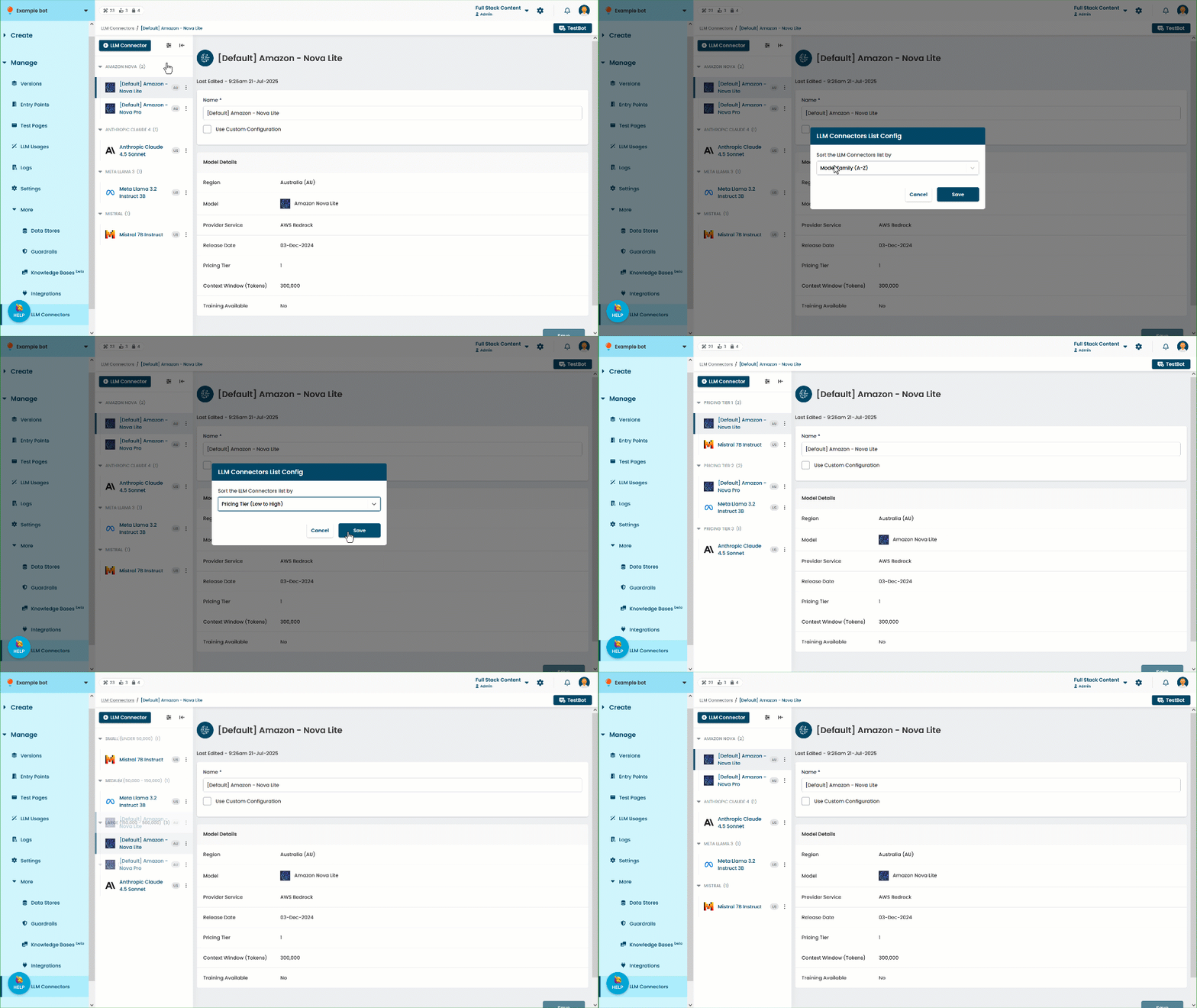
The sorting method you select is used by default wherever connectors or models are listed, such as in the Connectors page, when selecting a connector for a task, or when selecting a model for a new connector. Custom sorting groups for connectors are not available.
You can change the sorting method used at any time:
- Click Manage > More in the left nativation, then click LLM Connectors.
- Click the sorting options button at the top of the connectors list.
- Select the sorting method you want to use.
- Click Save.