A passage flow is a sequence of passages or logic linked using Quick Replies, buttons, Send info responses, outbound questions, or the passage selection in the Then and Else sections of logic. Resumable passages allow your user to jump out of a passage flow to another passage or logic and return to where they were.
Resumable passages are like resumable conversations, except:
- The resumability only triggers if the user jumps out of the passage flow from the passages that you mark as resumable. A resumable conversation applies to all passages in that conversation.
- The resumability triggers if the user jumps to a passage in the same conversation or a different conversation. Resumable conversations are only triggered when the user jumps to a passage in a different conversation.
For example, you create a passage flow to take a user through signing up for a subscription service. Within the same conversation, you also have passages that answer common questions about your service or your subscription fees. Each passage that you make resumable acts like a save point during the signup sequence, allowing the user to jump to the other passages to have their question answered and return to where they left off in the signup flow.
When the user returns to the resumable passage, the chatbot starts the resumable passage or logic again:
- Any actions defined for the resumable passage or logic are repeated.
- The chatbot sends the bot messages or evaluates the logic conditions again.
- The expiry timer on the passage's resumability resets.
Only passages that are linked directly are considered part of the passage flow. Passages that are started by scripts, livechat agent handbacks, fallbacks, or in response to chatbot user questions are not part of the passage flow. You should add resumability to each passage or logic in the passage flow that you want the user to be able to jump out and return to. You can make as many passages resumable as you need.
Passages must be made resumable in your chatbot's Experience settings before the user can navigate back with Resuming Quick Replies.
To make a passage resumable:
- Click Manage in the left navigation, then click Settings.
- Click Experience.
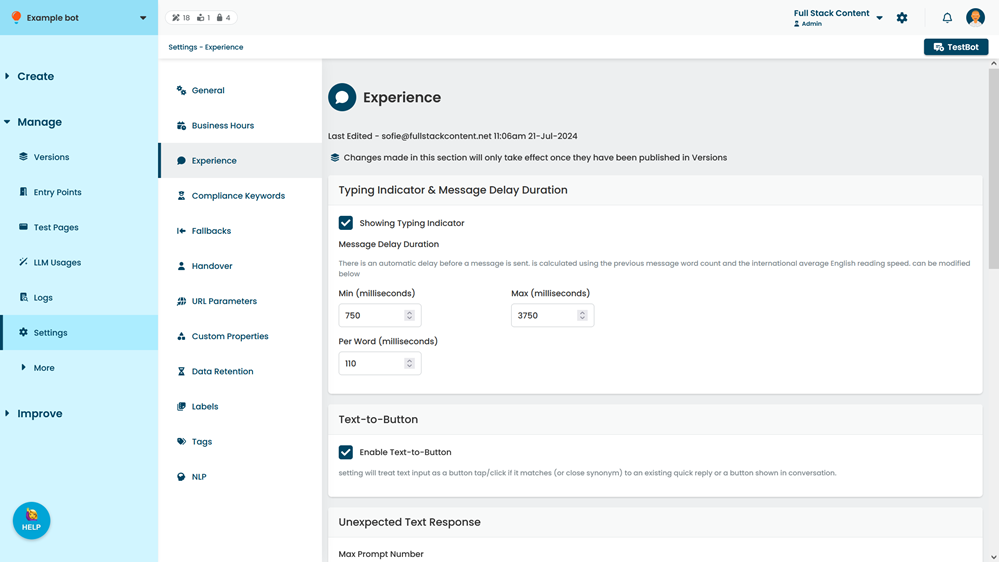
- In the Resume Previous Passage section, click + Passage.
- Select the Passage or logic you want to make resumable.
- Click the button preview to change the text that is displayed on Resuming Quick Replies that lead back to this passage or logic.
Quick Replies have limited space, so this should be a short title that the user will understand in the context of their recent chatbot use. - Set the Expiry Period to the number of minutes you want the passage to be resumable for.
This timer starts when the user jumps out of the passage flow to another passage in the conversation. Once this period has elapsed, the chatbot stops displaying the Resuming Quick Replies to return the user to the original passage.
You can use whole numbers or decimals in this field.
Remember to add Resuming Quick Replies with Resume Previous Passage to your passages so your chatbot users can jump back to this passage.