You can create additional sets of business hours if you need to support different hours for different departments, locations or other reasons.
You need an administrator of publisher role on your team to edit business hours.
For more information on using business hours, see Business Hours settings.
To create a new set of business hours:
- Click Manage in the left navigation, then click Settings.
- Click Business Hours.
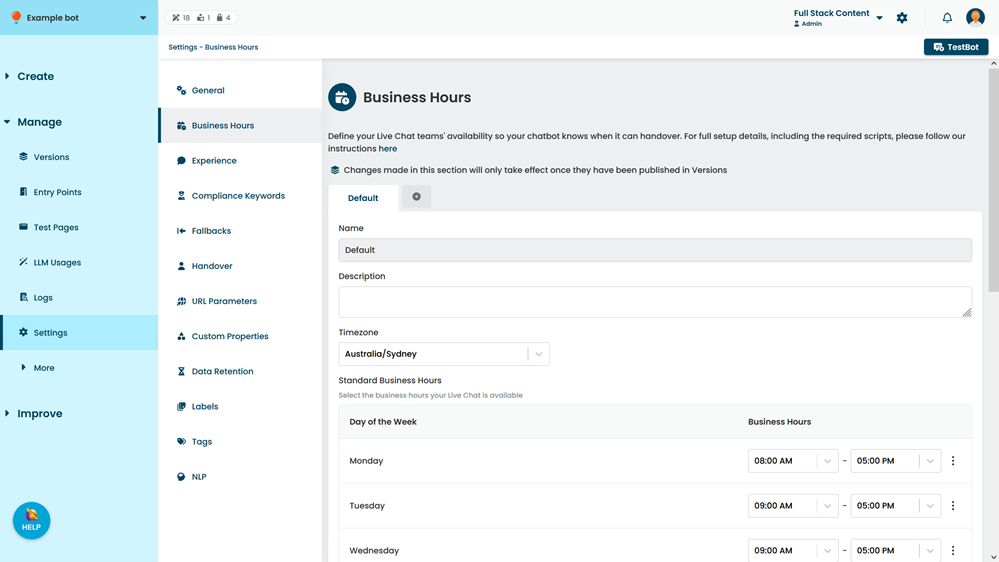
- Click the + next to your business hours tabs.
A new set of business hours is created. - In the new business hours tab, update the Name and Description.
Keep the name short but distinctive. You'll type this name in when you configure the business hours script in your passages. - Select the Timezone these business hours use.
- Select the availability for each day of the week:
- To set a single period of availablility for a day, select the time your business is available.
- To make a day unavailable or delete a time slot, click the menu icon on the right, then click Set as unavailable.
- To create multiple periods of availability, click the menu icon on the right, then click Add Business Hour Time Slot.
For example, you may have one time slot in the morning, a break during lunch where your livechat agents are not available, and another slot in the afternoon.
- Configure any national public holidays or company holidays your business observes.
- Click Save.