Users feel more like they're communicating with a human when long messages take more time to arrive, as if they're being typed by your chatbot. inGenious AI calculates a delay for each message according to the length of the message, within a minimum and maximum delay you specify.
Changes to these settings are sent to the Ready to publish stage in Versions, and will not be applied until they are published. You must publish these changes with the next version of your chatbot.
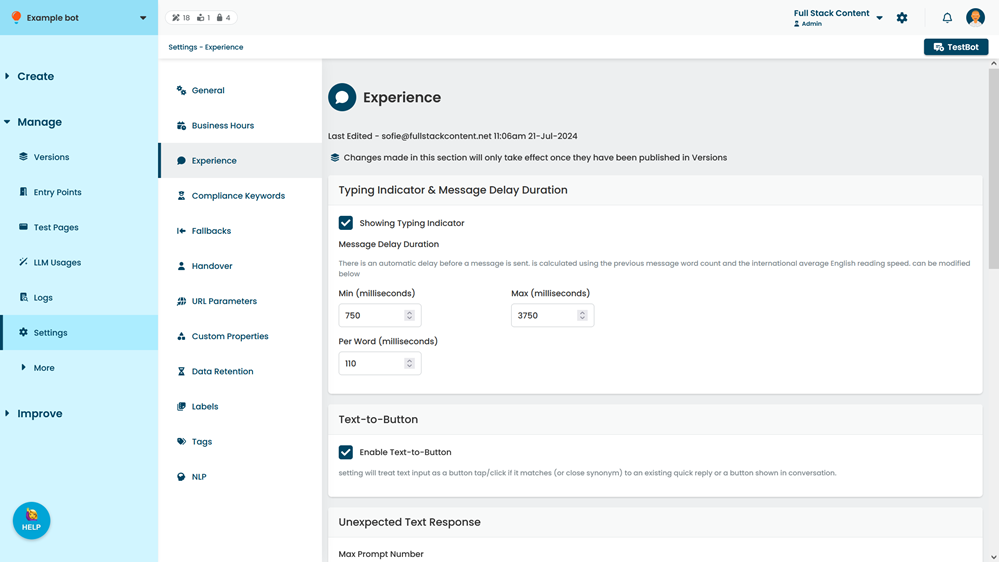
Typing indicator and message delay settings are configured in your chatbot's Experience settings. You need an administrator of publisher role on your team to edit experience settings.
To open the Experience settings:
- Click Manage in the left navigation, then click Settings.
- Click Experience.
| Field | Description |
|---|---|
| Show Typing Indicator |
Turn this on to show a typing indicator in the chatbot window during a message delay. You can also manually turn typing indicators on and off using a script. |
| Min | The minimum delay the chatbot waits before sending the next message. |
| Max | The maximum delay the chatbot waits before sending the next message. |
| Per Word | The number of milliseconds the chatbot waits per word of the message it will send. |