Once data has been uploaded to a data store, individual items can only be edited or removed using data store functions. If you want to use the inGenious AI platform to edit or remove data from a data store, you'll need to clear the data store's data and upload it again. This will also reset the data store's last used index, if it was set.
This is not a versioned change
Updates to data stores are immediately available to your chatbot, so make sure you have the new data ready before you delete the existing data.
To replace the data in a data store:
- Click Manage > More in the left navigation then click Data Stores.
- Click the data store you want to delete data from.
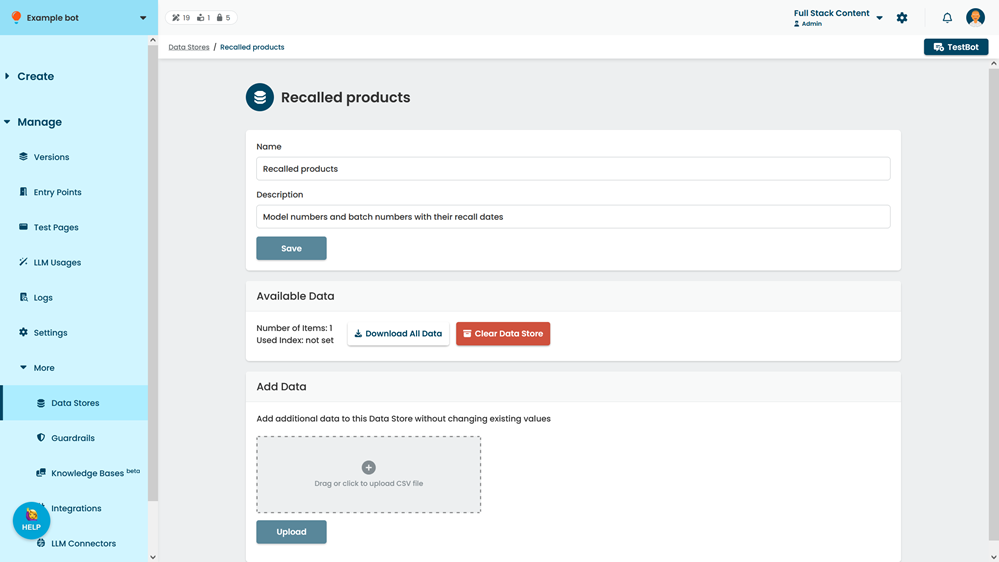
- Download a copy of the data first, click Download All Data.
- Open the downloaded file and make the edits you need.
Save it somewhere you can easily access. - Click Clear Data Store.
- In the confirmation, type Delete.
- Click Confirm.
- In the Add Data section, add the CSV file you edited earlier.
- Click Upload.