Add data to a data store by uploading a CSV. The data is appended to any existing data in the data store.
There is no set CSV format for data stores, so you're free to define the data structure you need. Use a column header as the first row of your CSV. All data you upload to this data store must use the same headings in the same order.
You can upload CSVs to add data at any time. Data you upload is immediately available to your chatbot without publishing a new version. You can also add data via chatbot scripts using data store functions.
If you have used the next index data store function to iterate through this data store's rows, adding more data does not change the last used index.
Data stores have a maximum file size of 20Mb and can have a maximum of 500,000 cells. For example, a data store with five columns could have up to 100,000 rows, and a data store with two columns could have up to 250,000 rows.
The data store does not check for duplicate data during uploads. If you need to check the CSV format or existing data, you can download the existing data.
To add data to a data store:
- Click Manage > More in the left navigation then click Data Stores.
- Click the data store you want to add data to.
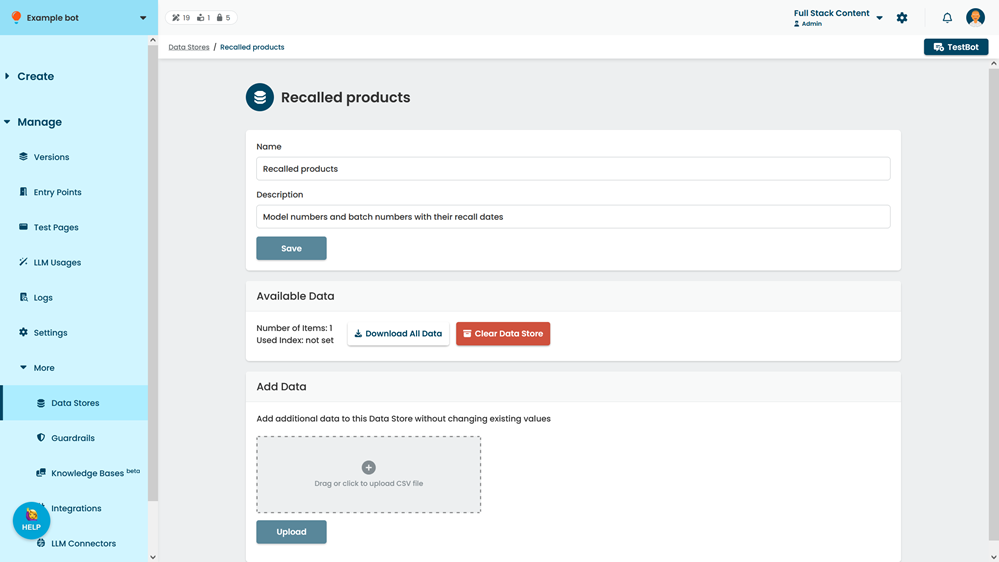
- In the Add Data section, add your CSV file.
Make sure it uses the same column headings and column order as any existing data. - Click Upload.
The data is immediately available to your chatbot.