Use metadata to provide additional context to data source files, such as the original source of a file or a subject category, so that LLM models can use the files more effectively.
For example, if you have added installation and user guides for several different products, you could add metadata to indicate which product each file relates to, and whether it's an installation or user guide. The model can use this metadata to help it find the most relevant files in the data source.
Each piece of metadata is defined as a key with a corresponding value. The value can be text, boolean (true or false), or a number.
You can define as many metadata fields as you need, but your data source will work best if you use them consistently: don't use the same key name to mean different things. You can add metadata to files:
- During the file upload.
- After files have been uploaded.
- To individual files.
- By bulk-copying fields across files.
Changes to data sources are listed as ready to publish in versions, and must be published before they take effect in your chatbot. You should sync your data source to test your changes thoroughly in TestBot before you publish them.
Add metadata to a file
To add metadata to a file:
- Click Manage > More in the left navigation, then click Knowledge Bases.
- Click the knowledge base of the data source you want to update.
- Click the data source you want to update.
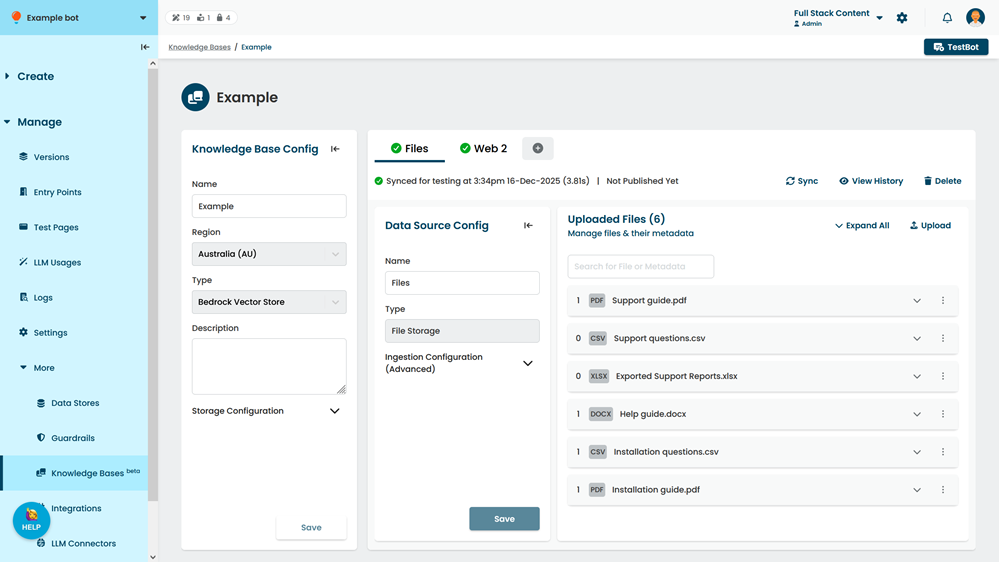
- Optionally, use the search field to find the file.
You can search on the filename, metadata key name, or metadata value. - Expand the file you want to add metadata to.
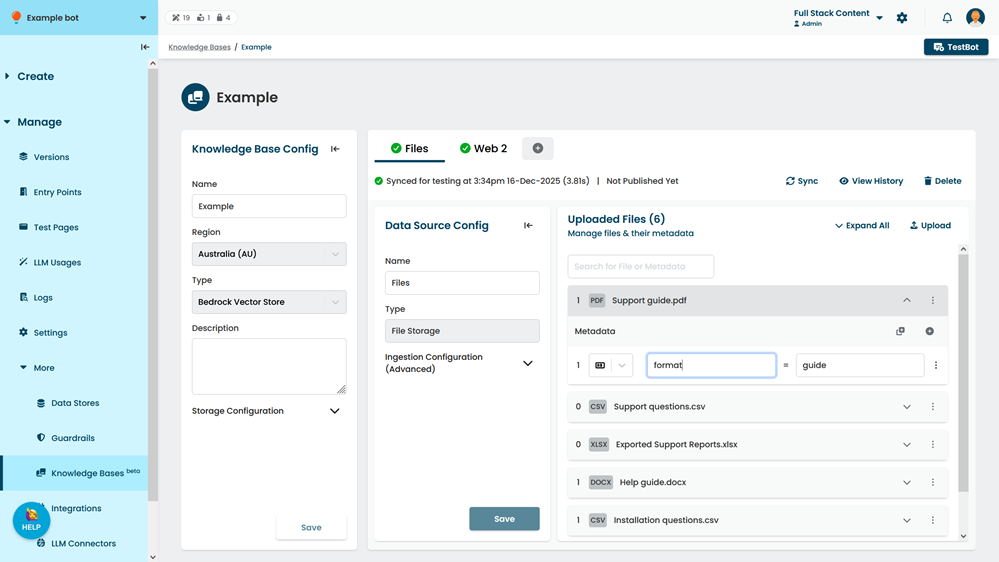
- Click +.
- Select the type of metadata.
Metadata can be a text string, boolean (true or false), or number. - Type the key name of the metadata.
Keep your metadata key names consistent for best results. - Type the value of the metadata.
- Click Save.
Copy metadata to all files
When you copy metadata across files, the metadata keys and values from one file are applied to all the other files in the data source. This replaces any existing metadata for those files.
To copy metadata to across all files in the data source:
- Click Manage > More in the left navigation, then click Knowledge Bases.
- Click the knowledge base of the data source you want to update.
- Click the data source you want to update.
- Optionally, use search to find the file you want to copy from.
You can search on the filename, or the key name or value of existing metadata. - Expand the file with the metadata you want to copy.
- Add any additional metadata you want to copy to the other files.
The metadata of this file will replace the metadata of the other files. - Click the copy button at the top of the file's list of metadata.
- Click Save.