Define a custom topic to filter a type of content that isn't listed in harmful categories. For example, if your organisation provides banking services, you could create a custom topic to prevent the chatbot responding to requests for investment advice. You can define up to 30 custom topics.
Content is filtered based on your definition of the topic. You can provide up to five examples as additional guidance, but the filter won't necessarily match specific words or phrases. If you want to filter on specific words, use the denied words filter.
Unlike NLP training phrases, you don't need to list all the different ways this content might be phrased. Instead, focus on making a clear and precise description of the content. For best results:
- Write the definition as a description of the type of content to block, not as an instruction or example.
For example, avoid instructions like "block all content associated with cryptocurrency". - Don't include examples in your definition.
You can add up to five examples in the Examples field, but these aren't necessary. - Avoid using exclusions or defining content by what it isn't.
For example, avoid exclusions such as "all content except medical information", or negatives such as "content that isn't financial advice". - Avoid trying to capture specific words or entities.
For example, avoid specifying words such as "statements with Acme Corp".
If you want to filter based on specific words, use the denied words filter.
You may need to test a few versions of your definition.
Custom topics can:
-
Flag and block custom topics:
- If the filter is on an input guardrail, the chatbot does not send the content to the LLM model.
- If the filter is on an output guardrail, the chatbot discards the content it received from the LLM model.
Your script can start a passage designed to handle this type of content instead.
- Flag the content but allow the chatbot to continue normally.
Custom topics can't be set to not filter. If you want to stop filtering a custom topic, either delete the topic or remove all the text from the name, definition and examples.
You need an administrator or publisher role on your team to edit guardrail filters.
To delete a topic, click the menu beside the topic action, then click Delete.
Use the search field at the top of the list to find topics by text in their name, definition, or examples, or use the navigation at the bottom to page through the list.
Changes that you make to custom topics must be published before they take effect.
To define a custom topic:
- Click Manage > More in the left navigation, then click Guardrails.
- Click the guardrail you want to modify or create one.
- In the Denied Content tab, make sure Custom Topics is enabled.
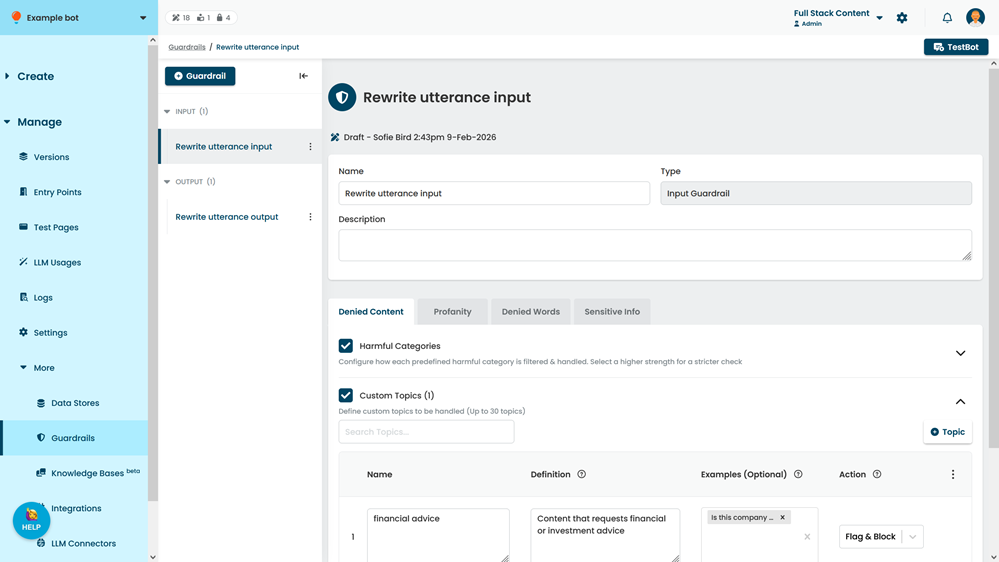
- Click + Topic.
Your first topic is created automatically when you enable the filter. - Type a Name for the custom topic.
- Add a Definition for the topic.
Keep your definition clear, precise, and no longer than a sentence or two. Use the harmful categories descriptions as a guide.
Don't include examples, additional instructions, or begin the definition with a command like "don't". - Optionally, add some Examples of content that would match your definition.
Type each example and then press enter.
To delete an example, click the cross next to it. - Select the Action:
-
Flag & Block to respond to the content differently.
If this is an input guardrail, the LLM model will not receive the content. If this is an output guardrail, the chatbot will not receive the generated output. Your script can start a specific passage instead. - Flag Only to flag the content but allow the chatbot to continue normally.
- Flag Only to flag the content but allow processing to continue.
- If you want all custom topics to use the same action, click the menu at the top of the topic list, then click either Set All as Block & Flag or Set All as Flag Only.
-
Flag & Block to respond to the content differently.
- Click Save.