The harmful categories filter detects several categories or undesirable or harmful content, allowing you to filter the content without having to specify specific words or phrases.
The filter can:
-
Flag and block harmful categories:
- If the filter is on an input guardrail, the chatbot does not send the content to the LLM model.
- If the filter is on an output guardrail, the chatbot discards the content it received from the LLM model.
Your script can start a passage designed to handle this type of content instead.
- Flag the content but allow the chatbot to continue normally.
You need an administrator or publisher role on your team to edit guardrail filters.
Each category provides a description of the kinds of content it detects:
- Hate speech
- Insults or bullying
- Sexual content
- Violence or threatening language
- Content about illegal, harmful, or deceptive acts.
- Prompt attacks (input guardrails only)
This category detects attempts to bypass a model's safety features or subvert the intended behaviour.
You can configure a different action and strength for each category:
- Use higher strength to prioritise detecting undesirable content, even if some benign content is also impacted.
Higher strength filters are more likely to incorrectly flag benign content as being harmful. - User lower strength to prioritise permitting benign content through, even if some harmful content is not detected.
Lower strength filters are less likely to detect harmful content that uses obscure or unusual phrasing.
The harmful content categories can't be modified. If you want to filter a category that is not listed or use a different definition for one of the categories, create a custom topic.
To configure harmful categories:
- Click Manage > More in the left navigation, then click Guardrails.
- Click the guardrail you want to modify or create one.
- In the Denied Content tab, make sure Harmful Categories is enabled.
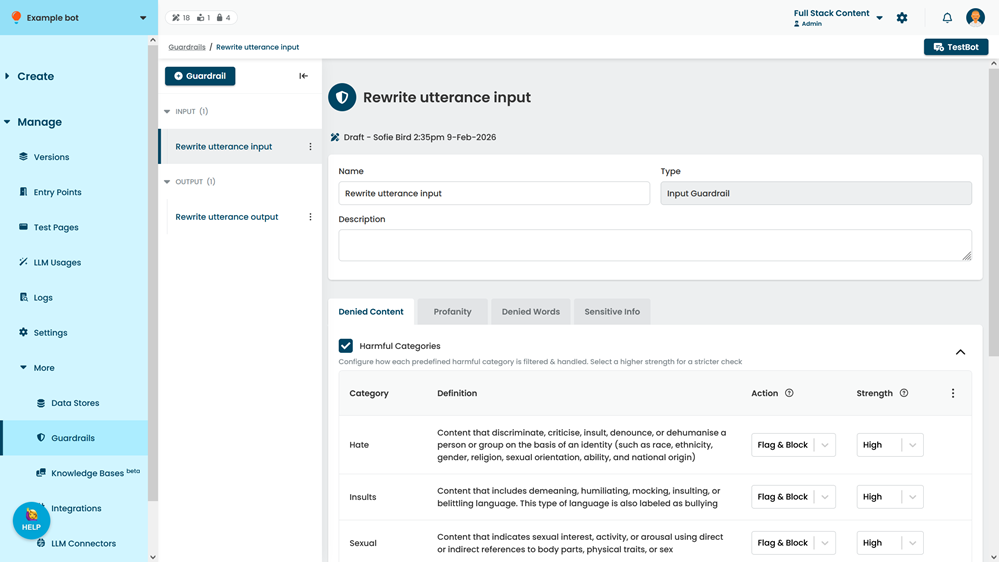
- Find the category you want to configure.
The prompt attacks category is only available for input guardrails. - Select the Action:
-
Flag & Block to respond to the content differently.
If this is an input guardrail, the LLM model will not receive the content. If this is an output guardrail, the chatbot will not receive the generated output. Your script can start a specific passage instead. - Flag Only to flag the content but allow the chatbot to continue normally.
-
No filter to ignore this category.
Use this option if you don't want to filter this category at all. - If you want all categories to use the same action, click the menu at the top of the list, then click either Set All as Block & Flag or Set All as Flag Only.
-
Flag & Block to respond to the content differently.
- Select the Strength that the filter should use when detecting content in this category.
Higher strength detects more undesirable content but may also incorrectly flag benign content more often. - Click Save.