Delete a usage to delete it and its tasks from your chatbot. You need an administrator or publisher role in your team to delete a usage.
To prevent disruption to your chatbot, a usage can only be deleted if it is not the primary usage.
When editing LLM tasks and usages, check the top of the usage page to see whether your changes must be published to take effect. If your changes must be published, make sure you update any related chatbot content before you publish the change. If there is no message indicating your changes must be published, then the changes are applied immediately and will not appear in versions.
Are you sure?
Once you delete a usage, it's gone. Any customisations you made to the task configuration or prompts will be lost.
To delete a usage:
- Click Manage in the left nativation, then click LLM Usages.
- If you don't see the usage you want to delete, click the filter icon next to + LLM Usage and make sure Show Platform Usages is selected.
-
Click the menu next to the usage you want to delete.
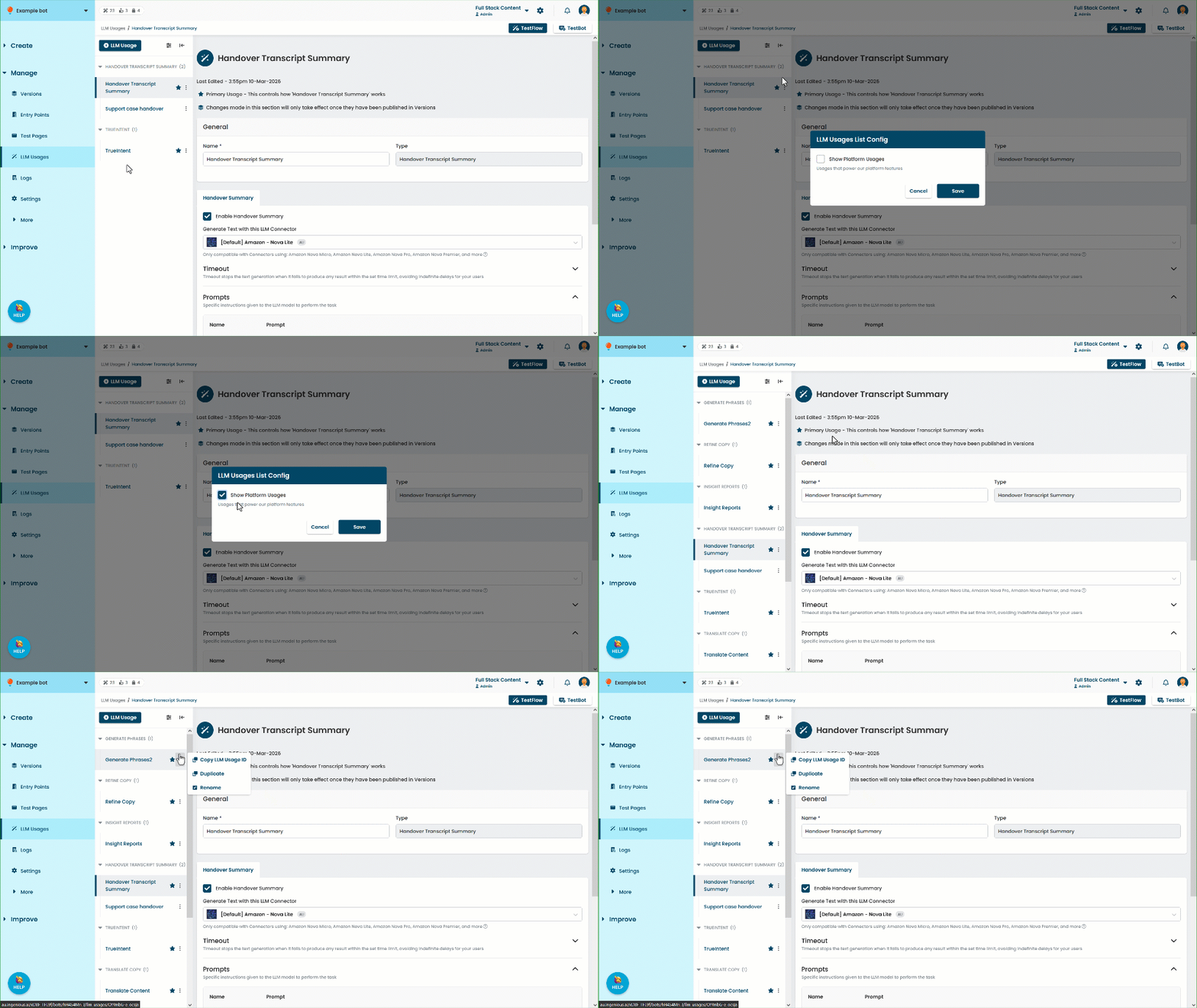
- Click Delete.