Create a connector to connect your chatbot to a Large Language Model (LLM) and power LLM tasks.
You need an administrator role in your team to create connectors.
Different models are suited to different tasks, such as text generation or summaries. Once you've created your connector, it will appear in the connector lists for any tasks it is suitable for.
If you have an administrator role on your team and know the task you want to create the connector for, you may find it easier to create connector while creating the usage. The list of available models will be filtered to models that support the usage you're creating.
-
Click Manage > More in the left nativation, then click LLM Connectors.
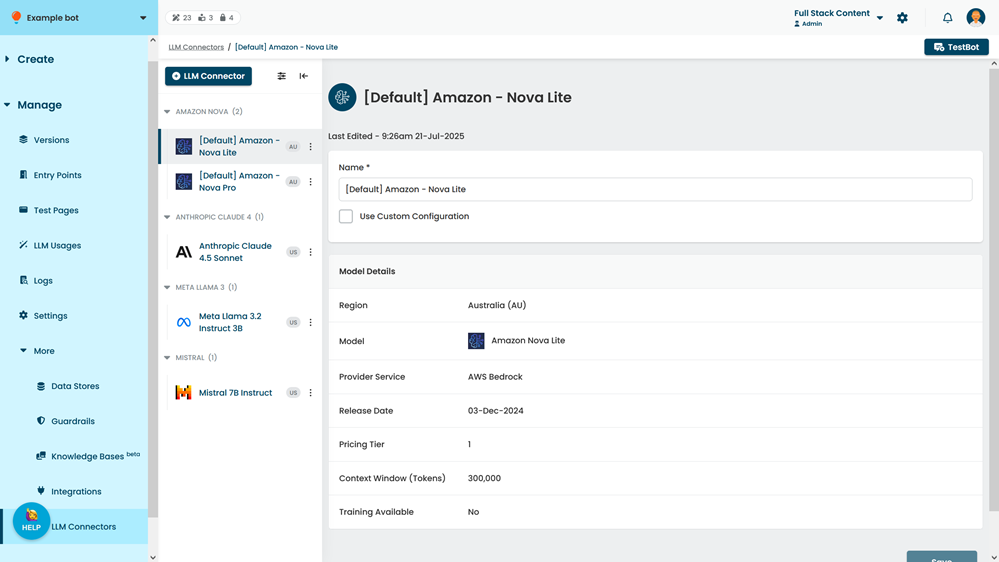
- Click + LLM Connector.
- If you want to use a model that is hosted in a specific region, select the Region.
By default, models are hosted in Australia (AU).
The connector region can't be changed once the connector has been created.
Some models and model features may only be available in US regions. - Select the LLM model you want to use.
You can filter and sort the models using the icons beside the field.
Hover over a model to see more information about the model.
If the model you select has been deprecated by the provider, a warning that the model is no longer supported is displayed. We don't recommend creating connectors for deprecated models. - Optionally, edit the Name for the connector.
You can edit this name from the connector's page later. - Click Connect.
- If you want to connect your model to Amazon Bedrock:
- Select Use Custom Configuration.
This field is only displayed if the model and provider supports Amazon Bedrock. - Add your AWS Access Key ID, AWS Secret Key, and the AWS Region.
- Click Save.
- Select Use Custom Configuration.
To start using your new connector, create a usage.