The sensitive info filter detects personally identifying information (PII) that should be protected, such as email addresses, identification numbers, and passwords. The filter provides a predefined list of PII types you can create filters for.
The sensitive info filter can:
-
Flag and block content with PII.
- If the filter is on an input guardrail, the chatbot does not send the content to the LLM model.
- If the filter is on an output guardrail, the chatbot discards the content it received from the LLM model.
Your script can start a passage designed to handle this type of content instead.
- Flag the PII and replace it with a mask before it is processed.
The mask indicates the type of PII without revealing the information, such as replacing a person's name with "[NAME]". - Flag the PII but allow the chatbot to continue normally.
You need an administrator or publisher role on your team to edit guardrail filters.
Changes that you make to sensitive info filters must be published before they take effect.
Each page displays ten types of PII you've added. Use the search field at the top of the list to find types you've defined or use the navigation at the bottom to page through the list.
To filter sensitive info:
- Click Manage > More in the left navigation, then click Guardrails.
- Click the guardrail you want to modify or create one.
- In the Sensitive Info tab, make sure Sensitive Info is enabled.
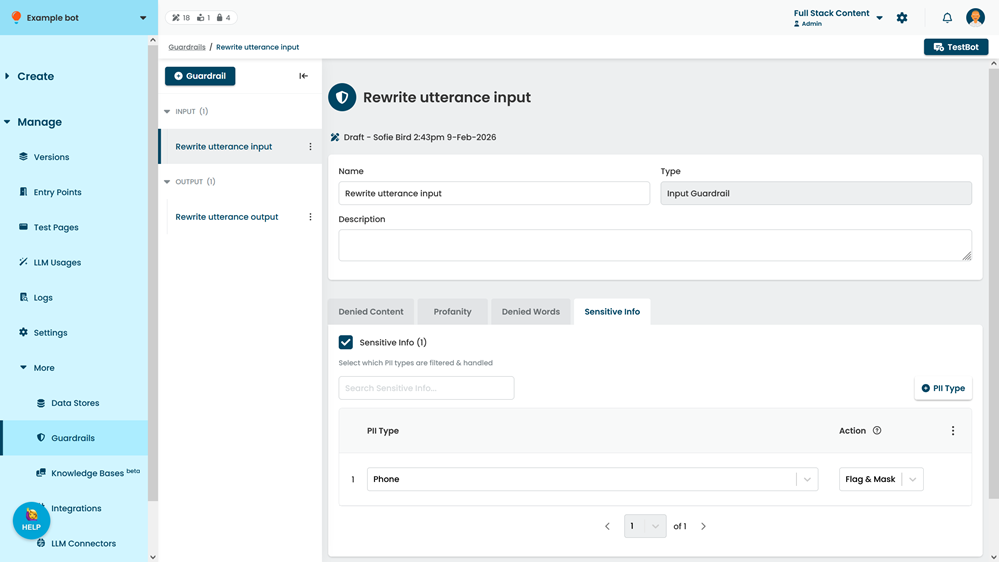
- Click + PII Type.
Your first PII type is created automatically when you enable the filter. - Select the PII Type to filter.
Each PII type can only be added once per guardrail. - Select the Action:
-
Flag & Block to respond to the content differently.
If this is an input guardrail, the LLM model will not receive the content. If this is an output guardrail, the chatbot will not receive the generated output. Your script can start a specific passage instead. - Flag Only to flag the content but allow the chatbot to continue normally.
- Flag & Mask to replace the sensitive info with a label indicating what kind of information it was, such as "[EMAIL]".
- If you want all PII types to use the same action, click the menu at the top of the category list, then click the action.
-
Flag & Block to respond to the content differently.
- Click Save.