Use the relevance validation filter to detect when generated output isn't relevant to the input or contains irrelevant additions in an otherwise relevant response. For example, if the input was about your business hours on a specific public holiday and the generated output listed the dates of upcoming public holidays.
Relevance validation is helpful in preventing irrelevant responses, but it doesn't check whether the content is accurate. To filter content that is hallucinated or not supported by your data, use the context validation (grounding) filter.
The relevance validation filter is only available on output guardrails.
You need an administrator or publisher role on your team to edit guardrail filters.
The relevance validation filter can:
- Flag and block irrelevant content.
Your chatbot does not receive the generated output. Your script can start a specific passage instead. - Flag the irrelevant content but allow it to be processed.
If you want to stop filtering irrelevant content, clear the Relevance Validation checkbox to disable the filter.
You can configure how strictly the filter detects content:
- Use higher strength to prioritise detecting irrelevant content, even if some relevant content is also impacted.
Higher strength filters are more likely to incorrectly flag relevant content as irrelevant. - User lower strength to prioritise permitting content through, even if some irrelevant content is not detected.
Lower strength filters are less likely to detect all irrelevant content.
Each strength level has a value between 0 and .99. Higher values correspond to higher strength. If you want greater control than the available levels, you can set a custom value.
Changes that you make to relevance validation filters must be published before they take effect.
To filter irrelevant content:
- Click Manage > More in the left navigation, then click Guardrails.
- Click the guardrail you want to modify or create one.
- In the Context Validation tab, make sure Relevance Validation is enabled.
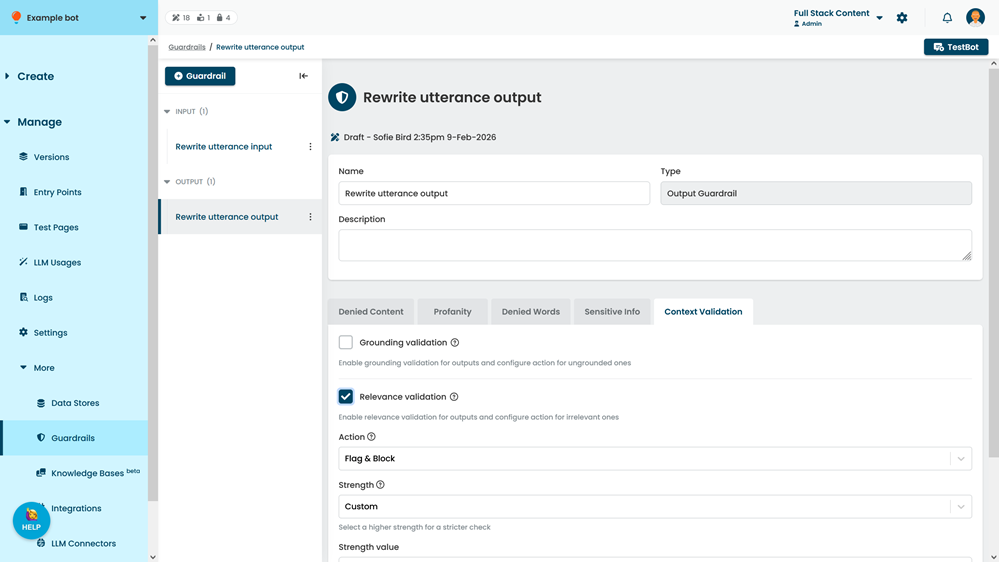
- Select the Action:
-
Flag & Block to respond to the content differently.
The chatbot will not receive the generated output. Your script can start a specific passage instead. -
Flag Only to flag the content but allow the chatbot to continue normally.
If you want to stop filtering irrelevant content, clear the Relevance Validation checkbox to disable the filter.
-
Flag & Block to respond to the content differently.
- Select the Strength that the filter should use when detecting irrelevant content.
Higher strength detects more irrelevant content but may also incorrectly flag relevant content more often.
To use a custom strength value, select Custom, then type a Strength value between 0 and .99. - Click Save.