Some industries have regulations around how an organization must respond to certain situations, such as financial hardship. When developing content across your chatbot, it can be difficult to ensure utterances regarding these situations are always matched appropriately.
Compliance keywords ensure your chatbot always starts a particular passage when certain keywords are mentioned by the user. These keywords are checked by your chatbot before it matches normal keyword and NLP questions. Unlike normal keyword matches, compliance keywords don't have a length limit if you want to match a very specific phrase. You can define multiple sets of compliance keywords and the order in which the chatbot checks them.
You need an administrator role on your team to edit compliance keywords.
The chatbot does not check if your compliance keywords duplicate any other keywords. Always test your chatbot thoroughly after adding or editing compliance keywords. Changes to compliance keywords appear as a settings change in Versions and will be published the next time you publish your chatbot.
Use with care
Compliance keywords are very disruptive to your chatbot's behaviour because they override the chatbot's normal question matching. If users mention these keywords with a different intention during a conversation, they may be confused and frustrated by your chatbot's response.
This feature should only be used to comply with regulatory standards or in situations of a similar risk profile. If you're just looking to improve your keyword accuracy or NLP accuracy, compliance keywords probably aren't the right fit. We recommend you contact inGenious AI Support before adding compliance keywords.
Add a set of compliance keywords
Consult inGenious AI support before you add compliance keywords.
- Click Manage in the left navigation, then click Settings.
- Click Compliance Keywords.
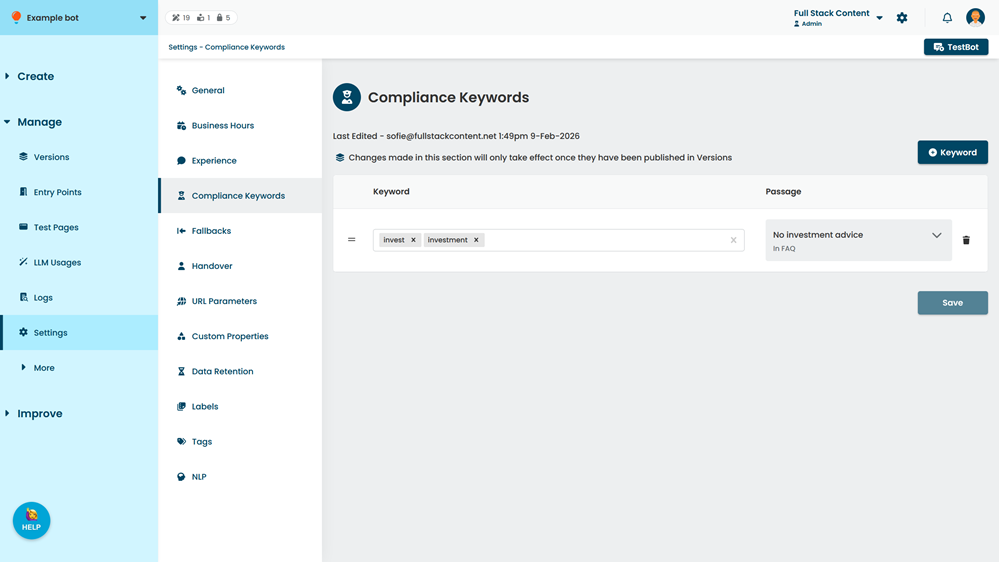
- Click + Keyword.
- Type confirm in the confirmation window and click Confirm.
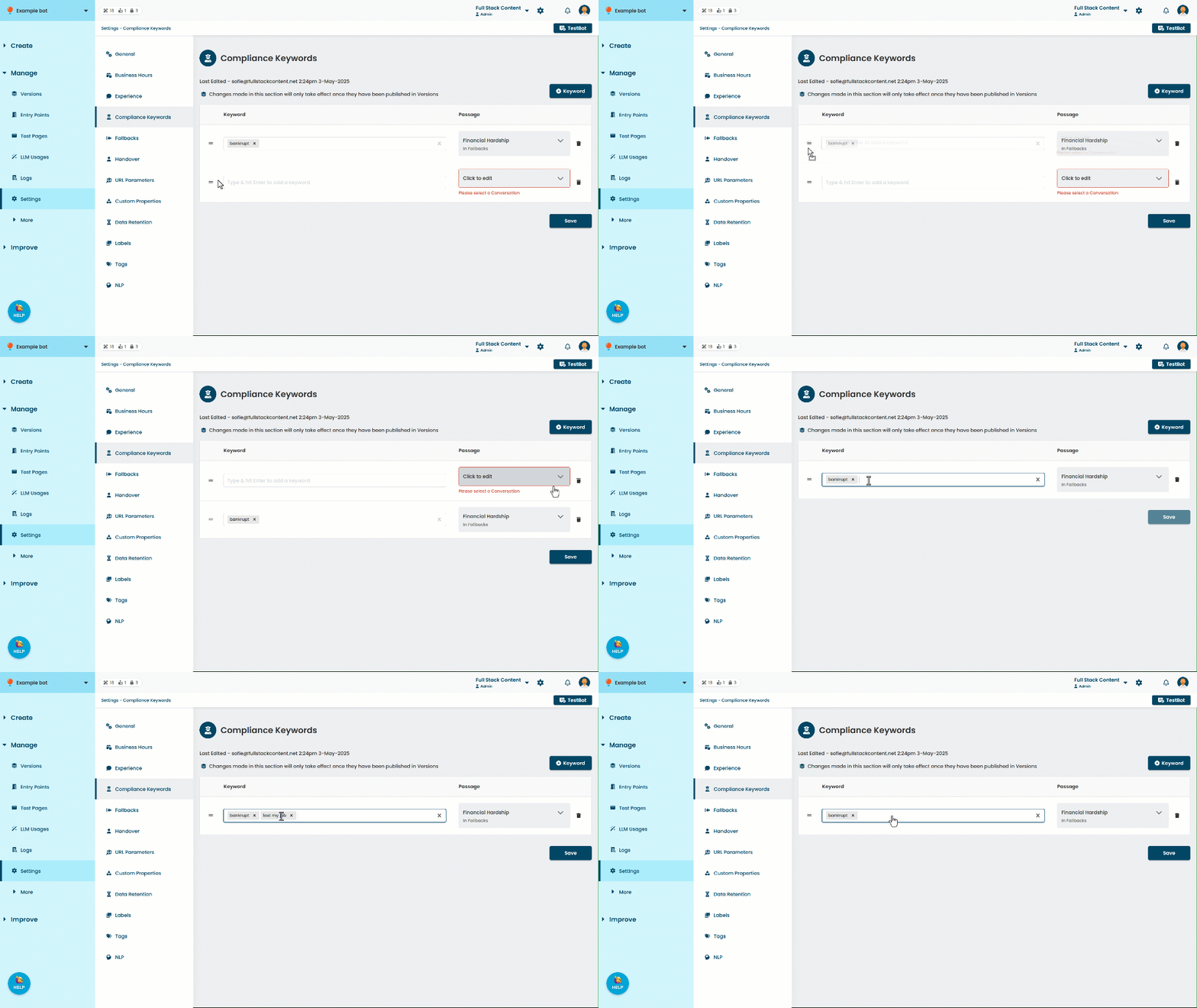
- Click the empty Keyword field.
- Type your keyword and press Enter.
To add more keywords in this set, press Enter after each keyword.
Add as few keywords as possible and only use keywords that would never be used to mean something else. - Click the Passage section.
- Select the Conversation and Passage the chatbot should start.
- Click Save.
Remember to test your chatbot thoroughly before you publish your changes.
Update or remove compliance keywords
To update your compliance keywords:
- To add a new keyword into an existing set, click the list of keywords and type the new keyword, then press Enter.
- To delete a keyword, click the x next to the keyword you want to delete.
- To change which passage the compliance set starts, click the passage and select a new conversation and passage.
- To change the order in which the compliance keyword sets are checked, click and hold the bars on the left of the compliance sets and drag them up or down.
- To delete a keyword set, click the delete icon to the right of the set.
Remember to save your changes.