Now that we've asked the chatbot user which rate inquiry option they want, let's assign their response as the value of our variable.
Values are assigned to variables using actions or scripts. Actions can be attached to almost any interaction your user has with your chatbot, including pressing buttons or Quick Replies, sending information, or entering passages, conversations, or entry points.
We'll add an action to the property valuation, payment options and rates buttons so the chatbot assigns the button's title to our RateInquiry variable.
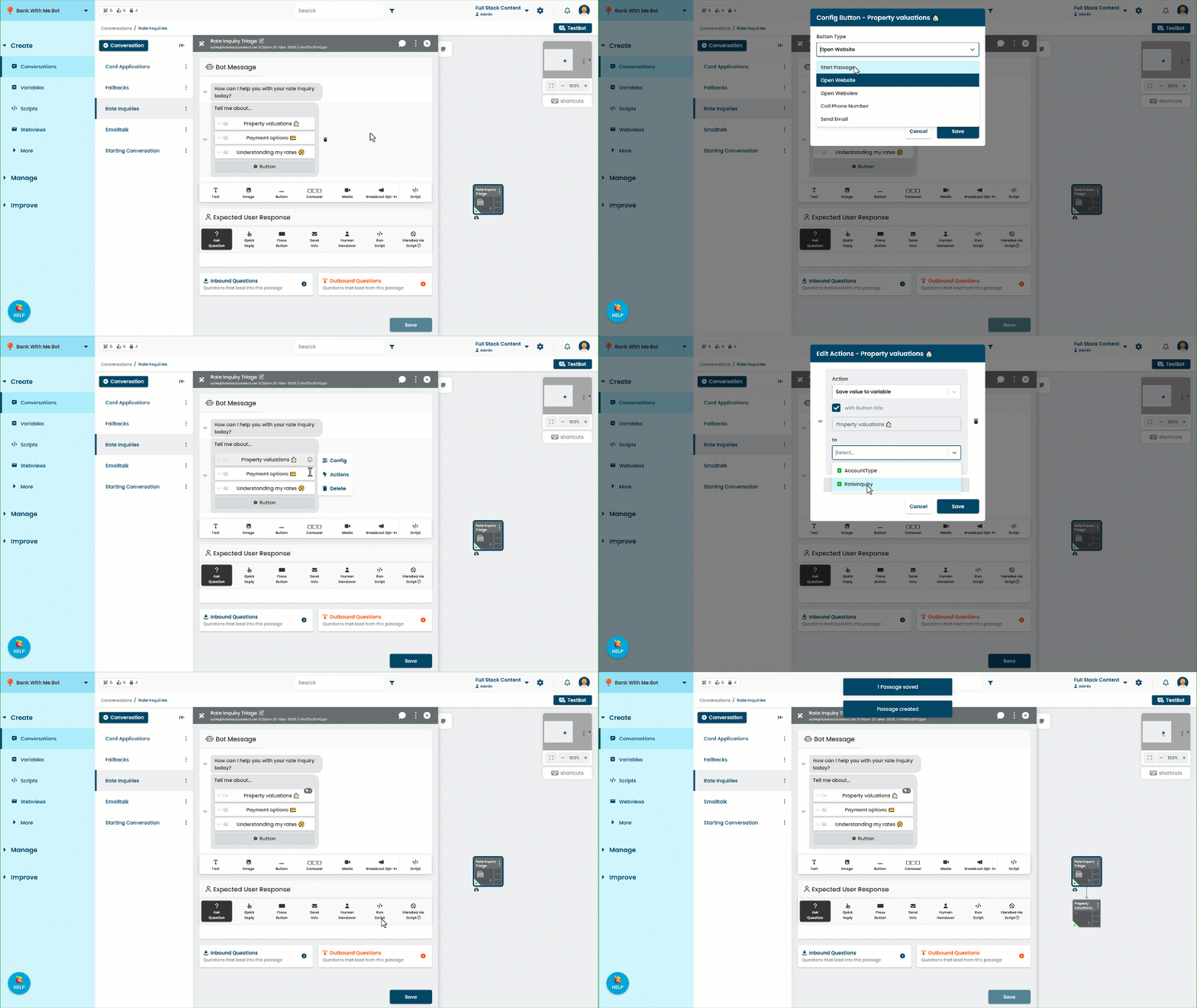
Add an action to the Property valuation button
In the Rate inquiry triage passage you created:
- Click Create in the left navigation, then click Conversations.
- Click the rate inquiries conversation, then click the rate inquiry triage passage.
- Click the Property valuations button.
- Click Configure.
- Select Start a passage.
Leave the default of Create a new passage. We'll use this passage in a later step. - Click Save.
- Click the button again, then click Actions.
- Click + Action.
- Select Save value to variable.
- Leave with button title selected.
We can define our own value to store. For this first one, let's just use the button title as-is. - In the to dropdown, select the RateInquiry variable.
- Click Save to close the Actions configuration.
- Click Save to save the passage.
Add an action to the Payment options button
When we saved the passage, a new passage was created from our Property valuation button's configuration. We don't want to create duplicate content, so we'll configure the other two buttons to go to the same passage. We'll also configure our own value to be stored in the variable, rather than the button text.
In the rate inquiry triage passage:
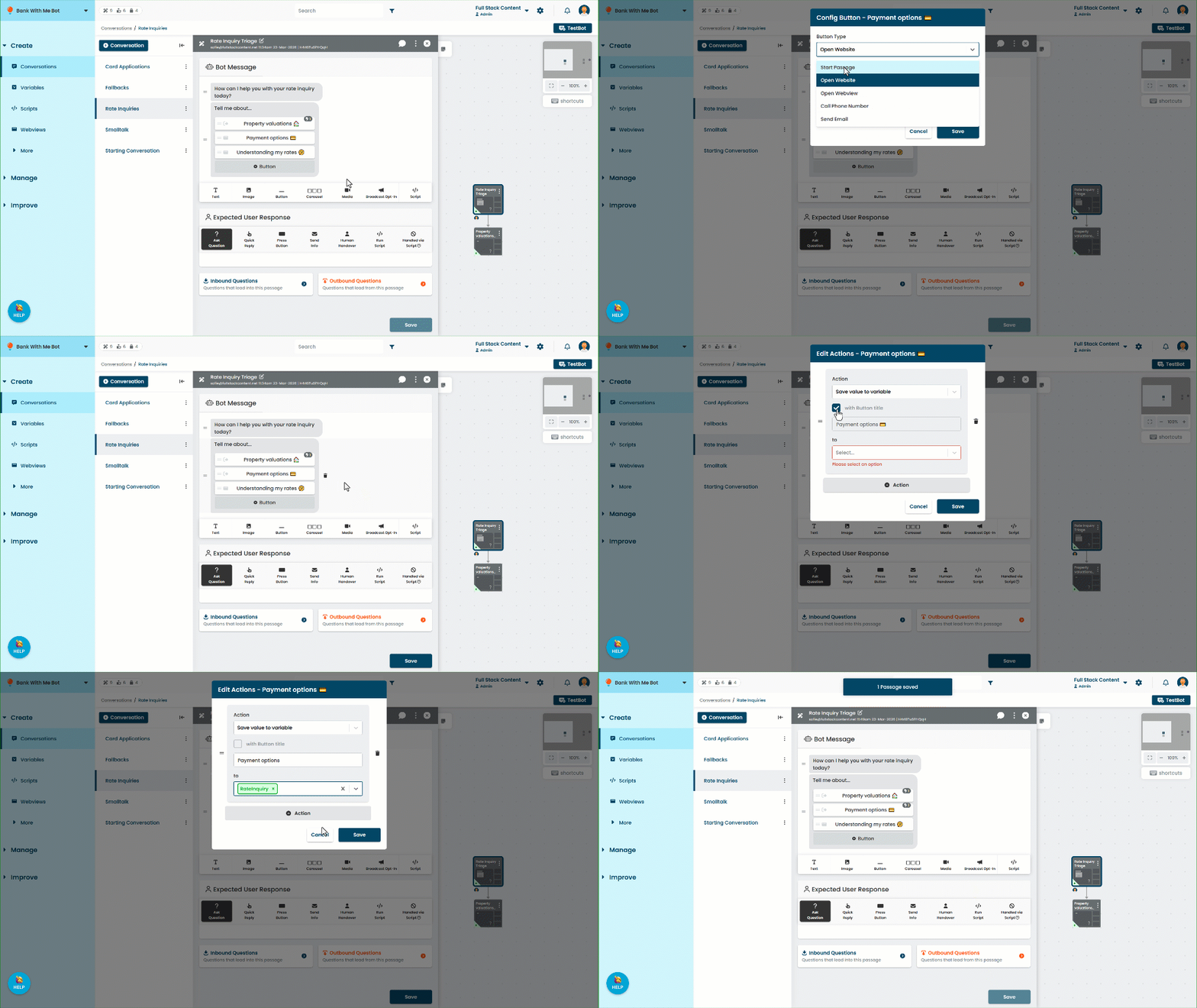
- Click the Payment options button.
- Click Configure.
- Select Start a passage.
Select the Property valuations passage that was just created. - Click Save.
- Click the button again and click Actions.
- Click + Action.
- Select Save value to variable.
- Unselect the with button title option.
Defining your own value to store can be useful. You may want to use emojis in your button titles but not have them appear when you use the value elsewhere, for example. - In the Value field, delete the 💳 emoji.
- In the to dropdown, select the RateInquiry variable.
- Click Save to close the Actions configuration.
Add an action to the Rates button
Now let's configure our last button to start the same Property valuations passage and store a value in the variable.
In the rate inquiry triage passage:
- Click the Understanding my rates button.
- Click Configure.
- Select Start a passage.
Select the Property valuations passage that was created earlier. - Click Save.
- Click the button again and click Actions.
- Click + Action.
- Select Save value to variable.
- Unselect the with button title option.
It doesn't make much sense for the chatbot to talk about understanding its own rates. Let's override the value so the chatbot uses the right pronoun. - In the Value field, type understanding your rates.
- In the to dropdown, select the RateInquiry variable.
- Click Save to close the Actions configuration.
- Click Save to save the passage.
When the chatbot user presses one of the buttons, the chatbot assigns the values we configured as the value of our RateInquiry variable. We can use that value in other passages in the rest of the conversation.
All three buttons start same next passage. Let's configure that passage to use the variable to customise its message.