Now that we've asked the chatbot user for their name, let's assign their response as the value of variable.
Values are assigned to variables using actions or scripts. Actions can be attached to almost any interaction your user has with your chatbot, including pressing buttons or Quick Replies, sending information, or entering passages, conversations, or entry points.
We'll add an action to the Send Info expected response so the chatbot assigns the chatbot user's response to our Username variable.
In the Request user name passage you created:
- Click Create in the left navigation, then click Conversations.
- Click the welcome conversation, then click the request user name passage.
- In the Expected User Response section, click Actions.
- Click + Action.
- Select Save value to variable.
- Leave with what users send selected.
- In the dropdown, select the Username variable.
- Click Save to close the Actions configuration.
- Click Save to save the passage.
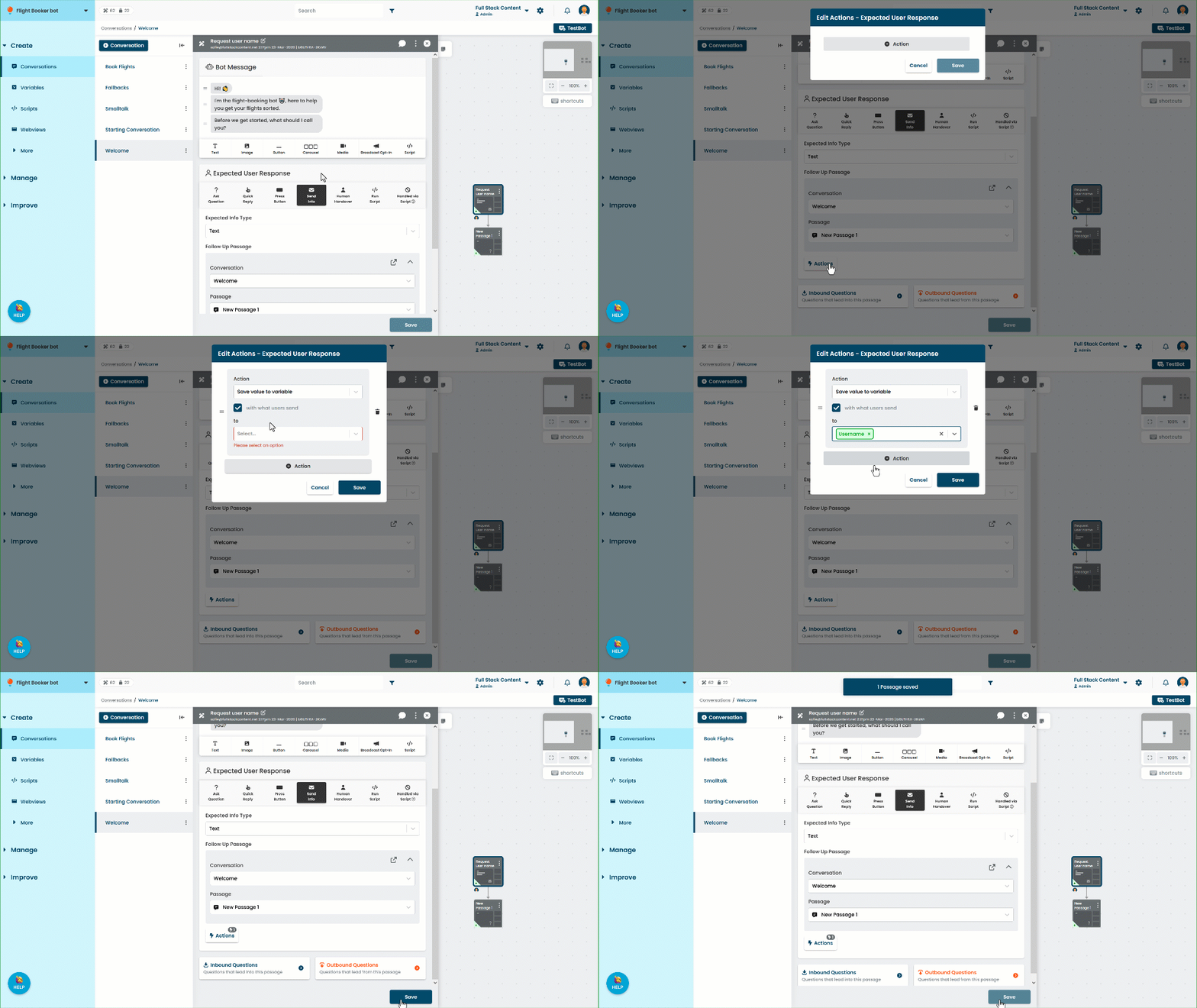
When the chatbot user sends their name in response to the passage, the chatbot stores what they send in the Username variable before it starts the next passage.
The Send Info response created a new passage to send the conversation to. Let's configure that passage to use the variable to address our chatbot user by name.