Delete a constant to delete it and its value from your chatbot. Once you delete a constant:
- Content creators can't add the constant to the chatbot content.
- If the constant has been used in your chatbot content, the placeholder chip is replaced with a deleted chip. Click the chip to delete it from the content.
Are you sure?
Constants that haven't been published are deleted immediately and can't be recovered. Constants that have been published can be reverted from the versions screen until you publish the deletion. Once you've published the deletion, the constant is permanently deleted and can't be recovered.
If you create a new constant with the same name as a deleted one, it is treated as a new constant. It will not replace the placeholder chips of the deleted one.
The deleted constant will remain in your published chatbot until you publish the change. If the constant is still used by passages or logic conditions when you publish the change, those passages and logic are displayed as validation errors during the publishing step. If you publish the change without deleting the constant from those passages and logic, the chatbot uses an empty value for the constant.
Delete a constant
- Click Create > More in the left navigation, then click Constants.
- Click the menu next to the constant you want to delete.
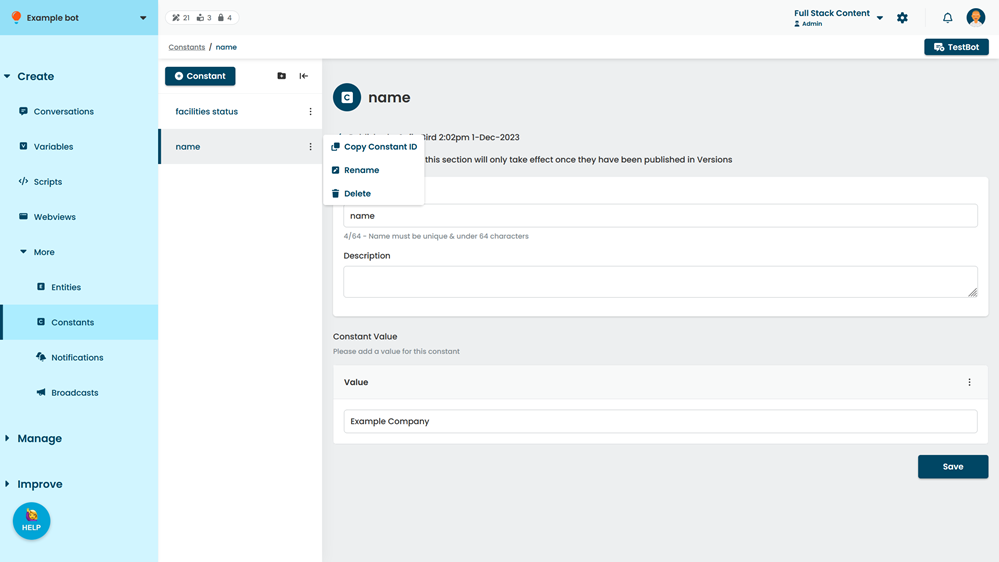
- Click Delete.