Add a Khoros integration to your chatbot and request an access token.
You need an administrator role on your team to add integrations.
To add a Khoros integration:
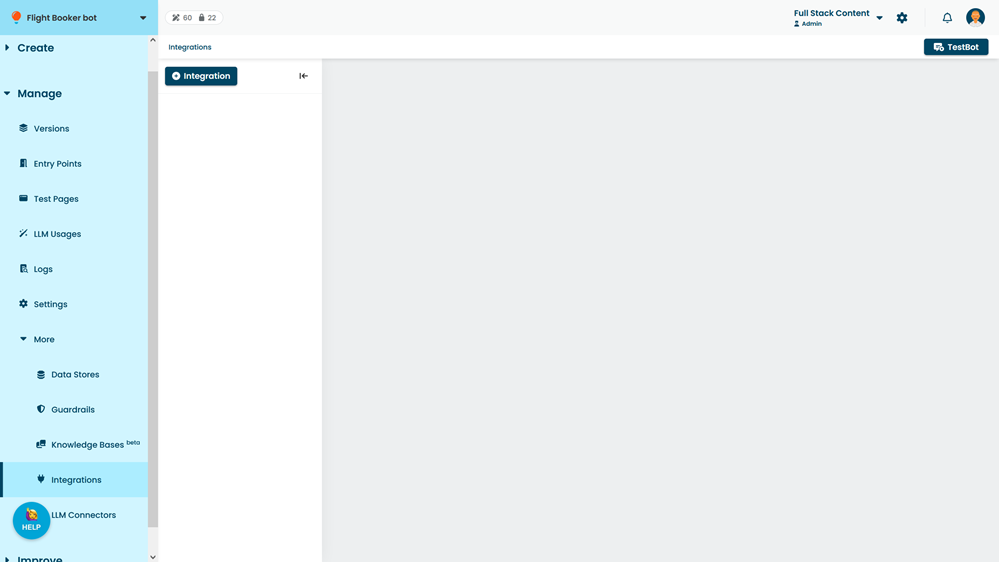
- Click Manage > More in the left navigation, then click Integrations.
- Click + Integration.
- Click Khoros.
- In the Khoros Care Company Domain field, paste your Khoros domain name.
This is the first part of your Khoros URL, after https://.
For example:acmeif your Khoros URL is https://acme.response.lithium.com - Click Request Access Token.
- At the prompt, type in your KhorosCare username and password.
Your username and password are only used to request the access token from Khoros, and are not stored by inGenious AI. - Click Request and Save.
The access token appears in the Access Token field.
Keep this integration open, you'll use it later.