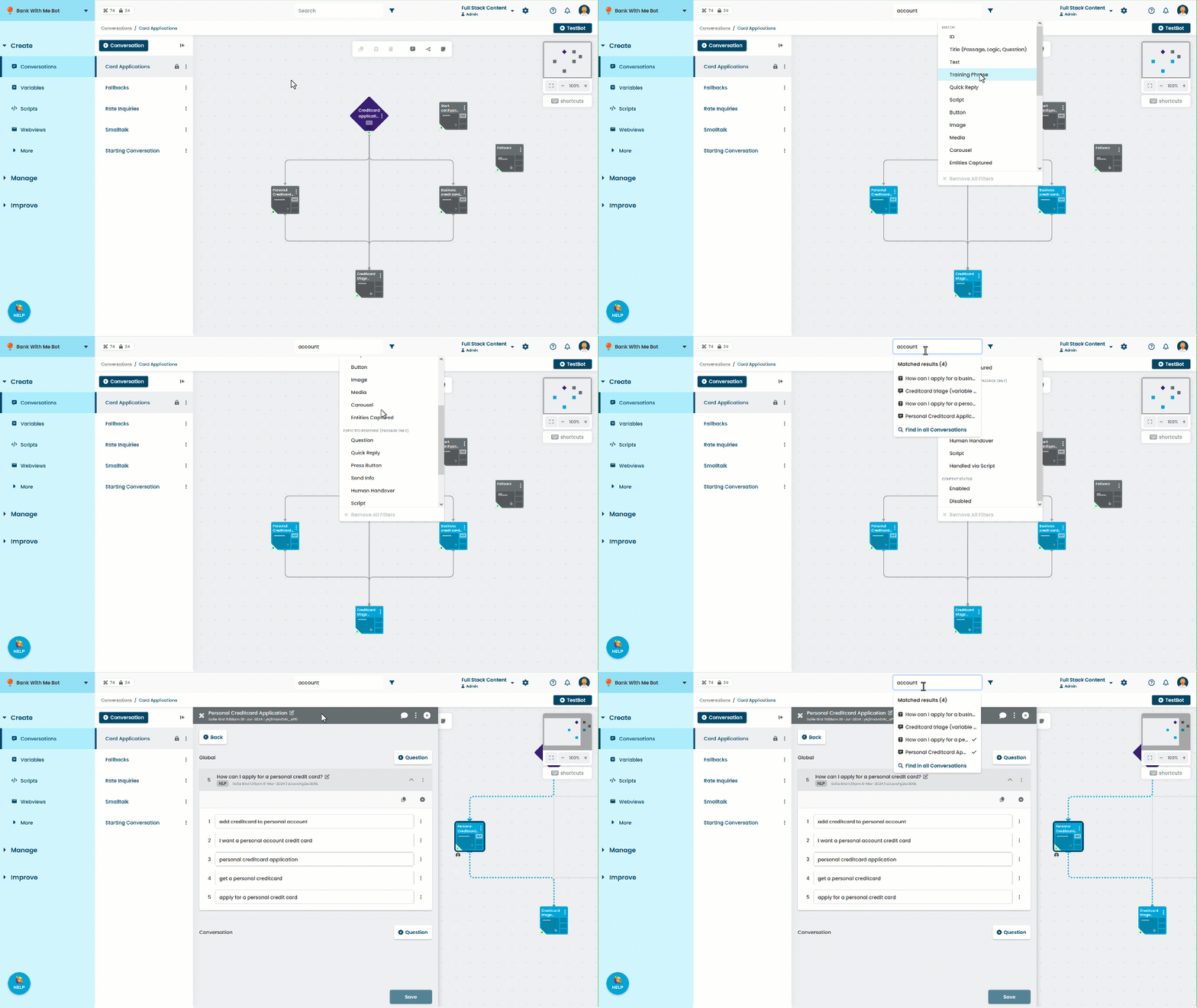
When you have a conversation canvas open, you can search for content within the conversation using the search field at the top. You can search for content that matches anywhere in the passage or logic, restrict your search to specific content types such as training phrases or chatbot button messages, or filter the results to only include enabled or disabled content, or passages that expect a specific user response.
Results that match your search terms are displayed in a list below the search field with an icon that indicates the content type that was matched. Matching passages and logic are also highlighted blue in the conversation canvas. Click the result from the search result list to open the passage, logic, or question.
To search within a conversation:
- Click Create in the left navigation, then click Conversations.
- Click the conversation you want to search.
- Type your search term into the search field at the top.
The passages, logic, and questions that match your search terms are displayed in a list. Any passages or logic that you have already opened from the search results are displayed with a check mark. - If you want to filter the results, click the filter icon to the right of the search field.
You can select multiple filters. - If you can't find the content in this conversation, click Find in all Conversations to repeat the search across all your chatbot content using a global search.
Filter search results
You can filter the results to return only content where the search terms are in:
- The id or title or the passage or logic.
- Content the chatbot sends in the passage, such as text, buttons and media.
- Quick replies
- Training phrases used for inbound or outbound questions.
- Names of entities that are captured.
You can further filter the results to return only:
- Passages that use a selected expected user response, such as handing over to an agent or pressing a button.
- Content that is enabled or disabled.
You can also search all conversations
Using the search field with the conversation canvas open searches just that conversation. If you want to search across all conversations in your chatbot, use the global search. See Finding chatbot content.