Create a knowledge base to contain data sources to use with generative AI features like guardrail filters and question matching.
Vector store knowledge bases allow you to maintain your knowledge base files within the inGenious platform. Each vector store knowledge base can contain up to five data sources of uploaded files, chatbot content, or crawled web pages.
You can also connect your chatbot to an Amazon Web Services Kendra store knowledge base and maintain your files in Amazon Web Services. We recommend contacting inGenious AI support if you're considering connecting a Kendra knowledge base.
In most situations, a single knowledge base with one or more data sources is sufficient. Maintaining multiple knowledge bases is a significant effort, so if you think you need more than one, contact inGenious AI support for advice before you add additional knowledge bases.
New and changed data sources must be published before they will be available to your chatbot. You should sync new or updated data sources to test them thoroughly in TestBot before you publish them.
To create a knowledge base:
- Click Manage > More in the left navigation, then click Knowledge Bases.
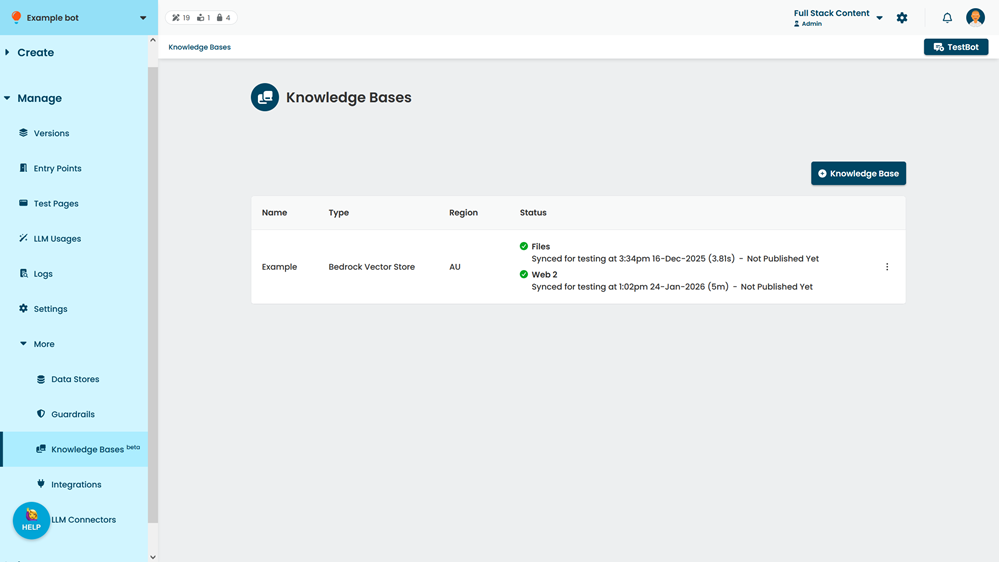
- Click + Knowledge Base.
- Type a Name for your knowledge base.
You can change this later. - Select the Region your knowledge base will be stored in.
This is the region where any crawled or uploaded data source data is stored. Make sure you choose a suitable region for any data sovereignty obligations your organisation has.
Different regions may offer different features for your knowledge base such as different types of storage.
The knowledge base region can't be changed once you've created the knowledge base. - Select the Knowledge Base Type.
Only the knowledge base types that are available for your selected region are listed.
Some knowledge base types may require you to complete additional fields such as an amazon resource name. - Click Create.
- Click the new knowledge base to open it.
- In the Knowledge Base Config panel, type a brief Description of the knowledge base for your team.
This won't be used by the LLM model. - Click Save.
Once you have created a knowledge base, either create a data source to add your data or, if you created a Kendra knowledge base, create your sync schedule.