Integrate with Microsoft Teams so your chatbot users can chat to your inGenious AI chatbot using Microsoft Teams.
To integrate your chatbot with Microsoft Teams:
- Configure a Bot Service in your Microsoft Azure account, and add a Microsoft Teams channel to the Bot Service.
- Add the Bot Service App ID and Client Secret into the inGenious AI platform.
- Create the app package to upload your chatbot app to Microsoft Teams.
- Activate the chatbot in Microsoft Teams.
You need an administrator role on your team to add integrations.
Make sure you have:
- Your inGenious AI chatbot.
- Access to Microsoft Azure, with a resource group created for Bot Services.
- Access to Microsoft Teams, with permission to upload a custom app.
You'll be working with both your inGenious AI chatbot and your Microsoft Azure account throughout this process. It's easiest if you keep both open in their own browser tab or window.
In your inGenious AI chatbot:
- Click Manage > More in the left navigation, then click Integrations.
- Click + Integration.
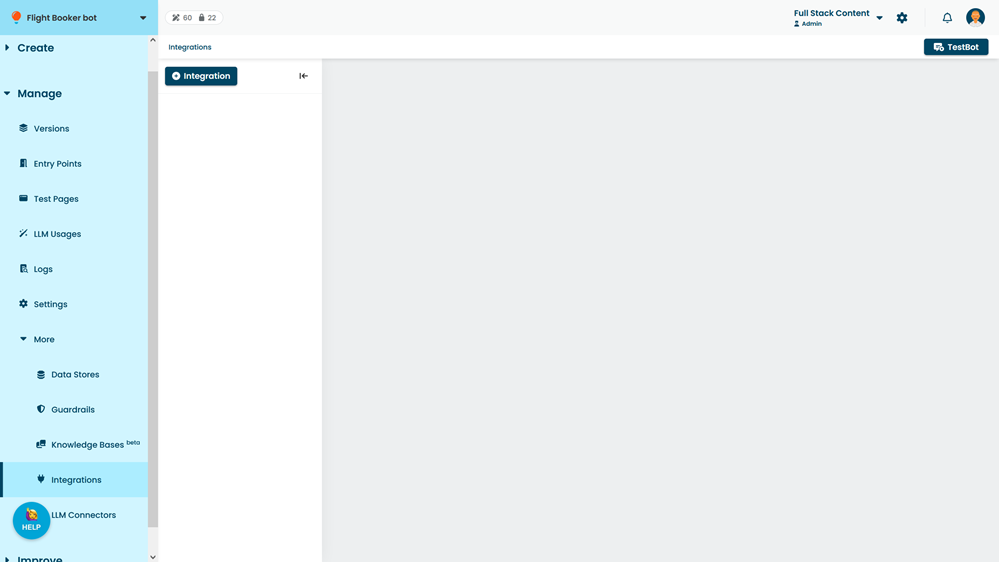
- Click Microsoft Teams.
- Copy the Messaging Endpoint URL to Notepad or another text editor.
Keep the integration open, you'll need it later.
Next: Configure a bot service in your Microsoft Azure account.