Style a page to control the main page colours and test the CSS of your chatbot widget. When styling a page, you can:
- Use the default styling and set a background colour, and a text colour for the page title and page subtitle.
- Add custom CSS code to style the chatbot widget.
You can duplicate a test page and all its child pages to test variations in style.
Test pages are designed to keep things simple so you can focus on testing and styling your chatbot widget. You can't add custom HTML content to test pages, so keep your CSS focussed on just your chatbot widget.
Test page styles are defined in parent test pages only. Child pages inherit all styles and bot widget code from the parent page.
To style your test page:
- Click Manage in the left navigation, then click Test pages.
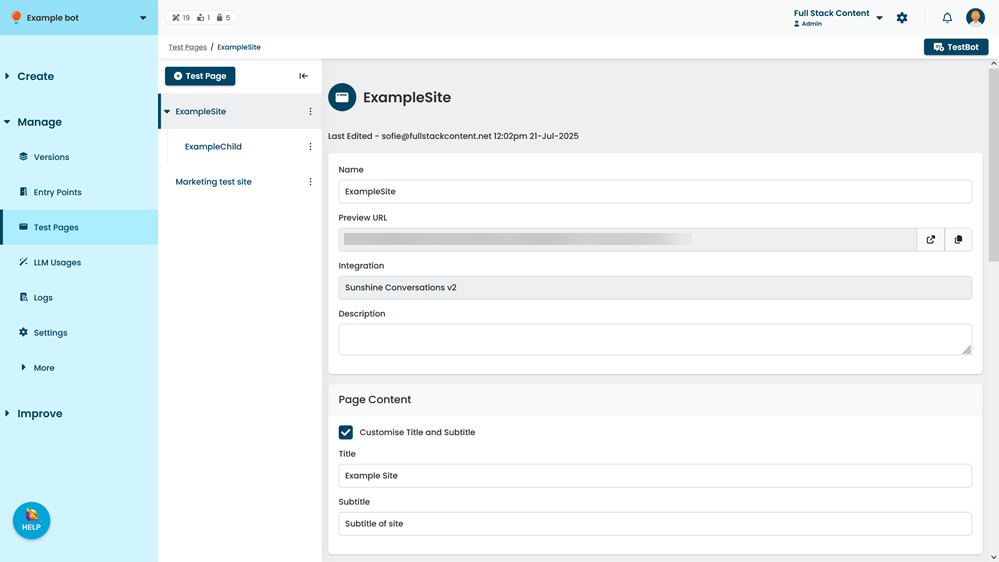
- Click the test page you want to style.
- Scroll down to Page styling.
- If you want to update the test page colours, update the RGB hexadecimal codes for the Background Colour, Page Title Colour and Page Subtitle Colour.
A swatch of the current colour is displayed next to the field. - If you want to add custom CSS for your chatbot widget:
- Select Customised Style Sheet.
- Paste your chatbot widget CSS between the <style> tags.
- Click Save.