You can replace a chatbot's content and settings with the published content and settings from another chatbot using the Import chatbot feature. You can use this to quickly duplicate a chatbot, create a copy of an earlier version of a chatbot, or overwrite one chatbot with another.
You need an administrator role on your team to import chatbots.
Only published content and settings are imported.
All content and settings are replaced
When you import a chatbot, all the content and settings of the original chatbot are replaced with the imported chatbot.
Duplicate a chatbot
To duplicate a chatbot:
- Click the chatbot list in the left navigation and click Create Chatbot.
- Type a Name for your chatbot.
The chatbot will keep the same name after the import. - Click Create.
- Open the chatbot you just created.
Make sure you're in the new chatbot before you proceed! - Click Manage in the left navigation, then click Settings.
- Click Import a Chatbot.
- Select the Team and Chatbot you want to import.
-
Select the Version of the chatbot you want to import.
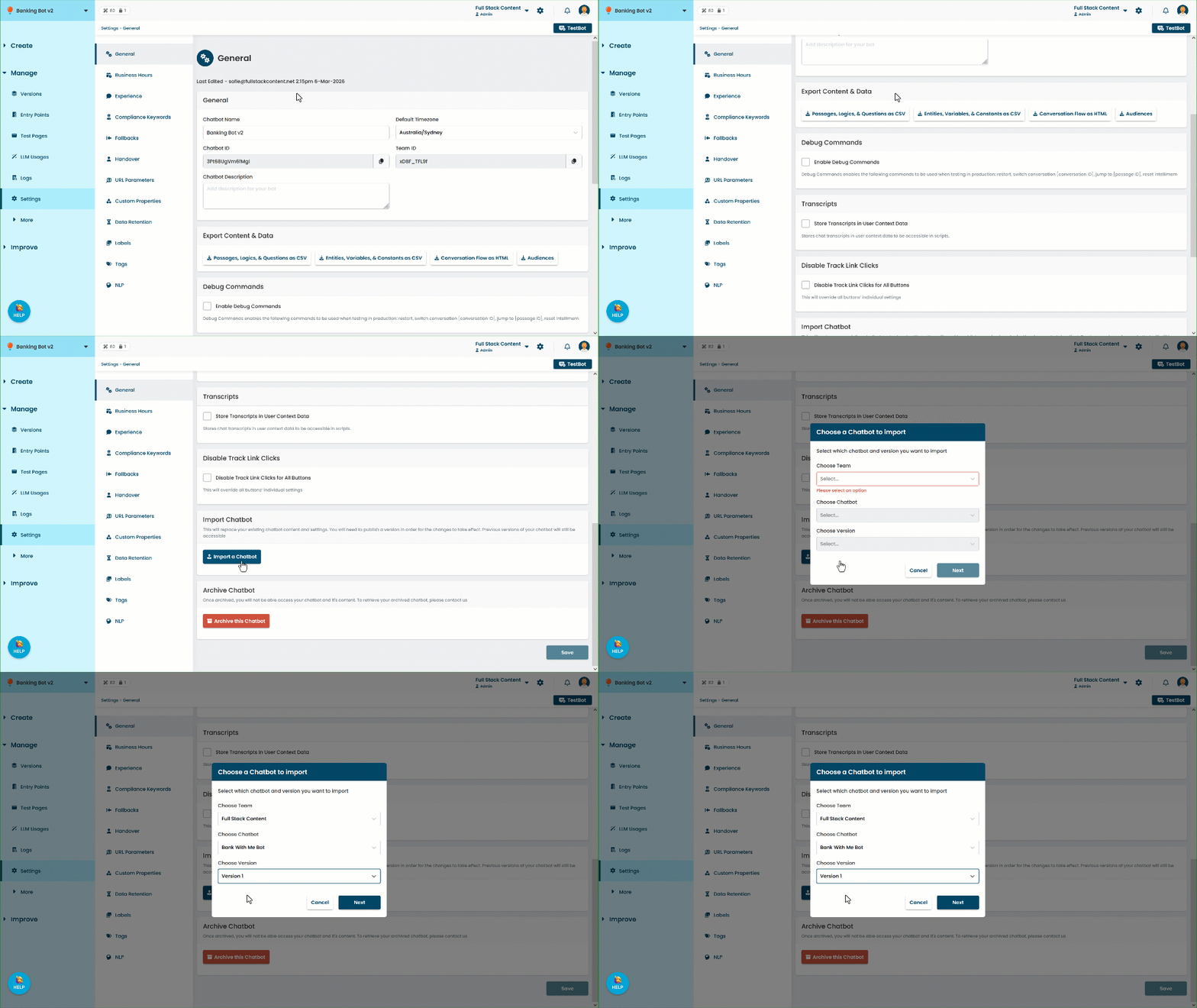
- Click Next.
- Type confirm in the confirmation text field.
- Click Confirm.
Overwrite a chatbot
To overwrite a chatbot:
- Open the team and chatbot that you want to overwrite.
Make sure you're in the chatbot you want to replace. - Open the Manage section of the left navigation and click Settings.
- Click Import a Chatbot.
- Select the Team and Chatbot you want to import.
-
Select the Version of the chatbot you want to import.
- Click Next.
- Type confirm in the confirmation text field.
- Click Confirm.