So far, we've created a variable to store the chatbot user's rate inquiry selection, a passage that prompts the chatbot user with three options, and then stores their selection as a value. Now let's use that variable in our chatbot content to confirm the chatbot user's selection.
Variables can be used almost anywhere in your chatbot content by adding variable placeholder chips. To add a variable, type the @ key and choose the variable you want to use. When the chatbot starts this passage, the chatbot replaces the placeholder chip with the value stored during the conversation.
Let's confirm our chatbot user's selection:
- Click Create in the left navigation, then click Conversations.
- Click the rate inquiries conversation, then click the property valuations passage created by the buttons
- Rename the passage to Confirm rate inquiry option.
- In the text message, type a message to the chatbot user to confirm their choice.
To use the Rate Inquiry variable, type @ and choose the RateInquiry variable. - Click Save.
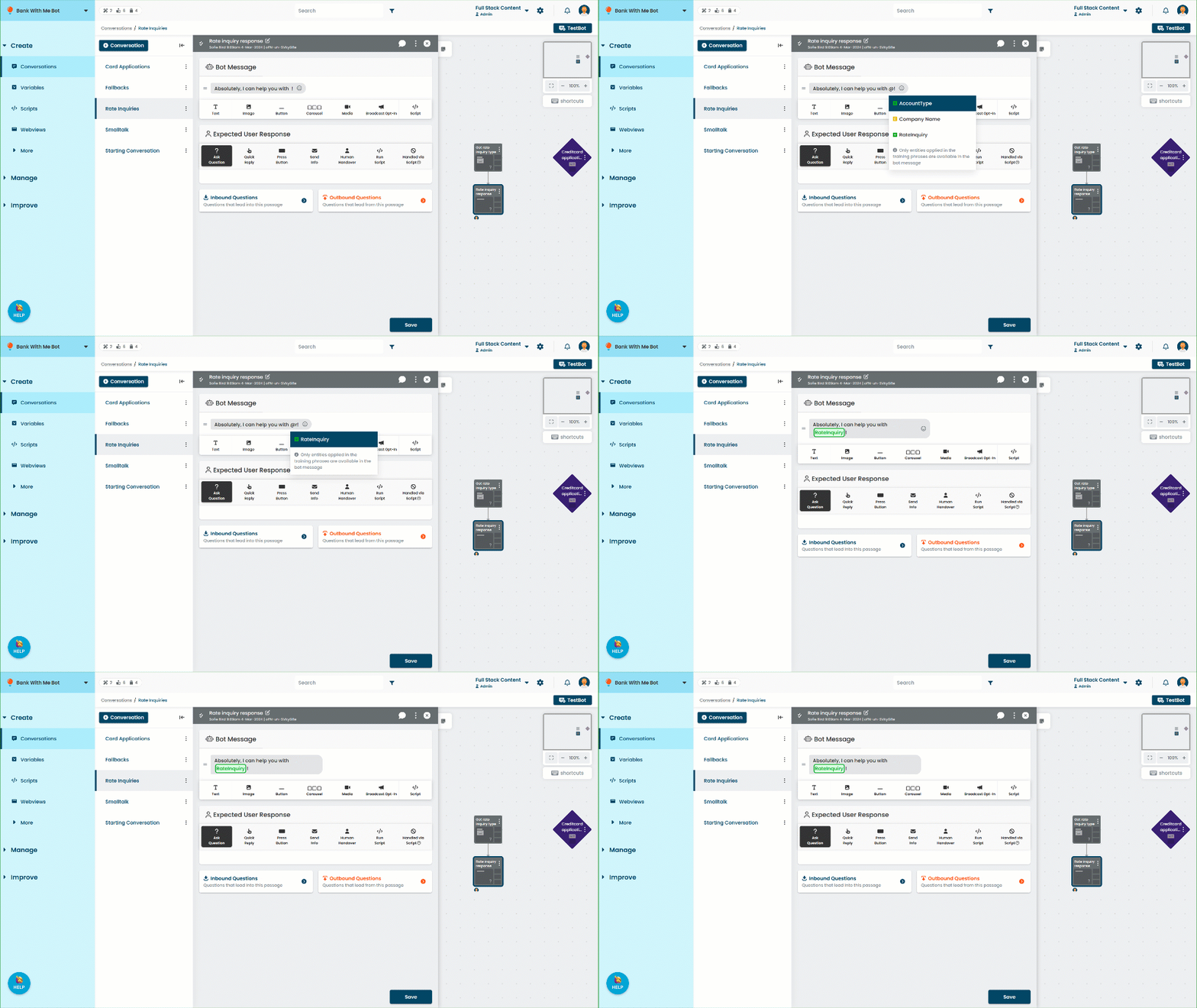
Now the chatbot asks the chatbot user what kind of rate inquiry they're interested in, saves their response to the RateInquiry variable, and uses that value in the next passage to confirm their selection without needing duplicate passages.
When writing content with variables, remember that the variable value will be the default value (or blank, if you haven't set a default) until a value is saved by an action or script during the conversation. In this guide, there are no questions or other passages leading to our confirmation passage, so we know the variable will always have a value.
It's good practice to check whether a chatbot user can reach your passage without the variable being set, or if they might reach a passage after a variable value has expired. If they can, then either add a default value to your variable, or write your chatbot content so that it it will still seem natural if the variable is blank.